
When Bluetooth not working on Windows 11 prevents your headphones, mouse, keyboard, or speaker from connecting, start with simple checks instead of resetting Windows. Make sure Bluetooth is enabled, turn off Airplane mode, charge the accessory, place it near your PC, enable pairing mode, and reconnect it if necessary. If the problem continues, run the Bluetooth troubleshooter, check Device Manager, update or reinstall the Bluetooth driver, restart the Bluetooth service, and install available Windows updates. These steps address common pairing, detection, audio, and connection problems.
Bluetooth problems can result from settings, pairing data, drivers, power management, or temporary Windows issues. Microsoft provides separate troubleshooting guidance for missing Bluetooth, pairing failures, audio problems, and repeated disconnections. Microsoft’s official Bluetooth troubleshooting guide provides additional Windows-specific steps.
Start with the simplest fixes and move to advanced troubleshooting only if necessary.
Why Is Bluetooth Not Working on Windows 11?
There is no single cause behind every Bluetooth problem. The failure may be on the Windows side, the accessory side, or somewhere between the two.
Common causes include:
- Bluetooth is switched off.
- Airplane mode is enabled.
- The Bluetooth accessory has a low battery.
- The accessory is not in pairing mode.
- The accessory is already connected to another device.
- The device is outside a reliable range.
- Old pairing information is causing a connection conflict.
- The Bluetooth driver is outdated or damaged.
- Windows cannot properly detect the Bluetooth adapter.
- A recent Windows or driver update affected the connection.
- Power-saving settings are interrupting the Bluetooth adapter.
- Wireless interference is affecting the connection.
- Windows is connected to the headphones but using another audio output.
- The Bluetooth hardware itself may have a problem.
Microsoft’s current Windows 11 documentation recommends checking Bluetooth compatibility, confirming that Bluetooth is enabled, checking the accessory’s battery and range, removing and re-adding devices, troubleshooting drivers, and reinstalling the adapter when necessary.
Diagnose the Bluetooth Problem Before Fixing It
Different Bluetooth problems usually require different solutions.
| What you’re experiencing | Possible cause | Start with |
|---|---|---|
| Bluetooth is completely missing | Adapter or driver problem | Device Manager |
| Bluetooth is available but can’t find your device | Pairing mode, range, or interference | Check the accessory |
| Device appears but won’t connect | Old pairing information | Remove and re-pair |
| Bluetooth connects and disconnects | Battery, power management, range, or driver | Check battery and power settings |
| Headphones connect but there’s no sound | Incorrect audio output | Check Windows Sound settings |
| Bluetooth stopped after an update | Driver or Windows compatibility issue | Update or roll back the driver |
| Only one accessory refuses to connect | Accessory-specific problem | Test another Bluetooth device |
Once you know which symptom you’re experiencing, start with the easiest relevant fix.
15 Ways To Fix Bluetooth Not Working on Windows 11
1. Make Sure Bluetooth Is Turned On
It sounds obvious, but Bluetooth can be switched off accidentally, particularly when changing wireless settings or using a laptop’s Quick Settings.
In Windows 11, select the Network, Sound, or Battery area on the taskbar and look for Bluetooth. You can also open:
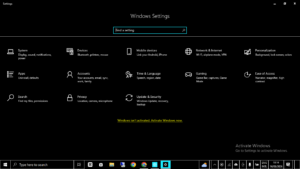
Settings > Bluetooth & devices
Make sure Bluetooth is enabled.
Microsoft notes that if the Bluetooth control is missing entirely, the PC may not have a Bluetooth adapter or its driver may not be installed correctly. Microsoft’s Bluetooth on/off instructions explain what the Windows 11 Bluetooth control should look like and what a missing option can indicate.
2. Turn Airplane Mode Off
If Bluetooth suddenly stopped working, check Airplane mode before touching any drivers.
Select the network, sound, or battery area on the taskbar and make sure Airplane mode is disabled.
Then return to Bluetooth settings and test the connection again.
This takes only a few seconds and can immediately explain why wireless connectivity is unavailable.
3. Turn Bluetooth Off, Wait, and Turn It Back On
If Bluetooth is enabled but appears stuck, give Windows a fresh Bluetooth connection.
- Open Settings > Bluetooth & devices.
- Turn Bluetooth off.
- Wait approximately 10 seconds.
- Turn Bluetooth back on.
- Try connecting your accessory again.
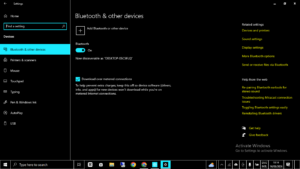
Microsoft includes this simple reset among its recommended Bluetooth troubleshooting steps.
4. Check the Accessory’s Battery and Pairing Mode
Do not assume the laptop is responsible until you have checked the accessory.
Charge the headphones, mouse, keyboard, speaker, or other Bluetooth device. If it uses replaceable batteries, replace them if necessary.
Next, make sure the accessory is actually in pairing mode. Many Bluetooth devices will not appear in Windows simply because they are switched on but not discoverable.
Also check whether the accessory is connected to another nearby device, such as your phone or tablet. If it is, disconnect it there before attempting to pair it with Windows 11.
Microsoft recommends checking that the accessory is powered on, charged, within range, and restarted before moving to more advanced troubleshooting.
5. Move the Bluetooth Device Closer
Place the accessory close to the laptop while troubleshooting. Once the connection works reliably, you can determine how far away you can use it comfortably.
Also consider nearby USB equipment. Microsoft notes that some unshielded USB 3.0 devices can interfere with Bluetooth connections. If your wireless mouse becomes unreliable whenever a particular USB device or hub is connected, temporarily remove that device and test Bluetooth again.
6. Remove the Bluetooth Device and Pair It Again
If Windows can see the accessory but refuses to connect, the stored pairing information may be the problem.
Go to:
Settings > Bluetooth & devices > Devices
Find the affected device, select the three-dot menu, and choose Remove device.
Then:
- Select Add device.
- Choose Bluetooth.
- Put your accessory into pairing mode.
- Select it when it appears.
Microsoft recommends removing and adding the device again when a Bluetooth accessory appears in Windows but will not connect.
7. Restart the Computer
A Windows restart can clear temporary driver or service problems that survive a simple Bluetooth toggle.
Select:
Start > Power > Restart
After Windows starts again, turn Bluetooth on and test the accessory.
This is particularly useful if the problem appeared after waking the laptop from sleep or after a long period of continuous use.
8. Run the Windows 11 Bluetooth Troubleshooter
Windows 11 includes automated Bluetooth troubleshooting through the Get Help app. Search for Get Help and follow the Bluetooth prompts.
You can also check Settings > System > Troubleshoot > Other troubleshooters and run Bluetooth if available. Microsoft’s current guidance recommends automated troubleshooting before making manual changes.
9. Check Bluetooth in Device Manager
Press Windows + X > Device Manager, then expand Bluetooth.
Look for your Bluetooth adapter or radio. A warning icon may indicate a driver or hardware problem. If Bluetooth is missing entirely, Windows may not be detecting the adapter or its driver.
10. Update the Bluetooth Driver
In Device Manager > Bluetooth, right-click the adapter and select Update driver > Search automatically for drivers.
Restart Windows if prompted. If no suitable driver is found, check your laptop manufacturer’s official support website. Avoid random driver-download sites.
11. Install the Manufacturer’s Driver
If Windows says the best driver is already installed, visit the manufacturer’s official support page using your exact laptop model.
Download the correct Windows 11 Bluetooth driver, install it, and restart the computer. This can help after a Windows upgrade, reinstall, or hardware change.
12. Reinstall the Bluetooth Driver
If updating does not help:
- Open Device Manager > Bluetooth.
- Right-click the Bluetooth adapter.
- Select Uninstall device.
- Restart the computer.
Windows should reinstall the driver automatically. If it does not, use Device Manager’s Scan for hardware changes option.
13. Roll Back the Bluetooth Driver
If Bluetooth stopped working after a recent driver or Windows update, try:
Device Manager > Bluetooth > Adapter > Properties > Driver > Roll Back Driver
This option is only available when Windows has a previous driver to restore.
14. Restart the Bluetooth Support Service
Press Windows + R, type services.msc, and press Enter.
Find Bluetooth Support Service, right-click it, and select Restart. This can help with repeated connection or disconnection problems.
15. Check Power-Saving Settings
If Bluetooth connects but repeatedly disconnects, check Energy Saver and the adapter’s power-management settings.
In Device Manager > Bluetooth > Adapter > Properties > Power Management, if available, test whether disabling Allow the computer to turn off this device to save power improves the connection.
These steps can help determine whether Windows power management is contributing to the Bluetooth problem.
How to Fix Bluetooth Headphones Connected but No Sound
This problem is easy to misunderstand because the Bluetooth connection itself may be working perfectly. Windows can show your headphones as connected while sending audio through the laptop’s speakers.
Open:
Settings > System > Sound
Under Output, select your Bluetooth headphones or speaker.
You can also select the sound icon on the Windows taskbar and change the output device there.
Microsoft specifically recommends checking the selected output device when Bluetooth headphones connect without producing sound. Its guidance also recommends checking drivers, reconnecting the device, and installing Windows updates where appropriate.
If Bluetooth Audio Quality Is Poor
If the headphones connect but the audio quality is unexpectedly low, check whether the accessory and computer support the appropriate Bluetooth audio capabilities. Microsoft also recommends checking the audio format and device compatibility for supported configurations.
Do not assume that buying a new pair of headphones will solve a problem that is actually caused by Windows selecting the wrong audio output.
What to Do When Bluetooth Keeps Disconnecting
Repeated disconnections deserve a slightly different approach from a device that will not pair at all.
- Charge the Bluetooth accessory fully.
- Move it closer to the PC.
- Disconnect it from nearby phones and other computers.
- Turn Bluetooth off and on again.
- Remove the device from Windows and pair it again.
- Restart the Bluetooth Support Service.
- Check Energy Saver and power-management settings.
- Update the Bluetooth driver.
- Check Windows Update.
- Test the accessory with another compatible device.
Microsoft identifies power-saving settings, outdated drivers, and temporary system problems as possible causes of repeated Bluetooth disconnections.
Why Did Bluetooth Disappear From Windows 11?
A missing Bluetooth option is different from a Bluetooth accessory that simply will not pair.
Start by checking Settings > Bluetooth & devices. If Bluetooth is missing, open Device Manager and check whether the Bluetooth adapter appears.
If it appears, check for driver warnings and update or reinstall the driver.
If it does not appear, verify that your computer actually includes Bluetooth hardware. Some desktop PCs and other Windows devices do not have built-in Bluetooth.
Microsoft explains that when the Bluetooth control is unavailable, the device may lack a Bluetooth adapter or the appropriate adapter driver may not be installed.
What If Bluetooth Stopped Working After a Windows Update?
Think about when the problem started. If Bluetooth was working normally before a recent update and failed immediately afterward, the update or driver change may be relevant.
Start with Settings > Windows Update > Check for updates. Install any available updates and restart the PC.
Then inspect the Bluetooth driver in Device Manager. If a recent driver caused the problem and Roll Back Driver is available, try it.
Microsoft’s current Bluetooth driver guidance specifically recommends checking Windows Update and using driver rollback when Bluetooth stopped working after a recent driver or Windows update.
If Windows Update itself is causing problems on your PC, you can work through our guide to How to Fix Windows Update Errors: 19 Proven Solutions.
A Practical Example: Bluetooth Headphones Suddenly Stop Connecting
Imagine someone who uses Bluetooth headphones with a Windows 11 laptop every day. The headphones worked yesterday, but today Windows shows them as unavailable.
Instead of immediately reinstalling Windows, a sensible troubleshooting sequence would be:
- Check the headphone battery.
- Make sure the headphones are not connected to a phone.
- Put the headphones into pairing mode.
- Turn Bluetooth off and back on in Windows.
- Remove the headphones from Windows.
- Pair them again.
- Run the Bluetooth troubleshooter if the problem remains.
- Check the Bluetooth driver in Device Manager.
If the headphones then connect, there is no reason to make deeper system changes.
This illustrates an important troubleshooting principle: solve the simplest plausible cause first. A pairing problem does not automatically mean the Bluetooth hardware is defective.
Common Bluetooth Troubleshooting Mistakes
1. Installing Drivers From Unknown Websites
Random driver websites can provide incorrect or unnecessary software. Use Windows Update, Device Manager, or your computer manufacturer’s official support page whenever possible.
2. Uninstalling Unrelated Devices in Device Manager
Device Manager contains many important system components. If you are reinstalling a Bluetooth driver, identify the Bluetooth adapter carefully before removing anything.
3. Assuming the Accessory Is Broken
If possible, test the Bluetooth accessory with another compatible device. If it works elsewhere, the problem is more likely to be related to Windows, the computer’s adapter, or the connection environment.
4. Changing Too Many Settings at Once
Make one change, test Bluetooth, and then continue if necessary. This makes it much easier to identify the solution.
5. Ignoring Simple Causes
A low battery, pairing mode, Airplane mode, or another connected device can create symptoms that look like a technical failure. Microsoft places these basic checks near the beginning of its Bluetooth troubleshooting process for good reason.
When Is the Bluetooth Hardware Probably Faulty?
Software troubleshooting won’t fix a physically damaged Bluetooth adapter.
Hardware becomes more suspicious when:
- Bluetooth disappears completely from Windows.
- The adapter isn’t detected in Device Manager.
- The correct driver is installed but the adapter remains unavailable.
- Bluetooth fails with multiple accessories.
- The same accessory works perfectly on other computers.
- The computer recently suffered physical or liquid damage.
- A USB Bluetooth adapter also fails when tested correctly.
If you’ve exhausted the software fixes and Windows still cannot detect the Bluetooth hardware, professional diagnosis may be necessary.