
If you are wondering how to fix Bluetooth connection problems, start with the basics: make sure Bluetooth is enabled, the accessory is charged and in pairing mode, Airplane mode is off, and the device is nearby. Then restart Bluetooth, remove and re-pair the device, run Windows’ Bluetooth troubleshooter, and update the Bluetooth driver.
These steps cover many common Bluetooth issues without requiring complicated Windows changes and align with Microsoft’s recommended troubleshooting approach.
Why Is My Bluetooth Connection Not Working?
Bluetooth problems can happen for several different reasons, so there is not always one universal fix. A device may be connected to another phone, the battery may be low, Windows may have temporarily lost communication with the Bluetooth adapter, or the installed driver may be outdated or incompatible.
Common causes include:
- Bluetooth is turned off in Windows.
- The accessory is not in pairing mode.
- The accessory is already connected to another device.
- The Bluetooth device is too far from the computer.
- Airplane mode is enabled.
- A temporary Windows Bluetooth glitch is preventing pairing.
- The Bluetooth driver needs an update.
- A recent Windows or driver update created a compatibility problem.
- Power-saving settings are interrupting the Bluetooth adapter.
- The Bluetooth adapter is missing or disabled.
- Nearby wireless or USB equipment is causing interference.
- The accessory itself needs to be reset.
The good news is that most of these problems can be checked from Windows without opening the computer or changing advanced system settings.
Before You Start: Identify What Is Actually Failing
Before trying every solution below, take a minute to identify the exact symptom. This can save you a lot of time.
- Bluetooth is missing completely: Check whether Windows detects the Bluetooth adapter and whether its driver is installed.
- Bluetooth is visible but the device will not pair: Focus on pairing mode, distance, previous connections, and removing the device from Windows.
- The device connects and disconnects: Check drivers, power-saving settings, and interference.
- Headphones connect but there is no sound: Check the selected Windows audio output.
- Bluetooth stopped working after an update: Check the driver and consider rolling it back if the option is available.
If your laptop has broader performance problems, you may also want to check our guide on Why Is My Windows 11 Running Slow? Speed Up Your PC (2026), particularly if several Windows features have started behaving unusually at the same time.
15 Ways to Fix Bluetooth Connection Problems
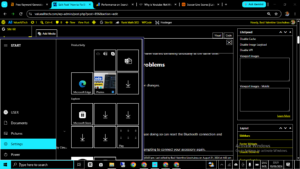
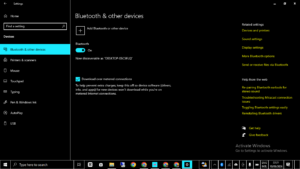
1. Turn Bluetooth Off and Back On
This is the quickest solution and is worth trying before making any major changes.
On Windows 11:
- Open Settings.
- Select Bluetooth & devices.
- Turn Bluetooth off.
- Wait several seconds.
- Turn Bluetooth back on.
Microsoft specifically recommends switching Bluetooth off and on because doing so can reset the Bluetooth connection and resolve temporary connection problems.
Try this: After turning Bluetooth back on, wait a few seconds before attempting to connect your accessory again.
2. Make Sure the Bluetooth Device Is Actually Ready to Pair
Sometimes Windows is working correctly, but the accessory is not available for pairing.
Check that the device:
- Is powered on.
- Has enough battery.
- Is within a reasonable distance of the computer.
- Is in Bluetooth pairing or discovery mode.
- Is not already connected to another nearby device.
For example, imagine you are trying to connect wireless headphones that were previously paired with your smartphone. If the headphones automatically reconnect to the phone, your Windows laptop may not be able to establish the connection.
Turn Bluetooth off temporarily on the phone and put the headphones into pairing mode again.
Microsoft also recommends checking the accessory’s power, battery level, and distance from the Windows device before moving to more advanced troubleshooting.
3. Turn Off Airplane Mode
Airplane mode can interfere with wireless connectivity. Although Windows handles wireless radios intelligently, it is still worth checking if Bluetooth suddenly disappears or refuses to connect.
What to do:
- Open Windows Quick Settings from the taskbar.
- Look for Airplane mode.
- Make sure it is turned off.
- Check Bluetooth again.
If you are also experiencing Wi-Fi problems, see our detailed guide on How to Fix Wi-Fi Not Working on Windows: 19 Proven Solutions (2026 Guide).
4. Move the Bluetooth Device Closer
Bluetooth is designed for relatively short-range communication. Walls, furniture, other wireless devices, and physical obstructions can affect reliability.
For troubleshooting, place the accessory close to the computer. If your headphones work when sitting beside the laptop but repeatedly disconnect when you move across the room, distance or interference may be contributing to the problem.
Microsoft also notes that some unshielded USB 3.0 devices can interfere with Bluetooth connections.
Try this: If you have a USB storage device, hub, or other USB equipment immediately beside a Bluetooth adapter, temporarily move it away and test the connection again.
5. Restart Both Devices
A simple restart can clear temporary software states that prevent Bluetooth from working correctly.
Restart:
- Your Windows computer.
- The Bluetooth accessory.
For a mouse or keyboard, switch it off and back on. For headphones or speakers, power them down completely before starting them again.
This is particularly useful when Bluetooth worked earlier in the day but stopped responding without an obvious change.
6. Remove the Bluetooth Device and Pair It Again
If Windows remembers an old pairing but the connection is no longer working correctly, removing the device and pairing it from scratch can help.
In Windows 11:
- Open Settings.
- Select Bluetooth & devices.
- Open the list of devices.
- Find the affected accessory.
- Select its options.
- Choose Remove device.
- Put the accessory into pairing mode.
- Select Add device.
- Choose Bluetooth.
- Select the accessory when it appears.
Microsoft recommends removing and adding the device again as part of its standard Windows Bluetooth troubleshooting process.
7. Run the Windows Bluetooth Troubleshooter
If manually changing settings does not help, let Windows check the problem.
Windows 11 provides Bluetooth troubleshooting through the Get Help app. Microsoft recommends searching for the Bluetooth troubleshooter in Get Help and following the diagnostic steps.
What to do:
- Open the Get Help app.
- Search for Bluetooth troubleshooter.
- Follow the instructions displayed by Windows.
- Apply any recommended fix.
- Restart the computer if requested.
8. Update the Bluetooth Driver
A Bluetooth driver is the software that allows Windows to communicate with the Bluetooth hardware. If it is outdated, incompatible, or damaged, Bluetooth may disappear, fail to pair, or disconnect repeatedly.
Microsoft identifies outdated or incompatible drivers as a common cause of Bluetooth connection problems.
Try this:
- Right-click the Start button.
- Open Device Manager.
- Expand Bluetooth.
- Right-click your Bluetooth adapter.
- Select Update driver.
- Choose Search automatically for drivers.
- Restart Windows after the update.
If Windows says that the best driver is already installed, check your laptop or PC manufacturer’s official support page. Microsoft notes that the manufacturer may provide a newer driver than the one Windows finds automatically.
9. Reinstall the Bluetooth Driver
If updating the driver does not help, reinstalling it can be the next logical step.
- Open Device Manager.
- Expand Bluetooth.
- Right-click the Bluetooth adapter.
- Select Uninstall device.
- Confirm the removal.
- Restart your computer.
Windows can automatically reinstall the Bluetooth driver after restarting. Microsoft documents this approach as a standard troubleshooting method.
Important: If Bluetooth is essential to your keyboard or mouse, make sure you have another way to control the computer before uninstalling the adapter.
10. Roll Back the Bluetooth Driver After a Recent Update
Sometimes the newest driver is not the best driver for a particular hardware configuration. If Bluetooth worked normally before a recent driver or Windows update, a rollback may be appropriate.
Open:
- Device Manager.
- Bluetooth.
- Your Bluetooth adapter’s Properties.
- The Driver tab.
- Select Roll Back Driver if the option is available.
Microsoft specifically lists driver rollback as an option when Bluetooth stopped working after a recent driver or Windows update.
If several Windows features started malfunctioning after an update, our guide Why Is Windows Update Not Working? 15 Proven Fixes may help you investigate the wider update problem.
11. Restart the Bluetooth Support Service
Windows relies on background services to manage various hardware functions. If the Bluetooth Support Service is stuck, restarting it may restore connectivity.
What to do:
- Press Windows + R.
- Type services.msc.
- Press Enter.
- Find Bluetooth Support Service.
- Right-click it.
- Select Restart.
This approach is also included in Microsoft’s troubleshooting guidance for Bluetooth devices that repeatedly disconnect.
12. Check Power-Saving Settings
If Bluetooth connects successfully but keeps dropping, power management could be involved.
Microsoft recommends checking battery-saving features and the Bluetooth adapter’s power-management settings when Bluetooth repeatedly disconnects.
Try this:
- Open Device Manager.
- Expand Bluetooth.
- Open the Bluetooth adapter’s properties.
- Look for a Power Management tab.
- If available, review the option allowing Windows to turn off the device to save power.
Settings can vary depending on the computer, Bluetooth adapter, and driver, so you may not see exactly the same options on every Windows 11 PC.
13. Check Whether Bluetooth Is Missing From Windows
If Bluetooth is completely absent from Windows Settings, the problem may be different from an ordinary pairing failure.
Microsoft explains that a missing Bluetooth setting can mean the computer does not have a Bluetooth adapter or that the adapter’s driver is not installed correctly.
What to do:
- Open Device Manager.
- Look for a Bluetooth category.
- Also check Other devices for an unknown device.
- Look for warning symbols beside hardware.
Some desktop computers do not include built-in Bluetooth. In that situation, a compatible USB Bluetooth adapter can add Bluetooth capability. Microsoft confirms that a USB Bluetooth adapter can be used on a Windows device that does not have built-in Bluetooth.
14. Check for Windows Updates
Windows updates can include driver improvements, compatibility fixes, and other changes that affect hardware.
Open Settings > Windows Update and check for available updates. Microsoft also recommends using Windows Update when updating Bluetooth drivers.
After installing updates, restart the computer and test the Bluetooth device again.
If Windows Update itself is stuck or failing, avoid repeatedly forcing updates. Instead, follow our guide on How to Fix Windows Update Errors: 19 Proven Solutions In 2026.
15. Test the Bluetooth Device on Another Computer
If none of the Windows solutions work, test the accessory on another compatible computer, phone, or tablet.
This simple test helps separate a Windows problem from an accessory problem.
For example, suppose your Bluetooth speaker will not connect to your laptop. If the speaker connects normally to your phone, the speaker is probably working and you should concentrate on Windows, the Bluetooth adapter, or the laptop driver.
On the other hand, if the speaker cannot connect to any compatible device, the problem may be with the speaker itself.
A Realistic Example: Bluetooth Headphones Suddenly Stop Connecting
Consider a typical situation. Daniel uses Bluetooth headphones with his Windows 11 laptop every morning. One afternoon, the headphones appear in Windows, but clicking Connect does nothing.
Instead of immediately reinstalling Windows or downloading random driver software, he checks the basics.
- The headphones have enough battery.
- His phone’s Bluetooth is temporarily turned off.
- The headphones are placed into pairing mode.
- Bluetooth is turned off and back on in Windows.
- The old headphone entry is removed.
- The headphones are paired again.
The connection works again.
This example illustrates why troubleshooting should start with the simplest explanations. A failed Bluetooth connection does not automatically mean the hardware is damaged.
What If Bluetooth Connects but Keeps Disconnecting?
A Bluetooth connection that works for a few minutes and then drops needs a slightly different approach.
Start with these checks:
- Move the accessory closer to the computer.
- Check the accessory battery.
- Restart both devices.
- Update the Bluetooth driver.
- Check power-saving settings.
- Restart the Bluetooth Support Service.
- Move nearby USB 3.0 equipment away from the Bluetooth adapter.
- Remove the Bluetooth device and pair it again.
Microsoft specifically recommends checking battery-saving settings, Bluetooth power management, the Bluetooth Support Service, and drivers when connections repeatedly drop.
What If Bluetooth Headphones Connect but There Is No Sound?
A successful Bluetooth connection does not always mean Windows has selected the headphones as the active audio output.
Click the sound controls on the Windows taskbar and check the selected output device. Select your Bluetooth headphones or speaker if Windows is using another output.
If the device connects but the audio remains unreliable, remove it from Bluetooth settings and pair it again. Also check whether the manufacturer’s support page provides an updated driver or firmware for the accessory.
If your entire laptop is becoming unusually hot while dealing with multiple background problems, our guide on How to Fix Overheating Laptop: 12 Proven Solutions for 2026 can help you investigate those symptoms separately.
How to Prevent Bluetooth Problems in the Future
Once your Bluetooth connection is working again, a few simple habits can reduce the chance of the problem returning.
- Keep Windows updated.
- Install Bluetooth drivers from your computer manufacturer’s official support page when necessary.
- Keep Bluetooth accessories charged.
- Avoid unnecessary interference around USB Bluetooth adapters.
- Do not keep an accessory paired with too many devices if it frequently switches between them.
- Restart the computer when Bluetooth begins behaving unusually.
- Keep accessories reasonably close to the computer.
For Windows driver updates, Microsoft’s official Bluetooth driver guidance explains how to update, reinstall, or roll back Bluetooth drivers.
When Should You Suspect a Hardware Problem?
Software troubleshooting should normally come first, but there are situations where hardware becomes a reasonable suspect.
Consider hardware as a possibility when:
- Bluetooth is completely absent from Device Manager.
- The adapter repeatedly disappears even after driver troubleshooting.
- The computer cannot detect any Bluetooth accessory.
- The same Bluetooth accessory works normally on several other devices.
- The Bluetooth adapter stopped working after physical damage to the computer.
- A USB Bluetooth adapter is not detected on multiple USB ports and computers.
Do not assume hardware failure based on one unsuccessful pairing attempt. A missing driver or disabled adapter can produce symptoms that look like hardware failure.
Frequently Asked Questions About How to Fix Bluetooth Connection Problems
Why is my Bluetooth connection not working?
Your Bluetooth connection may fail because Bluetooth is disabled, the accessory is not in pairing mode, the device is connected somewhere else, the battery is low, the devices are too far apart, or the Bluetooth driver needs attention. Start with the basic checks before moving to driver troubleshooting.
How do I fix Bluetooth connection problems quickly?
Turn Bluetooth off and back on, restart both devices, check the accessory’s battery and pairing mode, move it closer to the computer, remove the old Bluetooth pairing, and pair the device again. If that fails, run the Windows Bluetooth troubleshooter and check the Bluetooth driver.
Why does Bluetooth keep disconnecting?
Repeated disconnections can be caused by power-saving settings, outdated drivers, interference, distance, low battery, or temporary Windows problems. Microsoft recommends checking power management, restarting the Bluetooth service, and updating the Bluetooth driver for this type of problem.
Why has Bluetooth disappeared from Windows 11?
If Bluetooth is missing completely, Windows may not be detecting the Bluetooth adapter or its driver may not be installed correctly. Check Device Manager for a Bluetooth category or an unknown device. Microsoft notes that missing Bluetooth settings can also occur when the computer does not have a Bluetooth adapter.
Should I uninstall my Bluetooth driver?
If updating the driver does not resolve the issue, uninstalling the Bluetooth adapter and restarting Windows can allow Windows to reinstall the driver. Microsoft includes this as a troubleshooting method, although you should make sure you have another way to control the computer if your keyboard or mouse depends on Bluetooth.
Can a Windows update cause Bluetooth problems?
It is possible for Bluetooth problems to appear after a Windows or driver update, particularly when the installed driver is not fully compatible with the hardware. If Bluetooth worked before an update, check the driver and consider rolling it back if Windows provides that option.
Can I add Bluetooth to a computer that does not have it?
Yes. If your desktop or laptop does not have built-in Bluetooth, you can use a compatible USB Bluetooth adapter. Microsoft confirms that a USB Bluetooth adapter can add Bluetooth capability to a Windows computer.
Final Thoughts On How to Fix Bluetooth Connection Problems
When Bluetooth stops working, troubleshoot it step by step. Check that Bluetooth is enabled, Airplane mode is off, the accessory is charged and nearby, and both devices are restarted. If that fails, remove and reconnect the device, run Windows’ Bluetooth troubleshooter, and update or reinstall the Bluetooth driver. For repeated disconnections, check power management and the Bluetooth Support Service.
For official instructions, see Microsoft’s Bluetooth troubleshooting guide.
If you are learning how to fix Bluetooth connection problems, start with the basic checks before changing drivers. Many issues come from pairing, power, distance, or temporary Windows problems rather than faulty hardware.
1 thought on “How to Fix Bluetooth Connection Problems: 15 Proven Fixes”