
When Windows Update not working leaves your PC stuck on “Checking for updates,” repeatedly fails to install an update, or displays an error code, you usually do not need to reset Windows. Start by restarting the computer, checking your internet connection and available storage, and running the Windows Update troubleshooter. If the problem continues, repair system files with DISM and SFC, restart update services, clear the update cache, and investigate the specific error code before considering a repair installation.
Windows Update delivers security fixes, reliability improvements, feature updates, drivers, and other system components. Because update failures can have several causes, work through the solutions in order rather than changing multiple settings at once.
Quick Answer: What to Do When Windows Update Is Not Working
If Windows Update not working is the problem, try these steps:
- Restart Windows.
- Check your internet connection.
- Make sure you have enough free storage.
- Run the Windows Update troubleshooter.
- Disconnect unnecessary external devices.
- Check Windows Update history for an error code.
- Repair Windows with DISM and SFC.
- Restart Windows Update services.
- Clear the Windows Update cache.
- Retry the update.
- Check Microsoft’s guidance for the specific error.
- Consider a Windows repair installation only if other solutions fail.
Start with the simple fixes before moving to advanced troubleshooting. This approach can resolve many update problems without risking unnecessary changes to your Windows installation.
Why Is Windows Update Not Working?
There is no single reason why an update can fail. Windows Update is a chain of services and processes that scans for applicable updates, downloads the required files, stages them, installs them, and completes the process after a restart. A problem at any stage can make the update appear stuck or unsuccessful.
Common causes include:
- A temporary internet or Microsoft service connection problem.
- Insufficient free storage on the Windows drive.
- Corrupted files in the Windows Update cache.
- Damaged Windows system components.
- A Windows Update service that has stopped or become unresponsive.
- Driver or hardware compatibility problems.
- A previous update that did not finish correctly.
- Third-party security or network software interfering with the update process.
- An update that has been superseded or is not applicable to the particular Windows version.
Microsoft maintains a list of common Windows Update errors because different codes can point toward different causes. For example, the correct solution for a metadata problem may be different from the solution for a network-related error.
Before You Start: Check Your Windows Version
Before changing anything, press Windows + R, type winver, and press Enter. Note the Windows version and build number.
This matters because Windows 11 versions have different servicing periods. Microsoft currently documents Windows 11 24H2, 25H2, and 26H1 among the supported releases, with different end-of-servicing dates depending on the edition.
If you are troubleshooting an older installation, knowing the exact version can prevent you from applying instructions intended for another release.
1. Restart Your Computer
A simple restart is worth trying before using advanced commands. Windows may have a pending operation that cannot complete until the system restarts.
What to do
- Save your work.
- Open Start.
- Select Power.
- Choose Restart.
- After Windows starts again, open Settings > Windows Update.
- Select Check for updates.
If the update installs after the restart, you have solved the problem without making unnecessary system changes.
2. Check Your Internet Connection
Windows Update needs network access to obtain update metadata and files. A connection that works for normal browsing can still experience interruptions during a large download.
Try opening several websites. If the connection seems unreliable, restart your router or switch temporarily to another reliable network.
Also check whether a VPN or proxy is active. If you use one for work or school, do not change network settings without understanding the organization’s requirements.
Microsoft explains that Windows Update uses network communication to retrieve update content, so connectivity and network configuration can affect the update process.
3. Make Sure You Have Enough Free Storage
A Windows update can fail when there is not enough room to download, unpack, stage, and install its files.
What to do
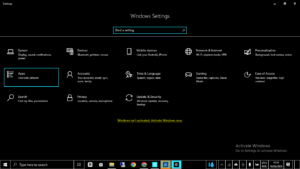
- Open Settings.
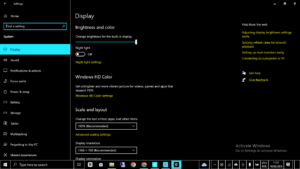
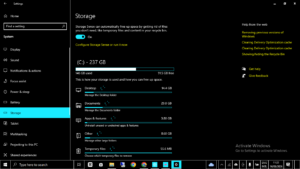
- Go to System > Storage.
- Check the amount of available space on the system drive.
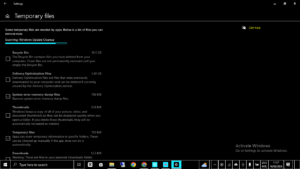
- Open Temporary files.
- Remove files you no longer need.
Do not randomly delete folders inside C:\Windows or other system directories. Use Windows’ built-in storage tools first.
If your computer is generally running slowly because the drive is almost full, freeing space can help beyond Windows Update. You can also read our guide on How to Free Up Disk Space on Windows for a broader cleanup approach.
4. Run the Windows Update Troubleshooter
Windows includes troubleshooting tools designed to identify common problems with update components.
What to do
- Open Settings.
- Select System.
- Choose Troubleshoot.
- Select Other troubleshooters.
- Find Windows Update.
- Select Run.
Follow the recommendations shown by Windows and restart the computer afterward if prompted.
Microsoft’s current Windows Update troubleshooting guidance recommends beginning with diagnostic steps before moving to more advanced repairs.
5. Check Windows Update History
If the update appears to download but refuses to install, check the update history. This can give you a useful error code instead of forcing you to guess.
What to do
- Open Settings.
- Select Windows Update.
- Open Update history.
- Look for the failed update.
- Write down the KB number and any displayed error code.
Search Microsoft’s documentation for the exact code before applying a complicated fix. Microsoft maintains documentation covering common Windows Update error codes and their recommended mitigations.
6. Disconnect Unnecessary External Devices
USB drives, external storage, docking stations, printers, and other accessories can occasionally complicate an update, particularly when Windows is installing drivers or restarting.
Disconnect unnecessary accessories before trying the update again. Keep essential devices such as your keyboard, mouse, display, or network connection as needed.
If the update succeeds afterward, reconnect your devices one at a time. This makes it easier to identify whether a particular peripheral was involved.
If you are experiencing other hardware problems at the same time, our guide on Why Is My Laptop Keyboard Not Working? Fixes for Windows 10 & 11 may help you troubleshoot that separate issue.
7. Repair Windows System Files With DISM
If Windows Update is still failing, corrupted or damaged Windows components may be involved. Microsoft specifically includes DISM in its Windows Update troubleshooting guidance.
What to do
- Right-click the Start button.
- Select Terminal (Admin) or Windows PowerShell (Admin).
- Enter the following command:
DISM /Online /Cleanup-Image /RestoreHealthPress Enter and allow the process to finish. It can take some time, so do not close the window simply because progress appears slow.
When it completes, restart Windows and try Windows Update again.
8. Run System File Checker
After DISM finishes, run System File Checker. This checks protected Windows system files and can repair files that are damaged or missing.
What to do
Open an administrator Terminal and enter:
sfc /scannowWait until the scan reaches 100 percent. Restart the computer afterward.
It is better to let DISM and SFC complete naturally rather than repeatedly interrupting them. These tools are intended to repair Windows components rather than simply bypass the update process.
9. Restart Windows Update Services
Windows Update depends on background services. If one becomes stuck, restarting the related services can sometimes restore normal update behavior.
What to do
Press Windows + R, enter services.msc, and press Enter.
Look for Windows Update. If it is running, right-click it and select Restart. If it is stopped, select Start.
Depending on the particular failure, other Windows components may also be involved. Avoid changing service startup settings unless you know why a particular service needs to be modified.
10. Reset the Windows Update Cache
Sometimes downloaded update data becomes damaged or incomplete. Clearing the relevant update cache forces Windows to create fresh working data.
This is a more advanced solution, so it is worth trying the simpler fixes first.
What to do
Open Terminal (Admin) and stop the Windows Update service:
net stop wuauserv
net stop bits
Then rename the update download cache:
ren C:\Windows\SoftwareDistribution SoftwareDistribution.oldStart the services again:
net start wuauserv
net start bits
Restart Windows and check for updates again.
Renaming the folder rather than immediately deleting it gives you a safer rollback option if you need to investigate further.
11. Check Whether the Update Is Actually Applicable
Not every update package is designed for every Windows installation. Microsoft notes that an update can be reported as “not applicable” for several reasons, including an update having already been superseded.
For example, downloading an older package manually may not help if a newer cumulative update already contains the same fixes.
What to do
- Record the KB number from Windows Update.
- Check Microsoft’s official documentation for that KB.
- Confirm your Windows version and architecture.
- Check whether a newer update has replaced it.
Do not install random update packages from unofficial download websites just because their file name looks similar.
12. Check Drivers and Recently Installed Hardware
A Windows Update problem that began immediately after installing a new driver, graphics device, storage device, or other hardware deserves closer attention.
Open Device Manager and look for devices showing warning symbols. If a driver was recently updated and the problem started afterward, check the manufacturer’s support page for a current compatible driver.
This is particularly useful when Windows downloads an update successfully but fails during the restart or installation stage.
If your PC is also becoming unusually slow, see our guide on Why Is My Windows 11 Running Slow? Speed Up Your PC (2026). Slow performance and update failures can sometimes have a common cause, such as limited storage or excessive background activity.
13. Temporarily Review Third-Party Security or Network Software
Some third-party applications can interfere with network traffic, filtering, or system-level operations. This is especially relevant on managed computers or machines using advanced network filtering.
Do not permanently disable your security software simply to force an update. Instead, check its documentation and update logs for blocked Windows Update connections.
Microsoft’s documentation notes that firewall and proxy rules can affect whether Windows Update can access the required resources.}
14. Use Microsoft’s Official Windows Update Troubleshooting Guidance
If the basic fixes have failed, go directly to Microsoft’s troubleshooting documentation rather than relying on a collection of unrelated commands from forums.
Microsoft’s official Windows Update troubleshooting guide provides a structured process for supported Windows versions, including system repair and guidance for more specific error messages.
You can also review Microsoft’s Windows 11 release information to check supported versions, builds, update history, and known servicing information.
15. Consider a Repair or Recovery Option as a Last Resort
If Windows Update continues to fail after system repair, cache reset, driver checks, and error-code troubleshooting, the underlying Windows installation may need more substantial repair.
Before using a reset or reinstall option, back up important documents, photos, browser data, and other personal files. A recovery operation should not be your first response to an ordinary update failure.
For a computer that has multiple Windows problems—not just one failed update—a repair installation or Windows recovery option may make more sense than repeatedly changing individual settings.
A Practical Example: When Windows Update Gets Stuck at 0%
Imagine a laptop that has been sitting at 0% download for several hours. The internet works normally, but the update never progresses.
A sensible troubleshooting sequence would be:
- Restart the laptop.
- Confirm that the system drive has sufficient storage.
- Run the Windows Update troubleshooter.
- Check Update History for an error code.
- Restart the Windows Update and BITS services.
- Reset the SoftwareDistribution cache if necessary.
- Run DISM followed by SFC.
- Restart and try the update again.
This approach is more reliable than immediately changing registry settings or downloading an unrelated Windows installer from a third-party website.
What If Windows Update Fails With an Error Code?
Do not ignore the code. It can significantly narrow down the investigation.
For example, Microsoft maintains a dedicated list of common Windows Update errors and explains possible causes and mitigations. :contentReference[oaicite:13]{index=13}
Record the complete code, including the 0x prefix where applicable. Then search Microsoft’s documentation using that exact code.
Also record:
- Your Windows version.
- The KB number of the failed update.
- Whether the update downloads or fails before downloading.
- Whether the computer restarts during installation.
- Any message displayed immediately before the failure.
These details make troubleshooting much more precise.
How to Prevent Windows Update Problems in the Future
You cannot prevent every update failure, but a few habits can reduce unnecessary problems.
Keep enough free storage
A nearly full system drive can cause problems well beyond Windows Update. Regularly remove unnecessary temporary files and move large personal files when appropriate.
Install updates regularly
Windows 11 uses monthly quality updates and an annual feature-update cadence. Staying on a supported version helps ensure that your computer continues receiving applicable updates.
Do not interrupt an update installation
If Windows is installing an update, allow it to finish unless the computer is genuinely frozen and there is no reasonable progress after a long period.
Keep drivers compatible
Use your laptop or hardware manufacturer’s official support resources for drivers when Windows identifies a compatibility issue.
Back up important files
A current backup makes major Windows troubleshooting much less stressful. If a problem eventually requires recovery or repair, your important files are already protected.
Frequently Asked Questions About Windows Update Not Working
1. Why is Windows Update not working on my computer?
The cause can range from a temporary network problem to insufficient storage, damaged system files, corrupted update cache data, stopped services, incompatible drivers, or an update-specific issue. Start with the basic checks before using advanced repair commands.
2. How do I fix Windows Update when it is stuck?
Restart Windows, check your internet connection and available storage, run the Windows Update troubleshooter, and check Update History for an error code. If the problem remains, restart update services, reset the update cache, and run DISM and SFC.
3. Can low storage stop Windows Update?
Yes. Updates need free space to download and process their installation files. Check Settings > System > Storage and remove unnecessary files before trying the update again.
4. Should I delete the SoftwareDistribution folder?
You can reset the Windows Update cache by stopping the appropriate services and renaming the SoftwareDistribution folder. Renaming it is preferable to immediately deleting it because it preserves the old folder if further investigation is necessary.
5. Is it safe to use DISM and SFC?
Yes, when the commands are entered correctly in an administrator Terminal. They are built-in Windows repair tools, and Microsoft includes DISM in its current Windows Update troubleshooting guidance.
6. Why does Windows say an update is not applicable?
The update may already be installed or superseded, or the package may not apply to your particular Windows version. Microsoft recommends checking whether the update has been replaced by a newer package.
7. Should I reset Windows if Windows Update fails?
Usually not as a first step. Try the simpler troubleshooting methods, identify the error code, repair system files, reset update components, and consult Microsoft’s current guidance before considering a reset or reinstall.
Final Thoughts on Windows Update Not Working
When Windows Update not working becomes a recurring problem, the best solution is to troubleshoot the failure instead of repeatedly pressing “Check for updates.” Start with the basics: restart the computer, verify the connection, free some storage, run the troubleshooter, and inspect Update History. Then move to DISM, SFC, service checks, and an update-cache reset if necessary. For a specific error code, use Microsoft’s documentation rather than guessing.
Windows Update is a core part of keeping a supported Windows installation current. Microsoft says Windows 11 receives monthly quality updates, and those updates are cumulative, meaning each update generally incorporates previous fixes as applicable.
By following the fixes in order, you can usually identify where the update process is failing and address that specific problem without immediately resorting to a full Windows reset.
3 thoughts on “Why Is Windows Update Not Working? 15 Proven Fixes”