
If you are wondering why your laptop battery draining so fast, the cause may be high screen brightness, demanding apps, background processes, performance settings, wireless connections, poor ventilation, or an aging battery. Start by checking Windows 11’s battery usage, lowering brightness, closing unnecessary apps, using a more efficient power mode, and checking battery health if the problem continues.
Windows 11 includes tools such as Energy saver, Power mode, Energy recommendations, and per-app battery usage to help reduce power consumption. Microsoft’s Windows 11 power settings guide
Why Is My Laptop Battery Draining So Fast?
A laptop battery does not drain at a fixed rate. How quickly it loses charge depends heavily on what the computer is doing.
Browsing a few simple websites requires considerably less power than playing a demanding game, editing high-resolution video, running several virtual machines, or using an application that continuously uses the processor or graphics hardware.
Battery age also matters. Lithium-ion batteries gradually lose capacity as they go through charge and discharge cycles. Microsoft explains that lithium-ion battery capacity decreases over time, meaning an older laptop may naturally provide less runtime than it did when it was new.
That is why troubleshooting should begin with software and workload checks before assuming that the battery itself has failed.
1. Check Which Apps Are Consuming Your Battery
One of the fastest ways to investigate a laptop battery draining so fast problem is to see which applications are using the most power.
Windows 11 provides battery usage information that can help you identify applications that are consuming significant amounts of energy.
What to do:
- Open Settings.
- Click System.
- Select Power & battery.
- Open Battery usage.
- Review the applications shown.
- Look for programs with unusually high battery consumption.
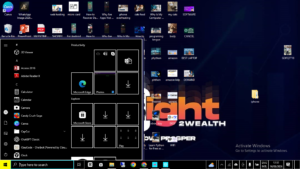
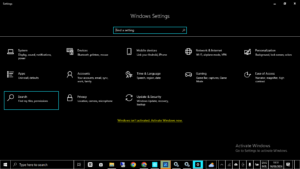
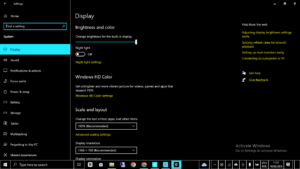
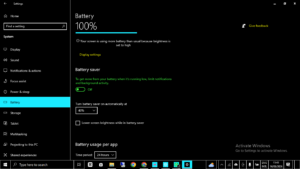
If you see a program that you are no longer using, close it. If a supported application is consuming significant power in the background, Windows may also provide an option to manage its background activity.
Microsoft’s battery-saving recommendations explain how Windows users can review battery usage and adjust background activity.
2. Lower Your Laptop’s Screen Brightness
The display is an important part of a laptop’s power consumption, particularly when brightness is kept very high for long periods.
You do not need to make the screen uncomfortably dark. Instead, use a brightness level that is appropriate for the room you are working in.
Try this:
- Open Settings > System > Display.
- Reduce the brightness slider.
- Use automatic brightness if your laptop supports it.
- Consider lowering the display refresh rate when you do not need a high refresh rate.
Microsoft specifically recommends reducing display brightness and, on supported systems, reducing the refresh rate to help extend battery life.
For example, a 120Hz or 144Hz display can provide smoother movement, but you may not need that refresh rate when writing documents or reading websites on battery power.
3. Change the Windows Power Mode
If your laptop is configured for maximum performance while running on battery, it may consume more energy than necessary during ordinary tasks.
Windows 11 provides power-mode options that allow you to choose between performance and efficiency.
What to do:
- Open Settings.
- Go to System > Power & battery.
- Find Power mode.
- Select a more efficient setting when running on battery.
Microsoft explains that Best power efficiency can reduce power consumption by limiting certain background activity. The exact options can vary depending on your hardware and manufacturer.
You can read Microsoft’s current explanation of Power mode and energy-saving settings in Windows 11 if the option looks different on your laptop.
4. Turn On Energy Saver
Energy saver is useful when you need your laptop to remain usable for longer while you are away from a charger.
Windows can automatically activate the feature at a battery percentage you choose, depending on your system configuration.
Try this:
- Open Settings.
- Select System.
- Click Power & battery.
- Open Energy saver.
- Choose when you want it to activate.
Microsoft says Energy saver manages system processes and power usage to provide a balance between performance and longer battery life.
This can be particularly useful when you are traveling, working from a location without reliable access to electricity, or simply trying to finish a task before the battery becomes critically low.
5. Close Unnecessary Background Applications
Some applications continue working even when you are not actively looking at them. Cloud synchronization, communication applications, browser processes, launchers, and other software can consume processor resources and battery power.
What to do:
- Close applications you have finished using.
- Review unnecessary startup applications.
- Check Task Manager for programs using unusually high CPU resources.
- Remove software you no longer need.
- Restart Windows if an application appears to be stuck.
Do not randomly disable Windows services just because you do not recognize their names. Some system processes are necessary for Windows, networking, security, or hardware functions.
If your laptop is also slow, excessive background activity could be contributing to both problems. Our guide on Why Is My Windows 11 Running Slow? Speed Up Your PC (2026) covers additional performance checks.
6. Reduce Browser Workload
Modern browsers can consume substantial system resources when you have many tabs open, multiple web applications running, videos playing, or numerous extensions installed.
This does not mean you have to close every browser tab. Instead, identify the tabs and extensions that are actually doing work.
Try this:
- Close tabs you no longer need.
- Pause unnecessary video or music playback.
- Remove browser extensions you do not use.
- Use your browser’s built-in sleeping or efficiency features when available.
- Restart the browser if its resource usage becomes unusually high.
As a simple example, someone researching a topic might leave 30 tabs open for several hours. Closing unused pages and allowing inactive tabs to sleep can reduce unnecessary background activity.
7. Reduce Graphics Power Consumption
If your laptop contains both integrated graphics and a dedicated GPU, some applications may use the more powerful graphics processor even when they do not need it.
Games and professional creative applications often benefit from high-performance graphics, but ordinary programs such as document editors and basic web applications generally do not need maximum GPU performance.
What to do:
- Open Windows Search.
- Type Graphics settings.
- Open the graphics settings page.
- Review applications listed under custom graphics options.
- For suitable applications, choose the power-saving graphics option.
Microsoft includes custom graphics preferences among its battery-saving recommendations. Its guidance can be found in the official Windows battery-saving documentation.
Be careful when changing graphics preferences for games or professional applications. Selecting a power-saving GPU may reduce performance, which may not be desirable during demanding workloads.
8. Turn Off Wireless Features You Are Not Using
Wi-Fi and Bluetooth are useful, but you do not always need both enabled.
If you are working offline and do not need wireless communication, turning off unnecessary wireless features can reduce some power consumption.
Try this:
- Turn off Bluetooth when you are not using Bluetooth accessories.
- Disconnect from Wi-Fi when an internet connection is unnecessary.
- Use Airplane mode when you genuinely need to disable wireless communication.
Microsoft includes Wi-Fi and Bluetooth among the settings users can turn off when they are not needed to reduce battery consumption.
If you are also experiencing wireless connection problems, you may want to read How to Fix Wi-Fi Not Working on Windows: 19 Proven Solutions (2026 Guide).
9. Shorten Screen and Sleep Timers
Leaving your laptop awake for 20 or 30 minutes while you are away from the desk wastes energy that could have been saved automatically.
Windows 11 lets you control when the display turns off and when the computer enters sleep mode.
What to do:
- Open Settings.
- Go to System > Power & battery.
- Open Screen, sleep & hibernate timeouts.
- Set shorter times for battery operation.
Microsoft’s Energy recommendations documentation explains that shorter screen-off and sleep periods can reduce unnecessary energy use while the computer is idle.
10. Keep the Laptop Cool
Heat is another factor worth investigating when battery life suddenly becomes poor.
If the processor is constantly working hard, the cooling system may have to operate more aggressively. A laptop placed on a bed, blanket, or other soft surface may also have restricted airflow depending on its design.
Try this:
- Use the laptop on a firm, stable surface.
- Keep ventilation openings clear.
- Check for visible dust around cooling vents.
- Close demanding applications when you are finished with them.
- Monitor whether the laptop becomes unusually hot during simple tasks.
If the fan is constantly loud, the battery is dropping quickly, and the laptop feels unusually hot, the problem may involve workload or cooling rather than the battery alone.
In that situation, see our guide on How to Fix a Laptop Fan That Is Too Loud: 12 Proven Fixes.
11. Keep Windows and Important Drivers Updated
A battery problem that appeared suddenly after a system change deserves a software check.
Start by opening Settings > Windows Update and checking for available updates. For hardware-specific drivers, use the official support website for your laptop manufacturer whenever possible.
Avoid installing several third-party driver-updater programs simply because you want to solve a battery problem. They are unnecessary for most users and can make troubleshooting more complicated.
If Windows Update itself is causing problems, our article Why Is Windows Update Not Working? 15 Proven Fixes provides additional steps.
12. Check the Battery’s Actual Health
If you have already adjusted the major power settings and your laptop battery draining so fast problem remains, it is time to investigate battery health.
Lithium-ion batteries naturally lose capacity as they age. This means a battery can report 100% charge while still holding considerably less energy than it did when the laptop was new.
For example, a laptop that originally delivered seven hours of normal use may eventually provide only four or five hours after significant battery wear. The exact reduction varies by battery, laptop design, workload, temperature, and usage history.
Microsoft explains that lithium-ion battery capacity decreases over time and that power-efficient settings can reduce unnecessary consumption.
Use Windows Battery Report
Windows includes a useful diagnostic command called powercfg /batteryreport. Microsoft documents this command in its Powercfg command-line documentation.
To generate the report:
- Open Command Prompt or Windows Terminal.
- Run
powercfg /batteryreport. - Windows will generate an HTML battery report.
- Open the report location shown in the command output.
- Compare the battery’s Design Capacity with its Full Charge Capacity.
The battery report can provide useful historical information about battery capacity and usage. It is particularly helpful when you are trying to determine whether a problem is caused by battery wear or excessive power consumption.
What Does Design Capacity vs. Full Charge Capacity Mean?
Design Capacity represents the battery capacity it was designed to provide. Full Charge Capacity represents how much energy the battery can currently hold according to the system.
If those numbers are very different, the battery has experienced capacity loss.
For instance, imagine a laptop with a design capacity of 50,000 mWh and a current full-charge capacity of 30,000 mWh. The battery is no longer capable of storing the same amount of energy it could when new.
That does not automatically mean the battery is dangerous or unusable, but it does explain why the laptop may require charging more frequently.
How to Tell Whether the Battery or an App Is the Problem
One useful troubleshooting method is to compare battery behavior under different workloads.
Suppose your laptop loses 50% of its charge in one hour while running a demanding video-editing application. That alone does not prove that the battery is defective.
Close the demanding application and test the laptop with lighter activities such as reading websites or writing documents.
If battery life improves substantially, the workload is likely responsible for much of the drain.
However, if the laptop loses charge rapidly even during light use, investigate the battery’s health and capacity.
What If the Battery Drains While the Laptop Is Not Being Used?
If your laptop loses a noticeable amount of charge while you are not actively using it, check whether it is actually shut down or simply sleeping.
Sleep keeps the computer in a low-power state rather than turning it completely off. Some devices and configurations can continue performing limited activities while asleep.
Try this:
- Perform a complete shutdown.
- Disconnect unnecessary USB devices.
- Disconnect docks and accessories temporarily.
- Check your sleep settings.
- Compare battery loss after a full shutdown.
If significant battery loss continues after a complete shutdown and with accessories disconnected, consult the laptop manufacturer’s diagnostic tools.
Should You Replace the Laptop Battery?
Do not replace the battery simply because your laptop lasts less time than it did when new.
First determine whether the reduced runtime is caused by battery wear or increased power consumption.
A replacement may be reasonable when:
- The battery has lost substantial usable capacity.
- The laptop shuts down unexpectedly while showing remaining charge.
- The manufacturer’s diagnostic tool reports poor battery health.
- Battery runtime has become impractical for your normal work.
- Power-saving adjustments no longer provide enough improvement.
When purchasing a replacement, use a battery that is specifically compatible with your laptop model and follow the manufacturer’s service instructions.
Important: What If the Battery Is Swollen?
A physically swollen or deformed battery is different from an ordinary battery that simply has reduced capacity.
If you notice that the laptop’s bottom panel is bulging, the touchpad is lifting, or the battery appears physically swollen, do not press on the battery, puncture it, or attempt to force it back into shape.
Follow the manufacturer’s battery-safety and service instructions and seek appropriate professional assistance.
Best Battery Settings for Everyday Windows 11 Use
If you mainly use your laptop for browsing, writing, email, research, and video calls, you can create a practical battery-saving setup without making the computer frustratingly slow.
A good starting configuration is:
- Use an efficient power mode while unplugged.
- Keep brightness at a comfortable moderate level.
- Enable Energy saver when appropriate.
- Use shorter screen and sleep timers.
- Close demanding applications when finished.
- Reduce unnecessary browser tabs and extensions.
- Turn off Bluetooth when it is not needed.
- Use a lower display refresh rate for basic work if desired.
- Keep cooling vents unobstructed.
- Review Battery usage when battery life suddenly changes.
Microsoft’s current Energy recommendations feature can also identify settings that have a significant effect on power consumption, although the available recommendations vary by device.
Common Mistakes That Make Battery Drain Worse
Running maximum performance for simple tasks
High-performance power settings can be useful for demanding workloads, but they are unnecessary for many everyday tasks.
Keeping brightness at 100%
A very bright screen can consume more power. Reduce it to a comfortable level when possible.
Leaving demanding programs open
An application can continue using CPU, GPU, memory, network, or storage resources even when it is not the window you are currently using.
Blocking cooling vents
Using a laptop on a soft surface can restrict airflow on some models and contribute to higher temperatures.
Replacing the battery too quickly
Battery drain is not always a battery-health problem. Check battery usage and power settings before spending money on a replacement.
Frequently Asked Questions
Why is my laptop battery draining so fast all of a sudden?
A sudden change can be caused by a demanding application, background processes, high brightness, a high refresh rate, graphics usage, changed power settings, or a software change. Start with Windows Settings > System > Power & battery > Battery usage.
How can I stop my laptop battery from draining so fast?
Reduce screen brightness, use an efficient power mode, enable Energy saver, close unnecessary applications, reduce background activity, shorten screen and sleep timers, and check battery health if the problem continues.
Does screen brightness affect laptop battery life?
Yes. A brighter display generally requires more power. Reducing brightness to a comfortable level can help extend runtime, especially during long sessions away from the charger.
Does Windows 11 have a battery-saving mode?
Yes. Windows 11 includes Energy saver, along with other power-management settings. The exact features available can depend on your Windows version and hardware.
How do I check my laptop battery health?
You can use your laptop manufacturer’s diagnostic software or generate a Windows battery report with powercfg /batteryreport. The report can help you compare the battery’s original design capacity with its current full-charge capacity.
Can too many Chrome tabs drain my laptop battery?
Yes. Browser tabs, web applications, video playback, and extensions can use CPU, memory, graphics, and network resources. Closing unnecessary tabs and using browser efficiency features can reduce the workload.
Can overheating cause fast battery drain?
Heat can be associated with increased cooling activity and heavy processor workloads. If the laptop is hot, the fan is constantly running, and battery life is poor, investigate both cooling and application usage.
Should I keep my laptop plugged in all day?
Charging behavior varies by device. Many modern laptops include battery-management or smart-charging features designed to manage charging. Check your laptop manufacturer’s recommendations rather than relying on a universal charging rule.
How do I know if my laptop battery needs replacement?
If the full-charge capacity has fallen substantially, runtime is consistently poor during light tasks, the manufacturer’s diagnostics report degraded health, or the laptop shuts down unexpectedly, battery replacement may be worth considering.
1 thought on “Why Is My Laptop Battery Draining So Fast? How to Find the Real Cause”