
Seeing Windows Update stuck at 0% does not always mean the update is broken. The cause may be a connection issue, low storage, busy update services, corrupted download files, or damaged system files. Start by keeping the PC plugged in, checking your internet and storage, restarting Windows, and running the Windows Update troubleshooter. If it remains stuck, try the advanced fixes before resetting or reinstalling Windows.
Microsoft also recommends checking internet access, available disk space, external devices, and update components when troubleshooting Windows Update. Microsoft’s official Windows Update troubleshooting guide
Why Is Windows Update Stuck at 0%?
When an update remains at 0%, Windows may be having trouble beginning the download, communicating with Microsoft’s update servers, preparing the update package, or accessing the local components required to process it.
The most common causes include:
- Unstable or restricted internet access.
- Windows Update services that are temporarily unavailable.
- Corrupted files in the Windows Update download cache.
- Not enough free storage.
- A previous update that did not finish correctly.
- Damaged Windows system files.
- Third-party security software interfering with the update.
- VPN, proxy, or network configuration problems.
- Driver or software conflicts.
- A temporary Windows Update service or server-side issue.
The important point is that Windows Update stuck at 0% does not automatically mean your laptop needs a factory reset. Work from the least disruptive fix toward the more advanced options.
Before You Start: Do Not Force a Shutdown Too Quickly
If the percentage has only recently reached 0%, give Windows some time. Large updates can require preparation before visible download progress changes. The percentage displayed by Windows is not a perfect real-time measurement of every operation happening in the background.
If the computer is still responsive, avoid repeatedly holding the power button. Save your work and allow Windows to complete whatever background activity it is performing.
However, if the computer has been completely unresponsive for a long period and normal restart options do not work, a forced restart may eventually be necessary. If you reach that point, let Windows boot completely before trying the update again.
15 Ways to Fix Windows Update Stuck at 0%
1. Check Your Internet Connection
The first thing to check is surprisingly simple: make sure your computer actually has a reliable internet connection.
Open a browser and visit several websites. If pages load slowly or fail intermittently, the update may be unable to download the required files.
Try this:
- Reconnect to your Wi-Fi network.
- If possible, test an Ethernet connection.
- Restart your router.
- Temporarily disconnect from a problematic VPN.
- Try Windows Update again.
Microsoft also recommends confirming that the device is connected to the internet before moving to more advanced update repairs.
2. Restart the Computer
A normal restart can clear a temporary Windows Update process that has become unresponsive.
Select Start > Power > Restart. Once Windows loads again, open Settings > Windows Update and select Check for updates.
This is particularly useful if the update started after Windows had been running for several days without a proper restart.
If your entire computer has become sluggish during the process, you may also want to check our guide on Why Is My Windows 11 Running Slow? Speed Up Your PC (2026).
3. Connect the Laptop to Power
If you are using a laptop, connect its charger before continuing. Windows can manage certain update operations differently when a device is running on battery power.
Keeping the computer connected to power also prevents the battery from running out during an update installation.
Place the laptop on a hard, stable surface while updating rather than covering its ventilation openings. If the computer becomes unusually hot, see our guide on How to Fix Overheating Laptop: 12 Proven Solutions for 2026.
4. Check Available Storage
A lack of storage is another common reason an update may fail to proceed normally. Windows needs room not only for the downloaded update but also for temporary files and installation operations.
Go to:
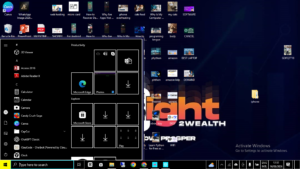
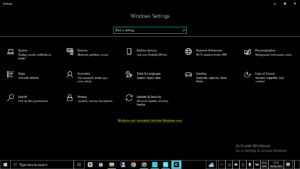
Settings > System > Storage
Look at the available space on the system drive, normally the C: drive.
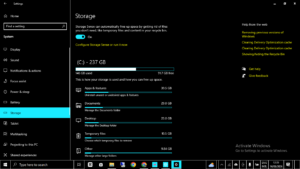
If storage is almost full, remove unnecessary temporary files, uninstall applications you no longer use, empty the Recycle Bin, or move large personal files to another storage location.
Microsoft’s troubleshooting documentation specifically identifies insufficient disk space as a potential cause of Windows Update failures.
5. Run the Windows Update Troubleshooter
Windows 11 includes an automated troubleshooting process designed to identify common update problems. This should be one of your first serious troubleshooting steps because it does not require you to manually modify system folders.
Go to:
Settings > System > Troubleshoot > Other troubleshooters
Find Windows Update and select Run.
Follow the instructions shown on screen and restart the computer when requested.
Microsoft currently recommends starting with the automated Windows Update troubleshooter in the Get Help app on Windows 11. You can also consult the official Windows Update Troubleshooter instructions.
6. Check Windows Update Services
Windows Update depends on background services. If one of the required services is stopped or behaving incorrectly, the update may remain at 0%.
Press Windows + R, type:
services.msc
and press Enter.
Look for Windows Update. You can also inspect related services such as Background Intelligent Transfer Service (BITS).
Do not randomly change service settings. If Windows Update is stopped, right-click it and select Start. If it is already running, a restart of the service can sometimes clear a temporary problem.
7. Disconnect Unnecessary USB Devices
Remove external drives, USB hubs, docks, printers, memory cards, and other hardware that is not needed while troubleshooting the update.
This does not mean external hardware is usually responsible for a stuck update. Instead, it removes potential driver and hardware conflicts from the equation.
Leave essential devices such as the keyboard, mouse, and display connected if needed.
If you are experiencing several Windows hardware problems at the same time, our guide on Why Is My Laptop Keyboard Not Working? Fixes for Windows 10 & 11 may help with a separate keyboard-related issue.
8. Temporarily Disconnect a VPN or Proxy
A VPN or proxy can change how your computer communicates with online services. If Windows Update is struggling to establish or maintain its connection, temporarily disconnecting from a VPN is a useful diagnostic step.
After disconnecting, restart Windows Update and check whether the percentage begins moving.
If the update works without the VPN, the problem may be related to the network configuration rather than Windows Update itself.
9. Reset the Windows Update Download Cache
If an update was interrupted during an earlier download, the locally stored update files may be incomplete or corrupted. Resetting the Windows Update cache can force Windows to create a fresh download.
Microsoft documents a method involving the Windows Update service and the SoftwareDistribution folder.
One approach is:
- Press Windows + R.
- Type
services.mscand press Enter. - Find Windows Update.
- Right-click it and select Stop.
- Open
C:\Windows\SoftwareDistribution. - Delete the contents of the folder.
- Return to Services.
- Start Windows Update again.
- Restart the computer.
- Check for updates.
Do not delete unrelated Windows folders. The purpose here is to clear the update download cache, not remove Windows system files.
10. Restart the BITS Service
Background Intelligent Transfer Service, commonly called BITS, helps Windows transfer data in the background. If BITS is not working properly, downloads can behave unexpectedly.
Open services.msc, locate Background Intelligent Transfer Service, and check its status.
If the service is stopped, starting it may resolve the problem. If it is running but appears stuck, restarting it can be worth trying.
11. Repair Windows System Files With DISM
If the simpler fixes do not work, damaged Windows components may be involved. Microsoft’s troubleshooting guidance recommends using DISM to repair the Windows image and then running System File Checker.
Open Command Prompt as administrator and run:
DISM.exe /Online /Cleanup-image /Restorehealth
Wait for the operation to finish. It can take some time, so do not close the window simply because the percentage appears to pause.
After DISM completes, continue with the next step.
12. Run System File Checker
System File Checker can scan protected Windows system files and attempt to repair corrupted files.
In an administrator Command Prompt, run:
sfc /scannow
Allow the scan to reach 100%. When it finishes, restart your computer and try Windows Update again.
This combination of DISM followed by SFC is more appropriate than randomly downloading replacement system files from third-party websites.
13. Check for Driver Problems
Drivers can sometimes interfere with Windows updates, particularly when a feature update introduces compatibility issues.
Open Device Manager and look for devices displaying warning symbols. Pay particular attention to graphics, network, storage, and chipset-related hardware.
Use the laptop manufacturer’s official support page for driver updates whenever possible rather than downloading drivers from unknown websites.
If your computer has several performance problems at the same time, our guide on Why Is My Computer Using So Much RAM? 12 Proven Fixes for 2026 can help you investigate whether memory usage is contributing to the slowdown.
14. Try a Clean Boot
A clean boot starts Windows with a minimal set of drivers and startup programs. This can help identify whether another application or background service is interfering with Windows Update.
A clean boot is more advanced than restarting a service, so change only the settings you understand and record what you changed. After testing, restore the normal startup configuration.
This method can be particularly useful when an update works immediately after startup but repeatedly becomes stuck after your normal collection of applications loads.
15. Use Windows 11’s Update Recovery Option
If Windows Update stuck at 0% continues after the troubleshooting steps above, Windows 11 provides a recovery option on supported systems that can reinstall the current version of Windows while preserving applications, files, and settings.
Go to:
Settings > System > Recovery
Look for Fix problems using Windows Update and, if available, select Reinstall now.
Microsoft says this option reinstalls the same version of Windows, repairs system files and components, and preserves apps, files, and settings. Keep the PC connected to power and the internet during the process.
See Microsoft’s official explanation of how to repair Windows by reinstalling the current version before using this option.
A Practical Example: When an Update Remains at 0%
Imagine a Windows 11 laptop with plenty of storage that suddenly shows an update at 0% for several hours. The owner has a working browser connection but is connected through a VPN and has not restarted the laptop for several weeks.
A sensible troubleshooting sequence would be:
- Save all work.
- Connect the laptop to power.
- Disconnect the VPN temporarily.
- Restart Windows.
- Run the Windows Update troubleshooter.
- Check available storage.
- Try the update again.
If the update still refuses to move, the next logical step would be to reset the Windows Update cache rather than immediately reinstalling Windows.
This illustrates why troubleshooting should be methodical. Changing ten things at once makes it difficult to know what actually solved the problem.
What If Windows Update Is Stuck at 0% After a Restart?
If Windows Update stuck at 0% remains after restarting, do not immediately assume the update is permanently broken.
Work through these checks in order:
- Confirm internet access.
- Check free storage.
- Run the Windows Update troubleshooter.
- Disconnect unnecessary external devices.
- Temporarily disconnect VPN or proxy services.
- Check Windows Update and BITS services.
- Reset the SoftwareDistribution cache.
- Run DISM and SFC.
- Investigate driver conflicts.
- Use Windows Update recovery if the problem persists.
If Windows itself is becoming slow while you troubleshoot, you can also review Why Is My Windows 11 Running Slow? Speed Up Your PC (2026) for additional performance checks.
What Not to Do When Windows Update Is Stuck
Some troubleshooting advice found online can make the situation worse. Avoid these shortcuts unless you fully understand what they do.
- Do not download random Windows system files from unofficial websites.
- Do not delete folders outside the specific Windows Update cache locations.
- Do not repeatedly force the computer off while Windows is actively installing an update.
- Do not disable security software permanently.
- Do not run unknown registry-cleaning utilities simply because an update is stuck.
- Do not use multiple automated “PC repair” applications at the same time.
For Windows troubleshooting, official Microsoft documentation is generally the safest starting point because the procedures are designed around supported Windows components.
When the Problem May Not Be Your Computer
Sometimes everything on your PC is functioning correctly, but a particular Windows update has a temporary problem. Windows Update depends on online services, update packages, compatibility checks, and Microsoft’s release infrastructure.
If several troubleshooting steps fail and the same update continues to cause problems, check Microsoft’s current Windows release information and known issues before making major changes to your installation.
The Microsoft Windows Update support documentation also lists common error codes and recommended troubleshooting paths.
How to Identify the Real Cause
A useful way to troubleshoot Windows Update stuck at 0% is to treat each solution as a test.
| What you notice | Likely area to investigate | Best first step |
|---|---|---|
| Websites also fail to load | Internet connection | Reconnect Wi-Fi or test Ethernet |
| Drive is nearly full | Storage | Free up space |
| Update works after restart | Temporary process problem | Restart Windows before troubleshooting further |
| Several update attempts fail | Update cache or system components | Reset update components |
| Windows reports corrupted files | System integrity | Run DISM and SFC |
| Only one computer has the issue | Local configuration | Run Windows troubleshooting tools |
| Update fails after a driver change | Driver compatibility | Review Device Manager and manufacturer drivers |
Frequently Asked Questions About Windows Update Being stuck at 0%
1. Why is Windows Update stuck at 0%?
Windows Update stuck at 0% can be caused by an unstable internet connection, insufficient storage, a temporary service problem, corrupted update-cache data, damaged system files, VPN or proxy interference, or driver and software conflicts. Start with a restart, internet check, storage check, and Windows Update troubleshooter before using advanced repairs.
2. How long should Windows Update stay at 0%?
There is no universal time limit because update size, computer performance, connection speed, and the specific update all matter. If the computer is responsive and the update has only recently started, give it some time. If the percentage remains unchanged for an unusually long period, begin troubleshooting rather than repeatedly forcing the computer off.
3. Can restarting fix Windows Update stuck at 0%?
Yes. A restart can clear temporary processes and services that are preventing Windows Update from progressing. It is one of the safest first steps before attempting cache resets or command-line repairs.
4. Will deleting the SoftwareDistribution folder delete my personal files?
The SoftwareDistribution folder is used by Windows Update to store update-related data. Microsoft’s troubleshooting instructions include clearing its contents when update-cache corruption is suspected. You should follow Microsoft’s procedure carefully and avoid deleting unrelated Windows folders.
5. Should I run SFC or DISM first?
When repairing Windows system components for an update problem, Microsoft documents using DISM to repair the Windows image followed by sfc /scannow to check protected system files. Allow each command to finish before running the next one.
6. Can low storage cause Windows Update to stay at 0%?
Yes. Windows needs sufficient free space to download, unpack, and install updates. Check Settings > System > Storage and remove unnecessary files if your system drive is nearly full.
7. Should I disable antivirus software to fix Windows Update?
Third-party security software can sometimes interfere with updates, but permanently disabling protection is not recommended. If you suspect a conflict, follow Microsoft’s guidance carefully and restore security protection after testing.
8. What if none of these fixes work?
If the normal troubleshooting steps fail, investigate the specific Windows Update error code, check Microsoft’s current Windows release information, and consider the Windows 11 Fix problems using Windows Update recovery option if it is available on your device. Back up important personal files before undertaking major repairs.
Final Thoughts On Windows Update Being Stuck At 0%
When Windows Update stuck at 0%, start with simple checks: keep the laptop plugged in, verify the internet, restart Windows, check storage, and run the Windows Update troubleshooter. If it remains stuck, check update services, reset the update cache, and repair Windows with DISM and SFC.
This step-by-step approach is safer than immediately resetting Windows. By identifying whether the cause is your connection, storage, update files, Windows components, or drivers, you can often get Windows Update working again without wiping your computer.