
If you keep wondering, “Why does my computer take so long to start up?”, the cause is often fixable without resetting Windows. Too many startup apps, low storage, background programs, outdated drivers, Windows issues, overheating, or an older HDD can slow startup. Start by checking Task Manager, disabling unnecessary startup apps, freeing storage, installing updates, and checking whether your PC uses an HDD or SSD. If it remains slow, try a clean boot and hardware checks.
This guide walks you through practical steps to speed up your computer startup and identify the real cause.
Why Does My Computer Take So Long to Start Up?
Windows loads system files, drivers, security tools, services, and startup applications before the desktop is fully ready. Over time, unnecessary programs, cloud-sync tools, messaging apps, updates, and background services can make this process slower.
Microsoft provides Startup apps controls in Settings and Task Manager to identify programs that launch automatically and view their startup impact. Microsoft’s official guide to configuring startup applications
Disabling unnecessary startup apps is a good first step when your computer takes so long to start up.
First, Identify Where the Delay Happens
Before changing anything, determine exactly when your computer becomes slow.
There are three common situations:
- The computer is slow before the Windows login screen. This can point toward hardware, firmware, storage, or boot-related problems.
- Windows reaches the desktop slowly. Startup applications and services are more likely to be involved.
- The desktop appears quickly but remains sluggish. Background processes, high RAM usage, disk activity, updates, or overheating may be responsible.
This distinction saves time because you do not want to change startup applications when the real problem is an aging hard drive.
15 Ways To Fix A Computer That Take So Long to Start Up
Below are how to fix a Computer Take So Long to Start Up:
1. Disable Unnecessary Startup Apps
One of the easiest ways to investigate a slow Windows startup is through Task Manager.
Try this:
- Press Ctrl + Shift + Esc.
- Open Startup apps.
- Review the applications listed there.
- Look at their startup impact.
- Right-click unnecessary applications and select Disable.
Do not disable everything. Some applications are important for security, hardware functions, or services you regularly use.
For example, if a game launcher, messaging program, music application, and cloud utility all start automatically, Windows has more work to perform immediately after login. Disabling programs you do not need at startup can reduce this background workload.
Microsoft’s current Windows documentation explains that Task Manager provides a startup-impact measurement that can help identify applications contributing to startup activity.
Microsoft’s Windows performance guide also recommends disabling unnecessary startup applications when troubleshooting slow performance.
2. Uninstall Programs You No Longer Use
Take a few minutes to look through your installed applications.
Go to:
Settings > Apps > Installed apps
Look for applications that you installed months or years ago but no longer use.
Unused applications can occupy storage and, depending on the software, may also install background services or startup components.
Remove programs you recognize and no longer need. If you do not recognize an application, check its publisher and purpose before uninstalling it.
Microsoft recommends uninstalling unused applications as one way to free storage and reduce unnecessary background activity.
3. Free Up Space on Your Windows Drive
A nearly full system drive can contribute to poor Windows performance and may also cause problems when Windows needs space for updates or temporary operations.
Open:
Settings > System > Storage
Review what is consuming the most space.
Pay particular attention to:
- Temporary files
- Downloads
- Large videos
- Unused applications
- Recycle Bin contents
- Old installation files
Windows includes Storage Sense to help manage unnecessary files automatically.
Microsoft’s official guide to freeing up drive space notes that insufficient storage can contribute to slower performance and problems installing Windows updates.
Do not manually delete folders inside Windows or Program Files simply because they appear large. Use Windows’ storage tools or uninstall applications properly.
4. Restart the Computer Properly
If you normally close the laptop lid or leave the computer running for days, try a proper restart.
Select:
Start > Power > Restart
A restart closes running processes and starts Windows again. This can help when temporary background processes are consuming resources.
If the computer is still slow every time you restart it, however, the problem is likely more persistent.
5. Check Whether Your Computer Uses an HDD or SSD
The storage technology inside your computer has a major effect on how quickly Windows can load.
Older computers often use mechanical hard disk drives, or HDDs. These drives contain moving parts and generally have much slower random-access performance than SSDs.
Modern SSDs can make Windows feel significantly more responsive because the operating system performs many small storage operations while starting.
You can inspect the drive through Task Manager:
- Press Ctrl + Shift + Esc.
- Select Performance.
- Select Disk.
- Check the information displayed for the drive.
If your computer has an old HDD and the rest of the hardware is still usable, replacing the HDD with a compatible SSD may provide a much larger improvement than changing small Windows settings.
Always back up important files before replacing or cloning a drive.
6. Optimize the Storage Drive
Windows has a built-in tool called Defragment and Optimize Drives.
Search for it from the Start menu and open the application.
Select the relevant drive and check its status.
Windows handles different storage technologies appropriately. Traditional hard drives can be defragmented, while SSDs use optimization methods designed for solid-state storage.
Microsoft recommends using the built-in Windows drive optimization feature rather than relying on questionable third-party optimization utilities.
7. Install Pending Windows Updates
Sometimes a computer becomes slow because Windows has pending maintenance or update activity.
Open:
Settings > Windows Update
Check for updates and allow Windows to complete any pending installation.
If Windows Update itself is causing problems, our guide Why Is Windows Update Not Working? 15 Proven Fixes covers additional troubleshooting methods.
Do not repeatedly force the computer off while Windows is installing an update. Give the system enough time to complete the process.
8. Check CPU, RAM, and Disk Usage After Login
Sometimes Windows technically starts quickly, but the computer feels frozen for several minutes afterward.
Open Task Manager and select Processes.
Watch these three resources:
- CPU
- Memory
- Disk
If one application is constantly consuming an unusually high amount of resources, investigate that application.
For example, a cloud-storage application may be synchronizing thousands of files. An antivirus application may be scanning the computer. A browser may be reopening dozens of tabs.
High resource usage is not automatically a problem. The important question is whether a particular process remains unusually active and whether it corresponds with the slowdown.
9. Check Your RAM
RAM is not always responsible for slow startup, but insufficient memory can make Windows feel sluggish after everything loads.
Open:
Task Manager > Performance > Memory
Watch memory usage during normal activity.
If your computer frequently approaches very high memory usage while running ordinary applications, you may benefit from closing unnecessary programs or upgrading RAM if your hardware supports it.
If your laptop supports a memory upgrade, our guide How to Upgrade Laptop RAM: Everything You Need to Know explains the important compatibility considerations.
10. Check for Overheating
Heat can affect performance because modern processors can reduce their operating speed when temperatures become too high.
If your computer’s fans become extremely loud immediately after startup and the system feels unusually hot, investigate the cooling system.
Keep ventilation openings clear and avoid placing a laptop on blankets, mattresses, or other surfaces that restrict airflow.
If the fan is constantly loud, read How to Fix a Laptop Fan That Is Too Loud: 12 Proven Fixes.
You can also use our guide How to Fix Overheating Laptop: 12 Proven Solutions for 2026 if excessive temperature appears to be affecting your computer.
11. Update Drivers From Trusted Sources
Windows relies on drivers to communicate with hardware such as graphics adapters, storage controllers, network adapters, and other components.
A problematic driver can contribute to crashes, freezes, hardware errors, or poor performance.
For important drivers, use the support website of your computer manufacturer or the official hardware manufacturer’s website.
Avoid downloading drivers from random websites. A driver that appears to solve one problem can create another if it is incompatible with your hardware.
12. Try a Clean Boot
If you suspect that third-party software is responsible for the slow startup, Windows has a clean-boot troubleshooting method.
A clean boot starts Windows with a restricted set of startup programs and services so you can determine whether another application is causing the problem.
Try this:
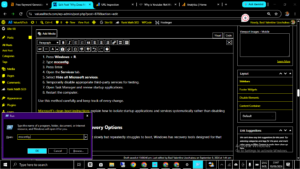
- Press Windows + R.
- Type msconfig.
- Press Enter.
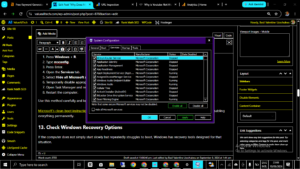
- Open the Services tab.
- Select Hide all Microsoft services.
- Temporarily disable appropriate third-party services for testing.
- Open Task Manager and review startup applications.
- Restart the computer.
Use this method carefully and keep track of every change.
Microsoft’s clean-boot instructions explain how to isolate startup applications and services systematically rather than disabling everything permanently.
13. Check Windows Recovery Options
If the computer does not simply start slowly but repeatedly struggles to boot, Windows has recovery tools designed for that situation.
Windows Recovery Environment includes options such as Startup Repair, System Restore, Startup Settings, and other recovery tools.
Microsoft recommends Startup Repair when Windows does not start correctly or repeatedly fails to load.
Microsoft’s Startup Repair documentation explains how the tool can diagnose certain startup problems involving damaged system files, boot configuration data, incompatible drivers, and related issues.
14. Try Safe Mode When You Suspect a Software Conflict
Safe Mode loads Windows with a limited set of drivers and services.
If the computer behaves normally in Safe Mode but becomes extremely slow during an ordinary startup, that provides an important clue that a normal driver, service, or startup application may be responsible.
Windows Recovery Environment provides access to Startup Settings, where Safe Mode can be selected.
Microsoft’s Windows Startup Settings guide explains how to access Safe Mode and other startup options.
Do not treat Safe Mode as a permanent solution. It is primarily a diagnostic environment.
15. Consider a Hardware Upgrade
If you have tried the software solutions and the computer remains slow, the hardware may be the limiting factor.
Depending on the computer, useful upgrades can include:
- Replacing an HDD with an SSD
- Adding compatible RAM
- Replacing an aging storage drive
- Servicing an overheating cooling system
Choose an upgrade based on the actual bottleneck.
For example, adding RAM will not necessarily solve a computer whose main problem is an old mechanical hard drive. Likewise, replacing an SSD will not solve a software conflict caused by a startup application.
How to Tell What Is Making Windows Start Slowly
| Symptom | What to investigate |
|---|---|
| Many programs open after login | Startup applications |
| Disk usage remains extremely high | Storage drive and background processes |
| Computer becomes hot quickly | Cooling and thermal performance |
| Memory remains very high | RAM usage and applications |
| Problem began after installing software | Recently installed application or service |
| Windows repeatedly fails to boot | Windows Recovery Environment |
| Computer has always been slow | Hardware limitations |
A Practical Example on why my computer take so long to start up
Imagine a laptop that used to reach the Windows desktop quickly but now takes several minutes before it becomes responsive.
The owner checks Task Manager and discovers several high-impact startup applications. The system drive is also almost full, and the computer uses an older HDD.
Instead of immediately reinstalling Windows, the owner disables unnecessary startup applications, removes unused software, frees storage space, and checks the drive.
The computer improves, but it is still slower than a modern SSD-based system. At that point, upgrading the storage becomes a more logical solution than continuing to change Windows settings.
This example illustrates why diagnosing the bottleneck first is more effective than applying random optimization tricks.
What Not to Do When Your Computer Starts Slowly
A slow startup can be frustrating, but aggressive changes can create bigger problems.
- Do not delete random files from the Windows folder.
- Do not disable every Windows service.
- Do not modify the Registry unless you understand the change.
- Do not download drivers from unknown websites.
- Do not install several PC optimization programs at the same time.
- Do not disable essential security software simply to improve startup speed.
- Do not reset Windows before trying simpler troubleshooting steps.
Microsoft’s recovery documentation recommends choosing recovery options according to the actual problem rather than immediately reinstalling Windows.
Microsoft’s Windows recovery options guide explains when to consider tools such as Startup Repair, System Restore, Reset, and reinstall options.
When Should You Be Concerned?
A gradual slowdown is often caused by software or aging hardware, but sudden changes deserve more attention.
Consider checking the hardware or seeking professional assistance if:
- The computer suddenly became extremely slow.
- The storage drive makes unusual noises.
- Windows repeatedly freezes or crashes.
- The computer repeatedly restarts.
- You receive storage or disk errors.
- Important files become inaccessible.
- The computer becomes excessively hot.
- The computer shuts down unexpectedly.
If your computer is also restarting unexpectedly, see Why Does My PC Keep Restarting: 15 Proven Solutions for a separate troubleshooting guide.
Frequently asked questions about my computer that takes so long to start up
Why does my computer take so long to start up?
The most common causes include too many startup applications, background processes, limited storage, an aging HDD, insufficient RAM, outdated drivers, Windows problems, and hardware limitations. Start with Task Manager and check Startup apps, CPU, memory, and disk usage.
How can I make my computer start faster?
Disable unnecessary startup applications, uninstall software you no longer use, free storage space, install Windows updates, investigate background processes, and consider an SSD upgrade if the computer still uses an old HDD.
Can too many startup programs slow down Windows?
Yes. Applications that launch automatically can increase the amount of work Windows performs during and immediately after startup. Windows provides Startup apps controls so unnecessary applications can be disabled.
Does freeing storage make Windows start faster?
It can help when the system drive is extremely full, although it will not fix every startup problem. Freeing space is particularly useful when Windows is struggling with low-storage conditions.
Will adding RAM fix a slow startup?
Not necessarily. More RAM can improve overall responsiveness when memory is insufficient, but a slow HDD, excessive startup applications, or a Windows boot problem may be the real cause.
Is an SSD worth it for an older computer?
If the computer is otherwise usable and still relies on an old mechanical HDD, an SSD can be one of the most noticeable upgrades for everyday Windows responsiveness and application loading.
Should I disable all startup applications?
No. Disable only applications you do not need to launch automatically. Leave essential security, hardware, and system-related software enabled unless you know exactly what the program does.
What if the computer is slow before the Windows login screen?
If the delay occurs before Windows reaches the login screen, focus on hardware, storage, firmware, drivers, and boot-related problems rather than only startup applications.
What if the computer became slow immediately after an update?
Restart the computer, allow pending updates to finish, and investigate driver or software compatibility. If Windows fails to start correctly, use the Windows Recovery Environment and appropriate recovery tools.
Final thoughts on Why my computer take so long to start up
If you keep asking, “Why does my computer take so long to start up?”, do not assume that Windows needs to be reinstalled. Start with the simplest checks: review Startup apps, remove software you no longer use, free storage, restart the computer, install pending updates, and monitor CPU, memory, and disk activity.
If the problem remains, look deeper. Check whether your computer uses an HDD or SSD, investigate drivers and background services, test Windows with a clean boot, and use Safe Mode when you suspect a software conflict.
For computers that have become slow because of aging hardware, an SSD or compatible RAM upgrade may provide a much bigger improvement than software tweaks.
Most importantly, make one change at a time. That makes it much easier to identify what actually fixed the problem and prevents you from changing several Windows settings without knowing which one caused the improvement.
With a methodical approach, you can usually determine whether the slow startup is caused by software, Windows, storage, memory, overheating, or aging hardware—and then choose the appropriate fix without unnecessarily resetting your computer.