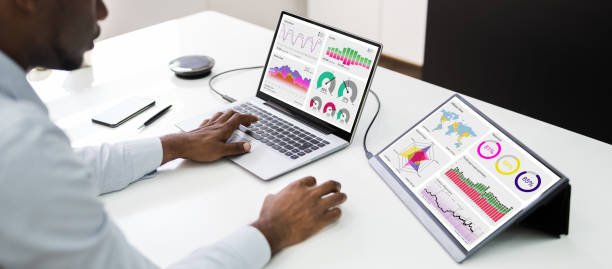
Have you ever looked at an old laptop sitting unused in your home and wondered whether you could put its screen to better use? Instead of allowing it to gather dust or spending money on a new monitor, you may be able to turn your old laptop into a second monitor for your main computer. This can give you additional screen space for browsing, writing, online meetings, research and multitasking.
There are several ways to achieve this, but the best option depends on your laptop’s operating system and hardware compatibility. In this guide, you will learn how to use Windows Wireless Display and spacedesk to connect two laptops, extend your desktop and troubleshoot common connection problems.
Can You Use an Old Laptop as a Second Monitor?
Yes. You can use an old laptop as a second monitor, provided you choose a compatible connection method. Unlike a traditional external monitor, however, most laptops are not designed to receive video directly through their HDMI ports.
The easiest solutions are software-based. They allow one computer to send its display to another laptop over a wireless network or a supported direct connection.
For Windows users, two practical options are:
- Windows Wireless Display: A built-in Windows projection feature that allows a compatible laptop to receive another computer’s display.
- spacedesk: A third-party display application that allows another computer, including an old Windows laptop, to function as an additional screen.
Both approaches can help you expand your workspace without buying a traditional monitor. However, wireless display connections may introduce some delay, depending on your network and computer performance.
What You Need Before Turning Your Old Laptop into a Second Monitor
Before starting, make sure both computers meet the requirements of your chosen method.
- Two laptops: One will serve as your main computer, while the other will function as the additional display.
- Compatible operating systems: Windows 11 is recommended for the built-in Wireless Display method. spacedesk supports compatible Windows configurations.
- Wi-Fi connection: Both computers should have working wireless connectivity.
- Stable local network: A reliable shared network helps maintain a smoother display connection.
- Updated drivers: Wireless and graphics drivers should be functioning correctly.
- Power supply: Connect the old laptop to its charger if you intend to use it for extended periods.
You should also check whether the old laptop can run the necessary software. An extremely slow computer may struggle to display another computer’s screen smoothly.
Method 1: Turn Your Old Laptop into a Second Monitor Using Windows Wireless Display
Windows Wireless Display is a convenient option because it does not require you to purchase a separate monitor or install a complicated third-party display solution.
The feature allows a compatible Windows computer to receive a wireless projection from another computer.
For this method, your main laptop sends the display, while the old laptop receives it.
Step 1: Install Wireless Display on Your Old Laptop
Start with the old laptop that you want to use as your second monitor.
- Turn on the old laptop.
- Open the Windows Start menu.
- Select Settings.
- Click System.
- Find and open Projecting to this PC.
- Under the option for adding Wireless Display, open Optional features.
- Select View features if you are using Windows 11.
- Search for Wireless Display.
- Select the feature and click Next or Install.
- Wait for Windows to complete the installation.
Once installation is complete, return to the Projecting to this PC settings page.
Step 2: Configure Your Old Laptop to Receive the Display
After installing Wireless Display, configure the old laptop so that your main computer can discover it.
- Open the Start menu.
- Search for Wireless Display.
- Launch the Wireless Display application.
- Leave the application open while preparing the main laptop.
- Check the projection preferences in Settings to make sure the device can receive connection requests.
Keep the application running during the connection process. If the receiving laptop is not discoverable, check its Wi-Fi connection and projection settings.
Step 3: Connect Your Main Laptop to the Old Laptop
Now move to the computer you want to use as your primary device.
- Press Windows + K on your keyboard.
- Wait for Windows to search for available wireless displays.
- Find the name of your old laptop.
- Select it from the available devices.
- Wait for the connection request to appear on the receiving laptop.
- Approve the request if Windows asks for permission.
- Allow the two computers to establish the connection.
Once connected, your main laptop should be able to project its display to the old laptop.
Step 4: Change the Display Setting to Extend
Connecting the computers does not automatically mean you have an extended desktop. Windows may initially duplicate the same content on both screens.
To use the old laptop as an additional workspace:
- Press Windows + P on your main laptop.
- Select Extend.
- Wait for Windows to adjust the display arrangement.
- Move your mouse towards the edge of the main screen.
- Check whether the pointer moves onto the second display.
With the Extend option selected, you can open different applications on each screen. For example, you can write a document on your main laptop while keeping a browser, email application or research material open on the old laptop.
Method 2: Use spacedesk to Turn Your Old Laptop into a Second Monitor
If Windows Wireless Display is unavailable or your computer does not support the required Miracast functionality, spacedesk provides another option.
spacedesk works by installing a driver on the primary computer and a Viewer application on the secondary device. The primary computer sends its display through a local network, allowing the old laptop to display the additional screen.
One advantage is that spacedesk supports Windows computers as both primary and secondary devices.
Step 1: Download spacedesk on Your Main Laptop
Visit the official spacedesk download website.
- Open the website on your main laptop.
- Find the spacedesk Driver Software section.
- Select the appropriate Windows version.
- Download the installation file.
- Open the downloaded installer.
- Follow the installation instructions.
- Restart your computer if requested.
The main laptop acts as the primary machine, so this is where the spacedesk driver must be installed.
Step 2: Install spacedesk Viewer on Your Old Laptop
Next, prepare the old laptop that you want to use as the additional display.
- Open the Microsoft Store on the old laptop.
- Search for spacedesk.
- Find the spacedesk Windows Viewer application.
- Download and install it.
- Open the application after installation.
For supported Windows 10 and Windows 11 devices, the Viewer application is available through the Microsoft Store.
Step 3: Connect Both Laptops to the Same Network
Before opening the Viewer application, ensure that both laptops can communicate over the same local network.
- Connect your main laptop to your Wi-Fi network.
- Connect the old laptop to the same network.
- Confirm that both devices have working network connections.
- Check that your network firewall is not blocking the spacedesk connection.
A stable network is important because spacedesk continuously transmits display information from the primary computer to the secondary device.
Step 4: Open spacedesk Viewer and Connect
Now that both computers are ready, establish the display connection.
- Open spacedesk on your main laptop.
- Check that the spacedesk driver is running.
- Open spacedesk Viewer on the old laptop.
- Allow the application to search for available primary computers.
- Select your main laptop from the list of detected devices.
- Wait for the connection to complete.
If the connection is successful, the old laptop should display the screen transmitted by your main computer.
Step 5: Extend Your Desktop Across Both Laptops
After connecting, you may need to adjust the Windows display configuration.
- Return to your main laptop.
- Open Settings.
- Select System.
- Click Display.
- Locate the Multiple displays section.
- Check that both displays are detected.
- Select Extend these displays if necessary.
- Arrange the display positions to match the physical position of your laptops.
You can now move applications between the two screens and use the old laptop as an additional workspace.
Windows Wireless Display vs spacedesk: Which Method Should You Use?
Both methods can help you reuse an old laptop as a second monitor, but they work differently.
| Feature | Windows Wireless Display | spacedesk |
|---|---|---|
| Installation | Windows optional feature | Driver and Viewer application |
| Additional software | Built-in Windows feature | Requires spacedesk software |
| Network connection | Wireless projection compatibility required | Local network connection |
| Windows compatibility | Compatible Windows configurations | Windows 10 and Windows 11 primary machines |
| Secondary laptop | Compatible Windows computer | Windows 10 or Windows 11 Viewer |
| Best use | Simple wireless projection | Alternative network-based display setup |
Which should you choose?
Try Windows Wireless Display first if both laptops support the required functionality. It is a convenient way to establish a connection without installing an additional display application.
If the built-in option is unavailable or does not work with your hardware, try spacedesk. It provides an alternative method for creating an additional display through your local network.
Can You Connect Two Laptops Using an HDMI Cable?
One common mistake people make when trying to use an old laptop as a monitor is connecting the two computers with an HDMI cable.
Although this seems like the easiest solution, it generally does not work.
The reason is that most laptop HDMI ports are designed to send video signals to external displays rather than receive video from another computer.
There is an important difference between HDMI input and HDMI output:
- HDMI output: Sends video and audio from a laptop to an external monitor, television or projector.
- HDMI input: Receives video and audio from another device, allowing a compatible screen to display the incoming signal.
Most conventional laptops have HDMI output ports. Therefore, plugging an HDMI cable between two ordinary laptops will not make the second laptop function as an external monitor.
Before attempting a direct connection, consult the manufacturer’s specifications for your exact laptop model. If it does not support video input, use a compatible software-based solution instead.
How to Fix Common Problems When Using an Old Laptop as a Second Monitor
Sometimes the connection may fail even after you have followed the correct installation steps. The following solutions can help you identify and resolve common problems.
1. Your Old Laptop Does Not Appear in the Available Displays
If your main computer cannot find the old laptop, check whether Wireless Display is installed and running on the receiving device.
Also check that Wi-Fi is enabled on both computers and that the receiving laptop is configured to accept projection requests.
If you are using spacedesk, confirm that its driver is running on the primary computer and that the Viewer application is open on the secondary laptop.
2. Your Laptop Does Not Support Miracast
Windows Wireless Display depends on compatible wireless display hardware and drivers. If your laptop does not support Miracast, the built-in projection method may not work.
In this situation, check your wireless and graphics drivers. You can also try spacedesk as an alternative if your devices meet its requirements.
3. The Second Laptop Shows the Same Screen Instead of Extending It
If both displays show identical content, Windows may be using Duplicate mode.
Press Windows + P on the primary laptop and select Extend. This allows you to use different applications on the two displays.
4. The Display Connection Keeps Disconnecting
Repeated disconnections can result from weak Wi-Fi signals, network interference, driver problems or restrictions imposed by your network firewall.
Try the following:
- Move both laptops closer to the wireless router.
- Restart both computers.
- Reconnect both devices to the same local network.
- Update the wireless network drivers.
- Check the firewall settings for blocked connections.
- Remove the previous wireless display pairing and connect again.
If your laptop is also experiencing general wireless connection problems, read our guide on how to fix a laptop that is not connecting to Wi-Fi.
5. The Second Display Is Slow or Delayed
Wireless display connections can introduce some delay because the screen information must be transmitted and processed by the receiving laptop.
To improve performance:
- Use a reliable wireless router.
- Reduce unnecessary network activity.
- Close applications consuming excessive system resources.
- Keep both laptops connected to power.
- Use an available wired network connection where supported by your display solution.
Remember that software-based secondary displays are generally more suitable for office work, browsing, writing and multitasking than competitive gaming or tasks requiring extremely low display latency.
Frequently Asked Questions About Using an Old Laptop as a Second Monitor
Can I use my old laptop as a second monitor without buying anything?
Yes. You can use Windows Wireless Display if both computers support the required functionality. You can also use spacedesk, which offers software-based display sharing. However, you may need to download and install the appropriate applications.
Can I use Windows 11 to connect two laptops as monitors?
Yes. Windows 11 supports wireless projection to another compatible Windows computer through the Wireless Display feature. The receiving laptop must have the feature installed and running, and the main laptop must support the required wireless display functionality.
Can I use my old laptop as a second monitor through HDMI?
Usually, no. Most laptop HDMI ports are designed for video output rather than input. Check your manufacturer’s specifications before attempting a direct HDMI connection.
Does spacedesk work without an internet connection?
spacedesk uses a local network connection rather than requiring an internet-based display service. Both computers need to communicate over a supported network connection, but internet access is not inherently required for local display sharing.
Can I use an old Windows 10 laptop as a second monitor?
Yes, a compatible Windows 10 laptop can run the spacedesk Viewer application. Windows Wireless Display also supports certain Windows 10 configurations. However, Windows 10 reached the end of standard support on October 14, 2025, so upgrading to a supported operating system is recommended where possible.
Will using my old laptop as a second monitor make my main laptop slower?
It can introduce additional processing and network activity, depending on the software and connection method. The impact varies according to the hardware capabilities of both computers, the resolution and the amount of display activity.
Can I move files between the two laptops while using one as a second monitor?
Yes. You can transfer files separately through supported file-sharing methods, cloud storage or a local network. Using one laptop as a second display does not automatically create a shared file system between the two computers.
Which method is better for using an old laptop as a second screen?
Windows Wireless Display is a convenient first option when both computers support Miracast and the required Windows features. spacedesk is a useful alternative when you want a software-based local network connection.
Final Thoughts on Reusing an Old Laptop as an Additional Display
Turning an old laptop into a second monitor is a practical way to get more value from a computer you already own. Instead of immediately purchasing an additional monitor, you can explore Windows Wireless Display or spacedesk to expand your working space.
For the simplest setup, start with Windows Wireless Display if your laptops are compatible. If that option is unavailable, spacedesk provides another approach worth considering.
Remember to select Extend rather than Duplicate if you want to work with different applications across both screens. Also, do not assume that an ordinary HDMI connection will work because most laptop HDMI ports cannot receive video signals.
With the right setup, an old laptop can become a useful addition to your workspace for research, online meetings, document editing and everyday multitasking.