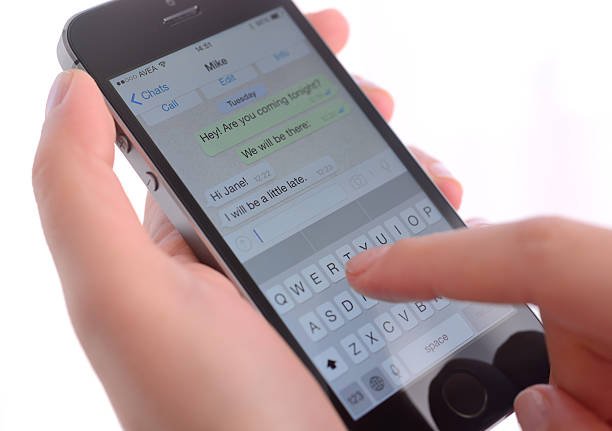
Most sending problems are related to an unstable internet connection, restricted app permissions, outdated software, insufficient storage or an issue with the recipient’s account or device. Sometimes WhatsApp itself may be experiencing a temporary service disruption. This guide explains how to identify the problem and fix it on Android, iPhone and WhatsApp Web without immediately uninstalling the app or risking your conversations.
What the WhatsApp Message Symbols Mean
Before changing your phone settings, look at the symbol beside the message. It can help you determine whether the problem is with sending or delivery.
- Clock icon: The message has not yet been sent from your phone. Check your internet connection and WhatsApp’s access to data.
- One grey tick: The message has been sent but has not been delivered to the recipient’s device.
- Two grey ticks: The message has been delivered.
- Two blue ticks: The message has been read, provided read receipts are enabled and applicable.
If every message has a clock beside it, start by checking your phone’s internet connection. If messages to other people are delivered but one conversation remains on one grey tick, the issue may be specific to that recipient.
One grey tick does not, by itself, prove that someone has blocked you. The recipient may simply be offline, have their phone switched off or be experiencing a connection problem.
For more information, see WhatsApp’s official guide to sending and receiving messages.
Why Are WhatsApp Messages Not Sending?
WhatsApp needs an active internet connection to send and receive messages. However, connectivity is not the only possible cause.
Common reasons include:
- Wi-Fi or mobile data is unavailable or unstable.
- WhatsApp is restricted from using mobile or background data.
- Your phone has temporarily lost its connection to the mobile network.
- The app is outdated or experiencing a temporary software problem.
- Your phone has insufficient available storage.
- Battery-saving settings are restricting WhatsApp’s background activity.
- The recipient’s phone is switched off or not connected to the internet.
- A group administrator has restricted who can send messages.
- WhatsApp is experiencing a service disruption.
- A photo, video or document is failing because of storage, file access or connection problems.
The best approach is to identify what is failing before changing several settings at once.
How to Fix WhatsApp Messages Not Sending
1. Check Whether Your Internet Connection Is Working
A phone can show a Wi-Fi or mobile-data icon even when the connection is too weak to load websites or send messages. WhatsApp identifies poor internet connectivity as a common reason for sending and receiving problems.
Try these checks:
- Open your browser and visit a website.
- If the page does not load, check whether Wi-Fi or mobile data is switched on.
- Switch from Wi-Fi to mobile data, or from mobile data to another Wi-Fi network.
- If you are using Wi-Fi, restart your router and allow it to reconnect.
- If you are using mobile data, move somewhere with better network coverage.
Send a short test message after changing the connection. If it works on another network, the original connection may be responsible.
If other apps and websites also fail to connect, investigate your internet service before changing WhatsApp settings.
2. Turn Airplane Mode On and Off
If your phone appears connected but WhatsApp still shows a clock beside every message, refreshing the mobile connection may help.
- Open your phone’s quick settings or Control Centre.
- Turn on Airplane Mode.
- Wait about 10 seconds.
- Turn Airplane Mode off.
- Wait for your mobile network or Wi-Fi connection to return.
- Open WhatsApp and try sending the message again.
This refreshes the phone’s connection. It will not fix an exhausted data plan, a network outage or a WhatsApp service problem.
3. Close WhatsApp and Open It Again
A temporary app problem can interfere with sending messages. Close WhatsApp completely, rather than simply switching to another screen, and open it again.
On Android, open the recent-apps screen and swipe WhatsApp away. On an iPhone, open the app switcher and close WhatsApp. The exact gesture depends on your phone model.
Return to the affected conversation and send a test message. Closing and reopening WhatsApp does not normally delete your conversations.
4. Restart Your Phone
If closing WhatsApp does not help, restart your phone. A restart can refresh temporary network and software processes that may be interfering with the app.
- Save any work you are doing in other applications.
- Restart your phone using its normal power menu.
- Wait for it to reconnect to Wi-Fi or mobile data.
- Open WhatsApp and test message sending.
If other online applications also have connection problems, investigate your internet or mobile network rather than focusing only on WhatsApp.
5. Check Whether WhatsApp Can Use Mobile Data
Your phone may have an internet connection while restricting WhatsApp from using mobile data. This can happen because of app-specific data settings or data-saving features.
On Android
- Open your phone’s Settings.
- Go to Apps and select WhatsApp.
- Open Mobile data, Data usage or the equivalent option.
- Check that mobile data access is allowed.
- If you need WhatsApp to work in the background, check that background data is not restricted.
Menu names vary between Samsung, Google Pixel, Xiaomi, Tecno, Infinix and other Android phones.
On iPhone
- Open Settings.
- Select Mobile Service or Cellular.
- Find WhatsApp in the app list.
- Make sure its mobile-data access is switched on.
If you are using Wi-Fi, also check whether the network itself has working internet access. Allowing mobile data will not repair a faulty Wi-Fi connection.
6. Update WhatsApp
An older version of WhatsApp may contain a bug or have compatibility problems with your phone’s software. Check the official app store for an available update.
- Android: Open Google Play Store, search for WhatsApp and select Update if the option appears.
- iPhone: Open the App Store, find WhatsApp and install an available update.
Use the official app from Google Play or the Apple App Store. Avoid unofficial modified versions because they can introduce security, account and reliability risks.
7. Check Your Phone’s Date and Time
Incorrect date or time settings can interfere with some online services. Set your phone to use the network-provided time where that option is available.
- Android: Open Settings and look under System, General management or Additional settings for Date and time. Enable automatic date and time.
- iPhone: Open Settings, select General, then Date & Time. Enable Set Automatically if available.
Menu names may differ depending on the operating system version. After correcting the setting, reopen WhatsApp and test the conversation.
8. Clear WhatsApp Cache on Android
Temporary app files can sometimes contribute to application problems. Android users can try clearing WhatsApp’s cache, but it is important to choose the correct option.
- Open Settings on your Android phone.
- Select Apps and then WhatsApp.
- Open Storage or Storage and cache.
- Tap Clear cache, if available.
- Reopen WhatsApp and test message sending.
Important: Clear cache is not the same as Clear data or Clear storage. Do not select Clear data or Clear storage as a routine troubleshooting step. Those options can remove locally stored app information and may put chats at risk if they are not backed up.
9. Check Battery Restrictions and Background Activity
Some phones restrict applications from running in the background to save battery. Depending on the device and its settings, this may affect how WhatsApp receives updates or handles background activity.
On Android
- Open Settings.
- Go to Battery or Apps, depending on your phone.
- Find WhatsApp in the battery-usage or battery-optimisation settings.
- Review whether background activity is restricted.
- If necessary, allow WhatsApp to run normally in the background.
Some manufacturers use options such as Unrestricted, Allow background activity or Don’t optimise. The exact wording varies.
On iPhone
Open Settings, select General, then Background App Refresh. If the feature is enabled, check whether WhatsApp is allowed to refresh in the background.
Background activity settings are worth checking when messages or updates behave differently while the app is closed. They do not replace an active internet connection.
10. Check Available Phone Storage
When your phone is almost full, applications may become unstable and some tasks may fail. Check the available storage in your device settings.
If space is low, consider removing files you no longer need, such as:
- Old videos and downloads.
- Duplicate photos and documents.
- Applications you no longer use.
- Large WhatsApp media files that you have already saved elsewhere.
You can review WhatsApp media through Settings, then Storage and Data, and Manage Storage. Check files before deleting them so that you do not remove something important.
11. Temporarily Disable a VPN or Check Network Restrictions
If you use a VPN and WhatsApp stops sending messages, temporarily disconnect from the VPN and test the app again. This helps determine whether the current VPN connection is interfering with WhatsApp.
Some workplace, school or public Wi-Fi networks also restrict access to certain online services. If WhatsApp works on mobile data but not on a particular Wi-Fi network, the network may be responsible.
Try another trusted network or contact the network administrator. Do not install an unfamiliar VPN or proxy application simply to test WhatsApp.
12. Check Whether WhatsApp Is Experiencing an Outage
Sometimes the problem is with WhatsApp’s service rather than your device. If several people in different locations report that they cannot send messages at the same time, a wider disruption may be responsible.
To investigate:
- Ask someone using a different network whether WhatsApp is working for them.
- Check WhatsApp’s official Help Center and support channels for relevant information.
- Look at an independent outage-reporting service such as Downdetector’s WhatsApp reports in Nigeria.
Third-party outage reports are user reports, not official confirmation from WhatsApp. A rise in reports can help you identify a possible wider problem, but it does not prove that every user or feature is affected.
If there is a genuine service disruption, wait for WhatsApp to restore normal service. Reinstalling the app or resetting your phone will not repair a problem on WhatsApp’s servers.
What If WhatsApp Messages Are Not Sending to One Person?
If you can send messages to other people but not to one particular contact, your internet connection and WhatsApp installation may be working normally. The issue could be specific to that recipient or conversation.
Possible explanations include:
- The recipient’s phone is switched off or has no internet connection.
- The recipient has not connected WhatsApp to the internet for some time.
- The person has changed their number or stopped using that account.
- There is a problem affecting that particular conversation.
- You may have been blocked, although a single grey tick alone cannot confirm this.
Send a message to another contact to compare the results. If it is delivered, wait for the other person to reconnect or confirm that you have the correct number. Avoid repeatedly sending messages to someone who may not be available.
Why Can’t I Send Messages in a WhatsApp Group?
If you can send private messages but cannot post in one WhatsApp group, check the group information. An administrator may have changed the group’s settings so that only administrators can send messages.
Open the group and look for a notice indicating that only admins can send messages. If that restriction is active, changing your phone’s internet settings will not give you permission to post.
Contact a group administrator if you need to send a message. Also check that you are still a member of the group and have not been removed.
WhatsApp Messages Not Sending Photos, Videos or Documents
If ordinary text messages are sending but photos, videos, voice notes or documents are failing, the issue may be related to the file rather than messaging in general.
Try the following:
- Check that your phone has enough free storage.
- Confirm that WhatsApp has permission to access the relevant photos, videos or files.
- Try sending a smaller file.
- Switch to a more reliable Wi-Fi or mobile-data connection.
- Check whether the file is still available on your phone and has not been moved or deleted.
- Update WhatsApp if an update is available.
If only one large video fails, test with a smaller image or document. That can help you determine whether the problem affects all media or just a particular file.
WhatsApp Messages Not Sending on iPhone
In addition to the general checks above, iPhone users should review the settings that control WhatsApp’s access to mobile data and background activity.
Check Mobile Data Access
Go to Settings, select Mobile Service or Cellular, and confirm that WhatsApp is allowed to use mobile data. If you use more than one SIM or eSIM, also confirm that the correct line is providing your mobile-data connection.
Review Background App Refresh
Open Settings, select General, then Background App Refresh. If the feature is enabled on your device, check whether WhatsApp is allowed to refresh in the background.
Check Low Data Mode
If you use Low Data Mode, review the setting for the Wi-Fi network or mobile connection you are using. Temporarily turning it off can help you determine whether a data-saving setting is contributing to the problem.
WhatsApp Messages Not Sending on Android
Android settings vary between manufacturers, but there are a few areas worth checking when WhatsApp cannot send messages.
- Confirm that WhatsApp is allowed to use mobile data and background data.
- Review battery settings if the phone restricts WhatsApp’s background activity.
- Clear the app cache without clearing app data.
- Check available phone storage.
- Install WhatsApp updates from Google Play Store.
If other applications are also failing, the problem may be related to Android’s network settings or the phone’s internet connection. For broader Android app problems, see our guide to fixing apps that are not working on Android.
WhatsApp Messages Not Sending on WhatsApp Web or Desktop
If messages send from your phone but not from WhatsApp Web or the desktop application, investigate the computer’s connection and linked-device session.
- Confirm that the computer can open websites.
- Refresh the WhatsApp Web page or restart the desktop application.
- Check whether the browser is up to date.
- Try another supported browser if the current one is not working properly.
- Log out of the linked session and link the device again if necessary.
- Try a different Wi-Fi network or mobile hotspot if the current network blocks access.
Use the official WhatsApp Web address when linking through a browser. Do not enter your account details or scan a QR code on an unfamiliar website.
For connection-specific instructions, see WhatsApp’s official connection troubleshooting guide.
Should You Reset Network Settings or Reinstall WhatsApp?
These are more disruptive steps, so do not begin with them. Try the connection, permission, restart and update checks first.
Reset Network Settings Only When Necessary
If several apps have connection problems and ordinary troubleshooting has not helped, resetting network settings may be worth considering. The option is usually found in your phone’s reset or system settings.
Be aware that a network reset can remove saved Wi-Fi networks and passwords, Bluetooth pairings or other network configurations, depending on the device. Make sure you know how to reconnect to your networks before proceeding.
Back Up Your Chats Before Reinstalling
Reinstalling WhatsApp may help if the app installation itself is damaged, but it should be a last resort. Before uninstalling:
- Open WhatsApp’s chat backup settings.
- Check the date and time of the last successful backup.
- Confirm that the correct Google Account or iCloud account is being used.
- Make sure you can access the phone number needed to register the account again.
- Do not proceed until you understand how you will restore important conversations.
A backup that is incomplete or stuck should be resolved before you rely on it. Read our guide on fixing a WhatsApp backup stuck at 0% or 99% if you need help with that process.
Never assume that uninstalling WhatsApp will automatically preserve every locally stored conversation or media file.
When to Contact WhatsApp Support
If you have tested your internet connection, updated WhatsApp, checked permissions and restarted your phone but messages still will not send, contact WhatsApp through its official support channel.
In the app, open Settings, select Help, and choose Contact Us if that option is available. You can also use the official WhatsApp contact page.
Explain what happens when you send a message. Include whether you see a clock, one grey tick or an error message, whether the problem affects every contact, and whether you are using Android, iPhone or a linked computer. Do not share your six-digit verification code or account password with anyone claiming to provide support.
Frequently Asked Questions About WhatsApp Messages Not Sending
Why are my WhatsApp messages stuck on a clock?
A clock means the message has not yet been sent from your phone. Check whether your internet connection is working, switch between Wi-Fi and mobile data, and confirm that WhatsApp is allowed to use data.
Why does WhatsApp show one grey tick but not two?
One grey tick means the message has been sent but has not been delivered to the recipient’s device. The recipient may be offline, their phone may be switched off, or another delivery issue may be occurring.
Why can I receive WhatsApp messages but not send them?
Check your connection, app permissions and whether the problem affects all conversations or only one. If you can receive messages but cannot send them, test another network and update WhatsApp before considering more disruptive steps.
Why are WhatsApp messages not sending to only one person?
If messages work with other contacts, the issue may be specific to that person or conversation. Their phone may be offline, they may have changed numbers, or there may be another account-related issue. One grey tick alone does not confirm that you have been blocked.
Why can’t I send messages in a WhatsApp group?
The group may be configured so that only administrators can post. Check the group notice and contact an administrator if you need permission to send messages.
Why can I send text but not pictures on WhatsApp?
Media problems can be caused by low storage, file size, a weak connection or missing photo and file permissions. Check storage, try a smaller file and review WhatsApp’s permissions.
Will clearing WhatsApp cache delete my messages?
Clearing cache on Android is different from clearing app data or storage. Use only the Clear cache option. Do not select Clear data or Clear storage unless you understand the consequences and have protected your important chats.
Should I uninstall WhatsApp if messages are not sending?
Not as an early troubleshooting step. Check your connection, permissions, updates and storage first. If you eventually need to reinstall, confirm that your chats have a successful backup and that you can access your account’s phone number.
Conclusion On WhatsApp Messages Not Sending
When WhatsApp messages are not sending, start by checking the symbol beside the message and testing your internet connection. A clock, one grey tick and two grey ticks indicate different stages, so identifying the status can save you from changing settings unnecessarily.
Next, check WhatsApp’s data permissions, restart the app and phone, install updates, and investigate whether the problem affects one contact, a group or media files only. Keep network resets and reinstallation as later options, and protect your chat backup before making changes that could affect stored conversations.