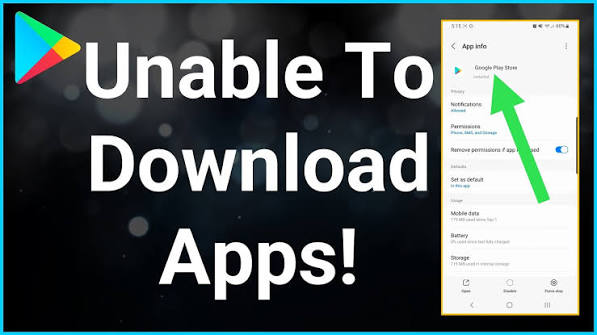
If Google Play Store is not downloading apps, the cause is often an unstable internet connection, insufficient storage, a stuck download, corrupted Play Store cache, or a problem with Google Play services. Start by checking your connection and available storage, then work through the fix that matches the error you see. Most download problems can be resolved without factory-resetting your phone or deleting your installed apps.
This guide explains how to diagnose Google Play Store download problems on Android phones and tablets, from downloads stuck on “Pending” to apps that refuse to install.
Why Is Google Play Store Not Downloading Apps?
Before changing settings, look at what happens when you tap Install. The symptom can help narrow down the likely cause.
| What you see | Possible cause | What to try first |
|---|---|---|
| Download stays on “Pending” | Another download is stuck or the connection is unstable | Check pending downloads and your connection |
| Download starts but stops | Weak internet, insufficient storage, or a temporary error | Test the connection and check storage |
| Install button does nothing | Play Store glitch or temporary software problem | Force stop Play Store and reopen it |
| Download completes but installation fails | Insufficient space, compatibility, or installation error | Check storage and device compatibility |
| Several apps will not download | Play Store, Google Play services, account, or network issue | Check for shared causes |
| Only one app will not install | Device incompatibility or an app-specific restriction | Check the app’s requirements and availability |
These are common possibilities rather than definitive diagnoses. If the problem affects only one app, you may not need to change Google Play Store settings at all.
1. Fix Network Problems
A reliable internet connection is necessary to download apps. A connection that appears active may still be too slow or unstable to complete a large download.
Check Wi-Fi or Mobile Data
- Open a browser and visit a website.
- If the page fails to load or is unusually slow, switch between Wi-Fi and mobile data.
- If you’re using Wi-Fi, reconnect to the network or restart your router if necessary.
- Return to Google Play Store and try the download again.
If other websites and apps also struggle to connect, resolve the network problem before changing Play Store settings.
Check Download Preferences
Google Play Store may be configured to download apps only over Wi-Fi.
- Open Google Play Store.
- Tap your profile picture.
- Open Settings and look for network or download preferences.
- Review the options for app downloads and updates.
The exact labels may vary by Play Store version. If you are using mobile data, make sure your download preference allows it and that your data plan has enough allowance.
If downloads work on Wi-Fi but not mobile data, check your phone’s mobile-data restrictions and your carrier connection.
2. Check Available Storage
Your phone needs enough free storage to download and install an app. The required space can be greater than the download size because Android may need room to unpack files and complete installation.
To check storage:
- Open Settings.
- Select Storage.
- Review the available space.
- Delete unnecessary downloads, large files, or apps you no longer use if space is low.
- Try the download again.
There is no single amount of free space that works for every app. Larger games and applications may require substantially more room than small utilities.
If the phone has enough storage but downloads still fail, continue with the Play Store-specific checks below.
3. Cancel Stuck or Pending Downloads
Google Play Store may wait for another download or update to finish before starting a new one. A stalled item can therefore prevent other apps from downloading.
- Open Google Play Store.
- Tap your profile picture.
- Select Manage apps & device.
- Review available updates and downloads.
- Allow an active download to finish or cancel an item that is clearly stuck, if the option is available.
- Try installing the app you want.
Be careful when canceling a large download if you have limited data, because you may need to download it again later.
If no downloads are pending, move on to the next step rather than repeatedly restarting the phone.
4. Force Stop Google Play Store
If the Install button does nothing or the Play Store appears unresponsive, force-stopping the app can clear a temporary glitch.
- Open Settings.
- Tap Apps or Apps & notifications.
- Select Google Play Store.
- Tap Force stop and confirm if prompted.
- Open Google Play Store again and try the download.
This closes the Play Store process; it does not uninstall your apps.
5. Clear the Google Play Store Cache
Temporary cache files help Google Play Store work efficiently. If these files become corrupted, downloads may stall or fail.
To clear the cache:
- Open Settings.
- Select Apps.
- Choose Google Play Store.
- Tap Storage & cache or Storage.
- Select Clear cache.
- Open the Play Store and try downloading again.
The menu names vary by Android version and manufacturer.
Clearing the cache removes temporary files. It normally does not remove installed apps or erase your personal files.
Should You Clear Google Play Store Storage or Data?
If clearing the cache does not help, Android may offer Clear storage or Clear data for Google Play Store.
This resets the app’s local data and settings. It does not uninstall your installed apps, but some Play Store preferences may need to be configured again. Depending on your device and account state, you may need to complete additional setup steps.
Try clearing the cache first. Use Clear storage or Clear data only if the less disruptive fix fails.
For official guidance, consult the Google Play Help Center.
6. Check Google Play Services
Google Play services supports important Google features used by many Android apps. If it is outdated or experiencing a problem, it may contribute to download or sign-in errors.
Start by checking whether your device has pending system or Google Play services updates.
- Open Settings and look for the system update option.
- Install available updates intended for your phone.
- Open Google Play Store and check for app updates.
- Restart the device if an update requests it, then retry the download.
On some devices, Google Play services provides an App details link to its Play Store listing. Availability and update methods vary.
Avoid downloading Google Play services installation files from unofficial websites. Do not clear its data as an early troubleshooting step, because doing so may affect stored settings or require services to be set up again.
7. Check Google Account or Sign-In Errors
A Google account problem may prevent downloads, especially if the Play Store displays a sign-in message, account verification request, or payment-related error.
Start with the least disruptive checks:
- Open Google Play Store and confirm that you are signed in.
- Check for any account or verification message.
- If the app is paid, review the payment information shown by Google Play.
- Follow the instructions displayed for the specific error.
Should You Remove and Add Your Google Account Again?
Removing your Google account should not be the first step for an ordinary stuck download.
Changing account settings may require you to sign in again and complete verification. Before removing an account, make sure you know its password and can access any required verification method. Confirm that important information is synchronized or backed up.
Only consider removing and re-adding the account if you have a clear account-related error and simpler checks have failed. Follow Google’s official account instructions and make sure you understand the consequences before proceeding.
8. Check App Compatibility and Availability
If only one app will not download, the problem may not be Google Play Store itself.
The app may be unavailable for your device, Android version, country, or account. Some apps also have device requirements or restrictions set by their developers.
Open the app’s Play Store listing and check for messages about compatibility or availability. If the developer specifies a minimum Android version, confirm that your device meets it.
If the listing says the app is unavailable or incompatible, clearing the cache or resetting your phone is unlikely to solve that restriction. Contact the developer if you believe the compatibility information is incorrect.
9. Check Date, Time, and Android Updates
Incorrect date or time settings can interfere with some secure connections and online services.
Open your phone’s Date & time settings and enable automatic date and time if available.
You can also check for an Android software update through Settings. Install an update only if it is intended for your device, and follow the manufacturer’s instructions.
These checks are most useful when you see connection, authentication, or system errors. They are not guaranteed fixes for every failed download.
10. What If Google Play Store Still Won’t Download Apps?
If downloads continue to fail, use the symptoms to decide what to do next.
- Every app fails to download: Recheck the connection, storage, Play Store cache, and Google Play services.
- Only one app fails: Check its compatibility, availability, and developer support information.
- The Play Store crashes or will not open: Check for updates and use Google’s official troubleshooting guidance.
- A specific error message appears: Search the exact message in the Google Play Help Center and follow the instructions that match it.
If installed apps are also crashing, freezing, or refusing to open, the issue may extend beyond downloads. Read our related guide on Apps Not Working on Android for troubleshooting those problems.
A factory reset should be a last resort, not a routine fix for Play Store download errors. It erases data stored on the device, may require you to sign in again, and may not solve account, compatibility, or service-side problems. Consider it only after official troubleshooting has failed and you have backed up important information.
Frequently Asked Questions About Why Google Play Store Not Downloading Apps
Why are downloads stuck on Pending?
A pending download may be waiting for another update, dealing with an unstable connection, or experiencing a temporary Play Store problem. Check the download queue and network before clearing the cache.
Will clearing Google Play Store cache delete my apps?
No. Clearing the cache removes temporary files and normally leaves installed apps and personal files intact.
Is it safe to clear Google Play Store data?
It resets the Play Store’s local data and settings. You may need to configure some preferences again. It does not normally uninstall your installed apps, but try clearing the cache first.
Why will only one app not download?
The app may be incompatible with your device or Android version, restricted in your region, or affected by a developer-side problem. Check its Play Store listing before resetting anything.
Do I need to factory-reset my phone?
Usually not. A factory reset erases device data and should be considered only after less disruptive troubleshooting has failed and your important information is backed up.
Final Thoughts on why your Google Play Store is not Downloading Apps
When Google Play Store is not downloading apps, start with the connection, available storage, and pending downloads. If those checks do not help, force stop the Play Store and clear its cache. Move on to Google Play services, account errors, or device compatibility only when the symptoms point in that direction.
Avoid repeatedly trying every possible fix. Match the solution to the error you see, protect your account access before changing account settings, and keep factory reset as a last resort.