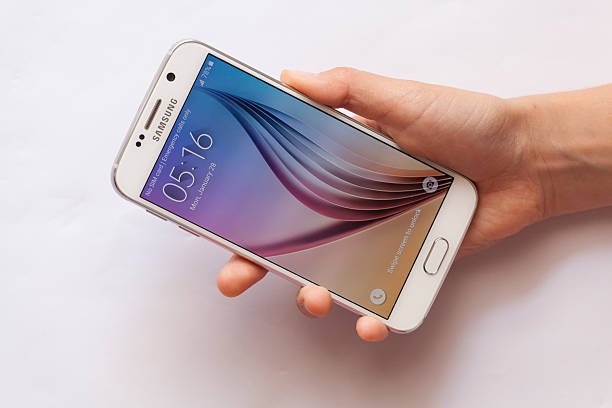
If your Samsung Galaxy keeps showing the Samsung logo, switching off, and restarting without reaching the home screen, your phone may be stuck in a boot loop. This can happen because of a temporary software error, a problematic app, an interrupted update, a power problem, or hardware damage. It does not automatically mean your phone is permanently damaged.
To fix a Samsung Galaxy boot loop, start by charging the phone with a compatible charger and performing a forced restart. If the problem continues, check the buttons and accessories, try Safe Mode if possible, and investigate recent app or software changes. More advanced recovery methods may be necessary, but a factory reset should be a last resort because it erases personal data. Follow the steps below in order and stop if you notice signs of physical or liquid damage.
What Is a Samsung Galaxy Boot Loop?
A Samsung Galaxy boot loop occurs when a phone repeatedly attempts to start but cannot complete the normal startup process. Instead of reaching the lock screen, it restarts and begins loading again.
You may notice one or more of these symptoms:
- The Samsung or Galaxy logo appears repeatedly.
- The phone vibrates, turns off, and starts again.
- The screen goes black before Android finishes loading.
- The phone gets stuck on the startup logo for an unusually long time.
- The device restarts shortly after reaching the lock screen.
- The phone started behaving this way after a software update, app installation, drop, or charging problem.
A slow startup is not necessarily a boot loop. The main warning sign is that the device repeatedly fails to complete startup or remains stuck at the same stage.
Why Does a Samsung Galaxy Keep Restarting?
Several problems can prevent a Galaxy phone from starting normally. Identifying what happened before the problem began can help you choose the right fix.
1. Temporary software error
A temporary system glitch may prevent Android from loading correctly. A forced restart can sometimes clear the problem without deleting personal files.
2. Problematic or incompatible app
An app that was recently installed or updated may cause crashes or instability. Safe Mode can help determine whether a downloaded app is involved.
3. Interrupted software update
If the boot loop started during or immediately after a system update, the device may be experiencing a software problem. Avoid repeatedly interrupting the startup process or installing unofficial firmware without confirming the appropriate recovery procedure.
4. Battery or charging problem
A depleted battery, damaged cable, unsuitable charger, or faulty charging port can prevent the phone from maintaining enough power to start normally.
5. Stuck button or connected accessory
A case pressing against the Side button, a damaged button, or a connected accessory may interfere with normal operation. This is worth checking before attempting software recovery.
6. Physical or liquid damage
A recent drop, liquid exposure, or damaged internal component can cause repeated restarting. If the phone is unusually hot, visibly damaged, or has a swollen battery, stop using it and seek professional assistance.
How to Fix a Samsung Galaxy Boot Loop
Try these methods from the simplest and least destructive to the more advanced options. Menu names and button combinations can vary between Galaxy models and software versions.
Method 1: Charge the Phone Properly
Before assuming the software is damaged, make sure the phone has enough battery power to start.
- Connect the phone to a compatible, reliable charger and cable.
- Leave it charging for at least 15 minutes if the battery may be completely drained.
- Check whether the charging symbol appears, if your model displays one.
- If nothing changes, try another compatible cable and charger that you know works.
- Check the charging port for visible damage or debris without inserting metal objects or forcing anything into it.
Samsung notes that a completely drained battery may not immediately display a charging indicator. If the phone has been exposed to liquid, do not connect a charger until it is completely dry and has been assessed appropriately.
If the phone will not charge, the port appears damaged, or the device becomes unusually hot, stop troubleshooting and arrange a professional inspection.
Method 2: Force-Restart Your Samsung Galaxy
A forced restart is one of the safest first steps when a phone is frozen or stuck during startup. It does not normally erase your personal data.
- Locate the Side or Power button and the Volume Down button.
- Press and hold both buttons at the same time.
- Continue holding them for approximately 7–10 seconds, or until the phone restarts. Some models may require a slightly different duration.
- Release the buttons when the device begins restarting.
- Wait to see whether it reaches the lock screen.
If a power menu appears, continue holding the buttons as directed by Samsung’s instructions for your model. If the phone displays a maintenance menu, select Normal Boot using the volume buttons and confirm with the Side or Power button when that option is available.
For model-specific guidance, read Samsung’s official instructions for a Galaxy phone stuck on the Samsung logo.
Method 3: Remove the Case and Disconnect Accessories
If the phone keeps restarting, check whether something external is interfering with its buttons or normal operation.
- Remove the phone case.
- Check whether the Side button moves freely and is not being held down.
- Disconnect USB cables, adapters, headphones, and other accessories.
- Remove external accessories that were connected when the problem started.
- Try another forced restart.
Do not attempt to repair a damaged button yourself if you are not equipped to do so. If a button is stuck, loose, or physically damaged, a technician may need to inspect it.
Method 4: Start the Phone in Safe Mode
Safe Mode temporarily disables downloaded third-party apps while keeping the core system software available. It helps determine whether an app is contributing to the boot loop.
If your phone can reach the power menu, try the following method:
- Open the power menu. On many recent Galaxy models, swipe down from the top-right of the screen and tap the power icon.
- Touch and hold the Power off option until the Safe Mode option appears.
- Tap Safe mode.
- Wait for the phone to restart and check whether “Safe mode” appears on the screen.
- Use the phone long enough to see whether the restarting problem continues.
If the phone cannot reach the power menu, a common alternative is to restart it and press and hold Volume Down when the Samsung logo appears, continuing to hold it while the device starts. This method varies by model and may not work on every device.
What the Safe Mode result means
- The phone works normally in Safe Mode: A downloaded app may be responsible.
- The phone still restarts in Safe Mode: The cause may be outside ordinary third-party apps, including a system software or hardware problem.
- The phone cannot enter Safe Mode: Do not keep repeating button combinations indefinitely. Move to the official troubleshooting options for your model or seek support.
Samsung explains how to use Safe Mode and other Galaxy boot-loop troubleshooting methods.
Method 5: Uninstall Recently Installed Apps
If the phone works normally in Safe Mode, review the applications you installed or updated shortly before the boot loop began.
- While in Safe Mode, open Settings and select Apps.
- Find an app you recently installed or updated.
- Review its name and purpose before removing it.
- Uninstall one suspicious app at a time.
- Restart the phone normally and check whether the problem returns.
Start with the most recent changes rather than deleting many applications at once. This makes it easier to identify the likely cause and avoids removing apps that were not responsible.
If uninstalling one app solves the problem, you can leave it removed and check whether a compatible update becomes available later.
Method 6: Check Available Storage
Low storage can contribute to crashes and system instability, although it is not the only possible explanation for a boot loop.
If the phone stays on long enough to use Settings:
- Open Settings.
- Find Battery and device care or the storage section, depending on your model.
- Check how much internal storage is available.
- Remove unnecessary downloads, duplicate files, or unused applications if space is critically low.
- Restart the phone and check whether it starts normally.
Back up important files before deleting them. Do not delete unfamiliar system folders or use untrusted cleaning apps to try to force the phone to start.
Method 7: Check for a Software Update
If your Galaxy can stay on long enough to open Settings, check whether a software update is available.
- Open Settings.
- Tap Software update.
- Select the available option, such as Download and install or Check for updates, depending on your software version.
- Follow the on-screen instructions if an update is offered.
Keep the phone adequately charged and use a reliable connection before starting an update. Do not interrupt the installation once it begins.
If the phone cannot stay on long enough for an ordinary update, Samsung Smart Switch on a compatible computer may offer an update option for some devices. Its available functions depend on the model and software state. Consult Samsung’s official support instructions before attempting recovery.
Method 8: Consider Recovery Options Carefully
If the phone remains stuck on the Samsung logo, some models provide recovery options that can help troubleshoot startup problems. The recovery menu and available options differ between devices and software versions.
Do not select an option simply because its name sounds helpful. Some options erase data or reinstall software, while others may be intended for different maintenance tasks.
If you are considering a recovery menu, first consult Samsung’s official instructions for your exact model. If you are unsure which option to select, stop and seek help rather than experimenting with unfamiliar commands.
A cache-clearing option, where available, is different from a factory reset. However, its availability and exact procedure are not identical across all Galaxy models, so do not assume the same button combination or menu applies to every phone.
Method 9: Factory-Reset the Phone Only as a Last Resort
A factory reset can resolve certain software problems, but it deletes personal data stored on the device. It should not be your first response to a boot loop.
Important: If you have photos, documents, messages, or other important information that has not been backed up, consider professional support or other suitable recovery options before resetting. A factory reset may make local data unrecoverable.
If the phone can open Settings and you have decided that a reset is appropriate:
- Back up your important data if possible.
- Make sure you know the Google and Samsung account credentials associated with the device.
- Open Settings.
- Go to General management and select Reset.
- Choose Factory data reset.
- Review the list of data and accounts that will be removed.
- Proceed only when you understand and accept the consequences.
If the phone cannot reach Settings, do not assume that a button-based factory reset is the best next step. Check Samsung’s model-specific instructions first. After a reset, you may need the previously associated account credentials to complete setup.
A factory reset does not fix physical damage, a defective battery, or every firmware problem. If the boot loop persists afterward, professional diagnosis may be necessary.
What to Do If the Boot Loop Started After an Update
If the problem appeared immediately after a system update, make a note of what happened. Did the phone restart during installation, remain on the logo afterward, or begin restarting only after you reached the home screen?
- If the update has just finished, allow the phone some time to complete startup before repeatedly interrupting it.
- Try a forced restart using the correct buttons for your model.
- If the phone can start in Safe Mode, check whether a third-party app is contributing to the issue.
- If the device remains stuck, follow Samsung’s official recovery guidance rather than installing random firmware from unofficial sources.
If an update repeatedly fails or the phone cannot boot, Samsung Support can help determine which recovery options are appropriate for that model.
How to Tell Whether the Problem Is Software or Hardware
The symptoms can provide clues, but they cannot always identify the cause with certainty.
| What you notice | Possible explanation | Recommended next step |
|---|---|---|
| The problem began after installing an app | A third-party app may be involved | Try Safe Mode and review recently installed apps. |
| The phone starts after a forced restart | A temporary software or startup problem may be involved | Monitor the phone and check for recurring symptoms. |
| The phone cannot maintain power | Battery, charger, cable, or charging-port problem | Check compatible charging equipment and seek service if necessary. |
| The problem began after a drop | Possible physical damage | Arrange a professional inspection. |
| The problem began after liquid exposure | Possible liquid damage | Disconnect power and seek appropriate professional advice. |
| The phone still restarts in Safe Mode | A third-party app may not be the cause | Investigate system software and hardware through official support. |
| The phone remains stuck after software troubleshooting | A deeper software or hardware fault may exist | Contact Samsung Support or a qualified repair technician. |
When Should You Contact Samsung Support?
Stop attempting repeated software fixes and seek professional help if:
- The phone was dropped and now repeatedly restarts.
- The device has been exposed to liquid.
- The battery appears swollen or the phone becomes unusually hot.
- The charging port or physical buttons are damaged.
- The phone cannot charge or remain powered on.
- The boot loop continues after the appropriate troubleshooting steps.
- You need to preserve important data that has not been backed up.
If you need further help with a restarting phone, you can also read our guide to troubleshooting a Samsung phone that keeps restarting. If the device becomes completely unresponsive rather than restarting repeatedly, see our guide to fixing a frozen Samsung phone.
For model-specific help and repair options, use Samsung’s official Galaxy boot-loop troubleshooting page.
Frequently Asked Questions About Samsung Galaxy Boot Loop
Can a Samsung Galaxy boot loop fix itself?
Some temporary startup problems may disappear after the phone is charged or force-restarted. If the phone repeatedly returns to the same loop, however, you should investigate the cause instead of assuming the problem will resolve on its own.
Will a forced restart delete my data?
A normal forced restart does not usually erase personal files. It is different from a factory reset, which removes personal data stored on the phone.
Why is my Samsung stuck on the logo?
The phone may be experiencing a software startup problem, an app conflict, a power issue, or hardware damage. Start with charging checks and a forced restart, then use Safe Mode or official recovery guidance if needed.
Can Safe Mode fix a boot loop?
Safe Mode helps identify whether a downloaded app is involved. If the phone works normally in Safe Mode, removing a recently installed or updated app may resolve the problem. Safe Mode itself does not repair every kind of startup fault.
Should I factory-reset my Samsung phone immediately?
No. A factory reset erases personal data and should be considered only after safer options have been tried and you understand the consequences. If your data is not backed up, seek advice before resetting.
What if my Samsung keeps restarting after a factory reset?
If the problem persists after a properly completed reset, the cause may be a deeper software or hardware issue. Contact Samsung Support or a qualified technician rather than repeatedly resetting the device.
Conclusion On Samsung Galaxy Boot Loop
A Samsung Galaxy boot loop does not automatically mean your phone is beyond repair. Start with the basics: charge the device, remove anything pressing against its buttons, and perform a forced restart. If the phone can start in Safe Mode, investigate recently installed apps. If the problem continues, check software options and follow Samsung’s recovery guidance for your exact model.
Protect your personal data before attempting a factory reset, and do not ignore signs of physical damage or overheating. If the phone remains stuck after the appropriate troubleshooting steps, professional diagnosis is the safest next move.