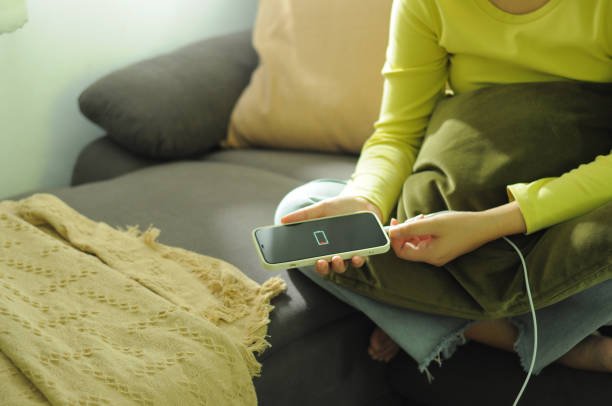
If you want to know how to improve Samsung battery life, start by checking what is actually using power instead of changing every setting on your Galaxy phone. Review battery usage, reduce unnecessary screen brightness, put rarely used apps to sleep, use Power saving when needed, and keep the phone away from excessive heat. If the battery has physically degraded with age, however, these adjustments may not restore its original capacity, and professional battery replacement may eventually be necessary.
Battery drain can come from the display, background applications, weak mobile signal, location services, demanding tasks, software problems, or an aging battery. The best solution depends on which of these factors is affecting your device.
How to Improve Samsung Battery Life
1. Check What Is Draining Your Samsung Battery
Before changing settings, identify which apps and activities are consuming the most power. This helps you avoid disabling useful features when the actual problem is a particular app, poor network coverage, or an aging battery.
Open Settings and look for Battery or the battery usage screen. The exact menu and information available depend on your Galaxy model and One UI version.
Look for an app that uses an unusually large amount of power, especially if you rarely use it. An application that you use for hours may naturally appear near the top of the list, so consider its usage rather than assuming it is faulty.
If battery drain started after installing an app or updating your phone, pay attention to that timing. It may help you identify what changed.
2. Reduce Screen Power Consumption
The display can consume a substantial amount of battery, particularly when brightness is high or the screen stays on for long periods.
Lower screen brightness
Open Settings → Display and lower the brightness to a comfortable level. You can enable Adaptive brightness if you want your phone to adjust the display automatically to your surroundings.
Shorten screen timeout
Go to Settings → Display → Screen timeout and choose a shorter period. This helps prevent the display from remaining on after you stop using the phone.
Review Always On Display
If your Galaxy has Always On Display enabled, check its settings under the lock screen options. You can reduce its use or disable it if you do not need it. The benefit depends on your model and how you use the feature.
3. Put Unused Apps to Sleep
Samsung provides background usage controls that can limit activity from applications you rarely use. This can help when apps continue running or synchronizing in the background even when you are not actively using them.
On supported Galaxy devices, look under Settings → Battery → Background usage limits. You may find options such as Sleeping apps, Deep sleeping apps, and Never sleeping apps. Menu names and locations can differ across One UI versions.
Use sleeping options for apps that do not need frequent background activity. Deep sleeping apps may not run normally in the background until you open them, which can delay notifications or updates.
Do not put every app to sleep automatically. Messaging, email, security, and other important applications may need background activity to work as expected.
For more details, see Samsung’s guide to sleeping apps on Galaxy devices.
4. Use Adaptive Battery and Power Saving
Enable Adaptive Battery
Adaptive Battery helps Android manage power based on your usage patterns. If your phone supports it, search Settings for Adaptive Battery if you cannot find it in the battery menu.
Its effect depends on your usage and device. It may take time to adapt, so do not expect an immediate or dramatic improvement.
Turn on Power saving when necessary
Power saving can extend battery runtime by restricting certain background activities and power-consuming features. On supported models, look under Settings → Battery → Power saving.
Use it when travelling, spending a long day away from a charger, or when the battery is running low. Depending on the model and settings, some features, background activity, or performance may be limited while it is enabled.
5. Review Location and Network Usage
Location services and mobile connectivity can contribute to battery drain, particularly when apps frequently request your location or the phone struggles to maintain a stable signal.
- Review location permissions: Allow location access only when an app needs it. A navigation app may require location while you are travelling, but a rarely used app may not need continuous access.
- Check mobile signal strength: Poor coverage can increase power consumption as the phone tries to maintain a connection.
- Compare Wi-Fi and mobile data: Use a reliable Wi-Fi connection for large downloads or long streaming sessions when practical. The effect depends on connection quality.
- Investigate 5G usage: 5G does not automatically cause excessive drain, but coverage and network conditions can affect power consumption. If the problem seems related to 5G, compare battery usage under different network conditions.
If you experience frequent connection interruptions as well as battery drain, our guide on why your internet keeps going out may help you investigate the connection problem.
Samsung also explains possible causes and troubleshooting steps for 5G network service draining battery quickly.
6. Reduce Heavy Gaming and Streaming
Gaming, video streaming, extended camera use, and other demanding tasks can drain a Galaxy battery quickly. These activities may use the display, processor, speakers, and network connection at the same time.
If you need your phone to last longer, reduce unnecessary screen brightness during demanding sessions, close activities you no longer need, and avoid running several resource-intensive tasks simultaneously.
Some Galaxy models also offer a Light performance profile that prioritizes efficiency over maximum processing performance. If your device supports it, search Settings for Performance profile or check the relevant Device Care options. This feature is not available on every model, and users who need maximum performance for demanding games may prefer the standard profile.
7. Keep Your Samsung Phone Updated
Software updates can include bug fixes, performance improvements, and changes that affect battery efficiency. Keeping your phone and apps updated is a sensible troubleshooting step.
To check for a system update, open Settings → Software update → Download and install, where available. Update apps through Google Play or Galaxy Store as appropriate.
If battery life becomes worse immediately after a major update, do not automatically assume the update damaged the battery. Check battery usage, restart the phone, update your apps, and monitor the situation over the following days.
For additional guidance, consult Samsung’s Galaxy battery support information.
8. Keep Your Phone Cool
Heat can increase battery consumption and contribute to long-term battery degradation. If your phone becomes unusually hot, reduce demanding activity and allow it to cool down.
- Avoid leaving your phone in direct sunlight or inside a hot vehicle.
- Do not cover a hot phone with bedding while it is charging.
- Avoid running demanding games or applications when the device is already very hot.
- Use a suitable charger and cable.
If the phone repeatedly overheats during light use, check for unusually active apps and consider professional support if the problem persists.
9. Use Battery Protection to Manage Charging
Battery runtime and battery health are different. Runtime is how long your phone lasts between charges. Battery health refers to the condition of the physical battery as it ages.
Supported Samsung phones include Battery protection options that can help manage charging. The available options and charging limits depend on your model and One UI version. For example, Samsung documents Basic, Adaptive, and Maximum options for supported devices running One UI 6.1, with Maximum limiting charging to 80% on those documented devices.
Do not assume that every Galaxy phone has the same options or menu path. Search Settings for Battery protection or consult the instructions for your specific model.
If you are usually near a charger, limiting the maximum charge may suit your routine. If you regularly spend long periods away from a charger, having more available capacity may be more practical.
See Samsung’s information about the Galaxy Battery protection feature.
10. Run Samsung Members Diagnostics
If your battery suddenly begins draining much faster than usual, or the previous steps make little difference, use Samsung’s built-in diagnostic tools.
- Open the Samsung Members app if it is installed on your device.
- Find the Diagnostics section.
- Look for the available battery-related test or relevant device checks.
- Follow the instructions and review the result.
The available tests and the information they provide vary by device and software version. If the results indicate a battery problem, or the phone continues to behave abnormally, contact Samsung support or an authorized service provider.
Samsung explains its diagnostic options in this Galaxy diagnostics guide.
When Battery Drain Happens in Specific Situations
Battery drains overnight
Check battery usage, background apps, network signal, location activity, synchronization, and Always On Display. Put unnecessary apps to sleep where appropriate. Some overnight drain is normal because your phone continues to maintain connections and perform background tasks.
Battery drains while travelling
Navigation, mobile data, taking photos, streaming, and changing network conditions can increase power use. Before leaving, charge the phone, download maps or media where practical, reduce unnecessary brightness, and use Power saving if needed. Keep the phone away from direct sunlight and carry a suitable charger or power bank for long journeys.
Battery drain started after an update
Check which apps are consuming power, restart the phone, update your apps, and look for another available system update. Monitor the battery for several days. If the drain remains abnormal, run Samsung Members diagnostics or contact support.
When Should You Replace a Samsung Battery?
Battery-saving settings can reduce unnecessary power use, but they cannot restore the original physical capacity of a battery that has degraded with age.
Consider having the battery checked if you experience consistently short runtime despite light use, repeated unexpected shutdowns, persistent rapid percentage drops, or abnormal drain that continues after software troubleshooting.
Samsung explains that lithium-ion batteries are consumable components that lose capacity over time. See its guidance on when a Galaxy battery may need replacement.
If the battery is swollen or physically damaged, stop using the device if it is safe to do so and seek professional service. Do not attempt to press, puncture, or remove a swollen battery yourself.
Common Battery-Saving Mistakes to Avoid
- Do not force-close every app repeatedly. Android already manages background applications. Investigate apps that actually use excessive power.
- Do not disable every notification. Restrict only the activity you do not need.
- Avoid unfamiliar battery-booster apps. They may add background activity without fixing the underlying problem.
- Do not factory-reset your phone as a first step. Try targeted troubleshooting before considering a reset.
- Do not ignore excessive heat. Repeated high temperatures can affect battery condition.
Frequently Asked Questions About How to Improve Samsung Battery Life
How can I improve Samsung battery life quickly?
Check battery usage, lower unnecessary screen brightness, shorten screen timeout, and put rarely used apps to sleep. Use Power saving when you need extra runtime.
Why is my Samsung battery suddenly draining so fast?
Possible causes include an app using excessive power, weak network coverage, increased location activity, heavier usage, heat, software changes, or an aging battery. Check battery usage before changing multiple settings.
Should I turn off 5G to save battery?
Not necessarily. The effect depends on your phone, coverage, and usage. If you suspect 5G is contributing to the drain, compare battery performance under different network conditions.
How do I check Samsung battery health?
Open Samsung Members and look for Diagnostics or a battery-related test. Available battery information and diagnostic options vary by model and software version.
Can an app repair an old Samsung battery?
No app can restore the original physical capacity of a battery that has naturally degraded. Battery-saving settings may reduce power consumption, but an aging battery may eventually need professional replacement.
Final Thoughts On How to Improve Samsung Battery Life
The best way to improve Samsung battery life is to identify the cause of the drain instead of disabling every feature on your Galaxy. Start with battery usage, then check screen settings, background apps, network conditions, software updates, and heat.
If the phone continues to lose power unusually quickly, run Samsung Members diagnostics and consider having the battery checked. The goal is to extend runtime without making your phone difficult to use—and to recognize when the problem is an aging battery rather than a setting.