How to lock Facebook profile is easy if the feature is available for your account. Open your profile, tap the three-dot menu, select Lock Profile, and confirm your choice. Once enabled, only your Facebook friends can view most of your posts, photos, stories, and profile information.
This guide explains how to lock Facebook profile on Android, iPhone, and desktop (where available), why the option may not appear, and additional privacy settings you can use to better protect your account.
What Does Locking Your Facebook Profile Do?
Facebook Profile Lock is a privacy feature designed to reduce the amount of personal information visible to people who aren’t on your friends list.
After enabling Profile Lock, Facebook automatically applies several privacy restrictions to your account.
These include:
- Only friends can view your full-size profile picture.
- Most posts become visible only to friends.
- Stories are limited to friends.
- Timeline reviews receive stronger privacy protection.
- Public viewers see a limited version of your profile.
Instead of manually changing dozens of privacy settings, Profile Lock combines multiple protections into a single feature.
Why People Choose to Lock Their Facebook Profile
There are many reasons someone may want to learn how to lock Facebook profile. While every user’s situation is different, privacy is usually the biggest motivation.
Greater Privacy
Many users simply prefer sharing personal updates only with family and friends rather than the general public.
Better Protection Against Fake Accounts
Restricting profile visibility can make it more difficult for fake accounts to collect personal information or copy profile content.
Reduced Exposure of Personal Photos
Locking your profile limits access to many of your photos, helping protect your personal memories from unwanted viewers.
Improved Online Safety
Students, professionals, parents, and public-facing individuals often choose Profile Lock to reduce unnecessary exposure of personal information.
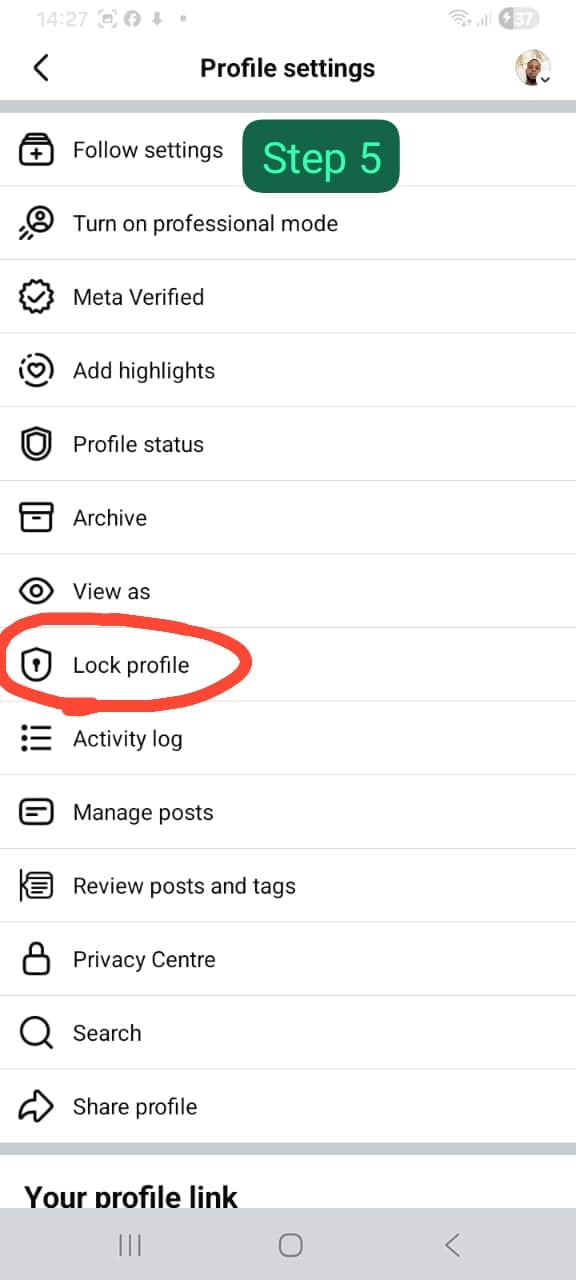
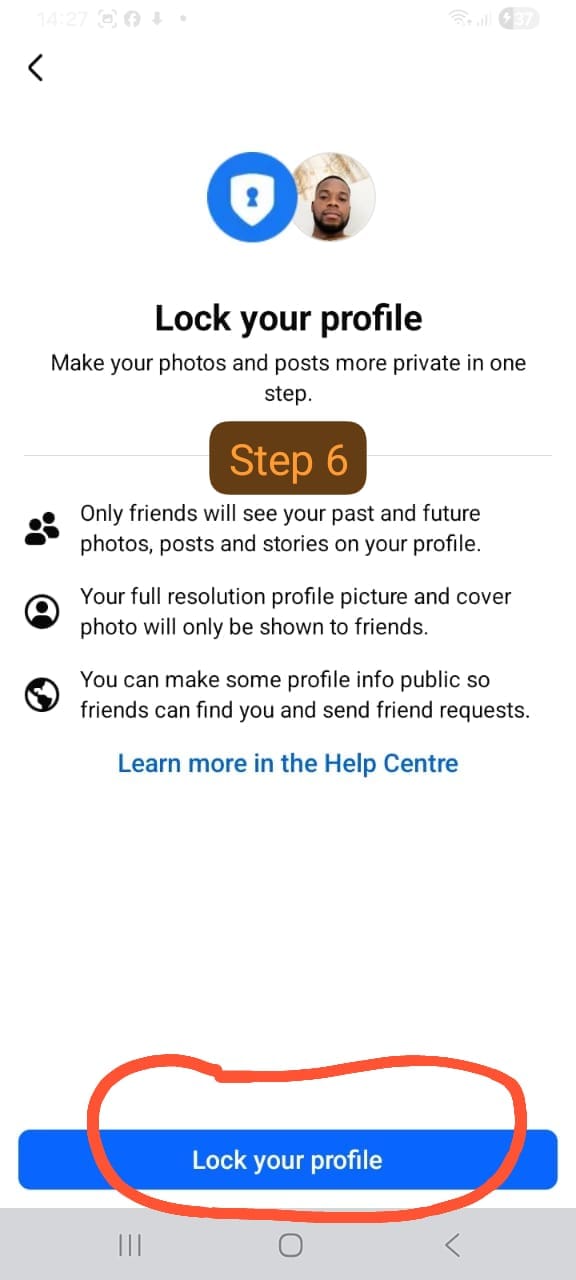
How to Lock Facebook Profile on Android
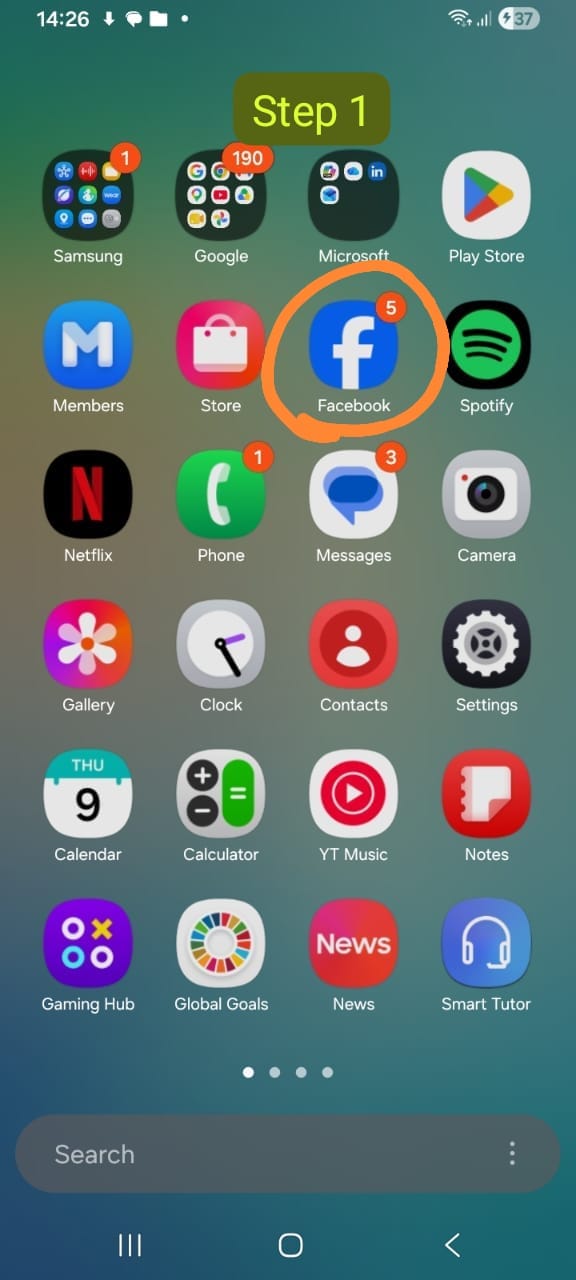
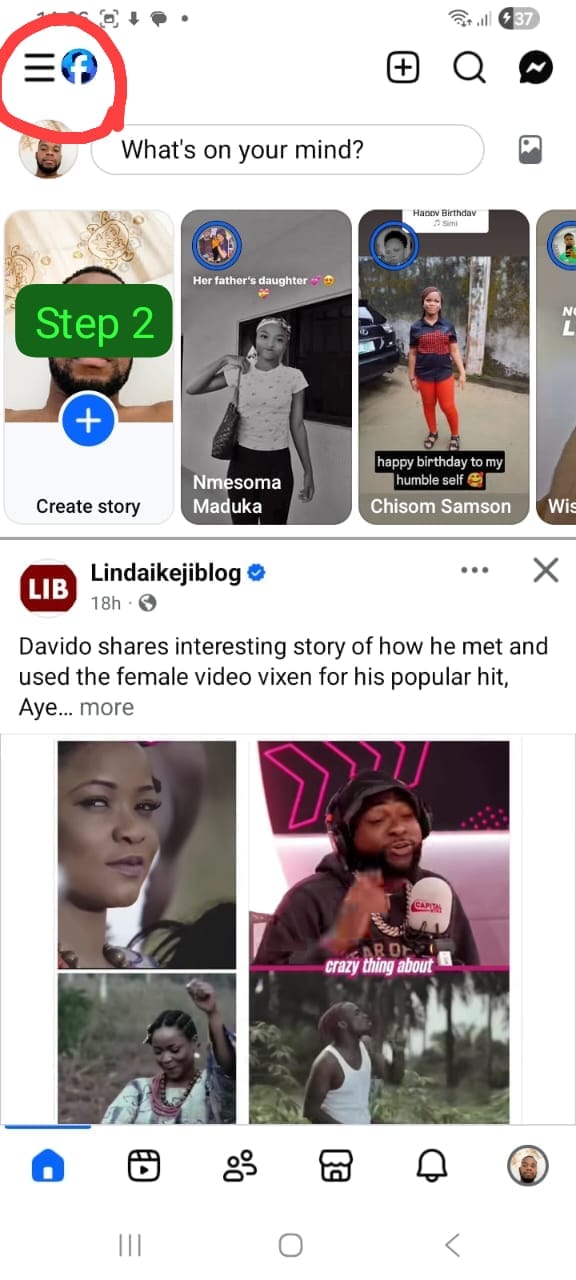
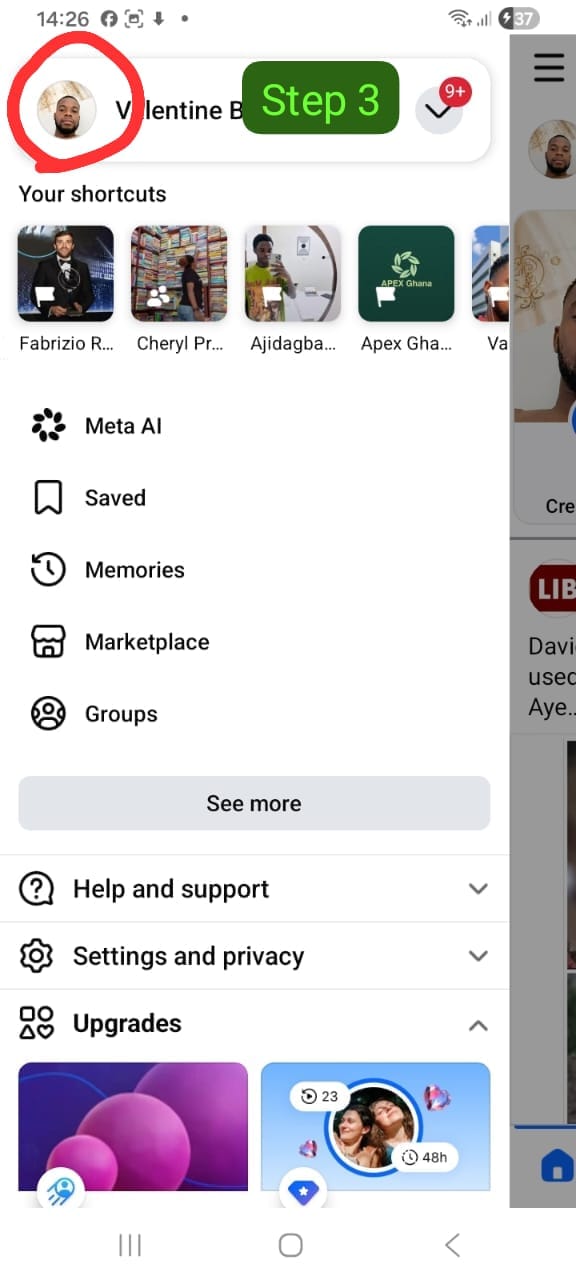
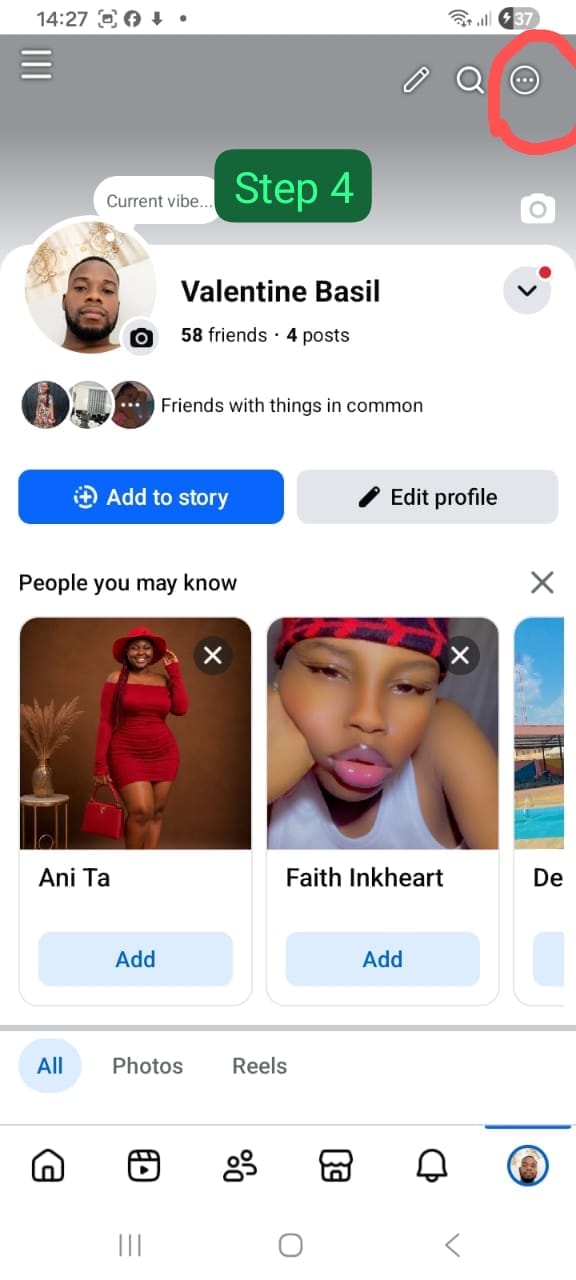
If you’re using the Facebook Android app, follow these steps:
- Open the Facebook app.
- Sign in to your account if necessary.
- Visit your Facebook profile.
- Tap the three-dot menu below your profile picture.
- Select Lock Profile if the option appears.
- Read the information Facebook displays.
- Tap Lock Your Profile to confirm.
After a few seconds, Facebook will notify you that your profile has been successfully locked.
How to Lock Facebook Profile on iPhone
The process on iPhone is nearly identical.
- Open the Facebook app.
- Go to your profile.
- Tap the three-dot menu.
- Select Lock Profile.
- Confirm your selection.
If you don’t see the option, don’t worry—we’ll explain several possible reasons later in this guide.
Can You Lock a Facebook Profile on a Computer?
Depending on your account and region, you may also be able to access the Profile Lock feature from a desktop browser.
If available:
- Visit Facebook.com.
- Open your profile.
- Click the three-dot menu.
- Select Lock Profile.
- Confirm the action.
Keep in mind that Facebook occasionally changes its interface, so menu locations may vary slightly over time.
How Do You Know Your Profile Is Locked?
Once you’ve completed how to lock Facebook profile, Facebook typically displays a confirmation message. Visitors who aren’t your friends will only be able to view a limited version of your profile.
You may also notice:
- Many public posts become hidden.
- Photos are less accessible to non-friends.
- Profile details become more restricted.
- Stories are limited to your friends.
These changes happen automatically, so you don’t need to manually update every individual privacy setting.
Who Should Consider Locking Their Facebook Profile?
Profile Lock isn’t only for people with privacy concerns. It’s useful for anyone who wants greater control over the information shared online.
For example:
- Students who want to limit public visibility.
- Parents protecting family photos.
- Professionals separating personal and work life.
- Travelers sharing updates only with trusted contacts.
- Anyone reducing their digital footprint.
A realistic example is a university student who regularly shares family photos and personal updates. By locking their profile, they reduce the chances of strangers viewing or copying personal content while still staying connected with friends.
Why Can’t I Find the Profile Lock Option?
One of the most common questions after searching how to lock Facebook profile is why the option doesn’t appear. If you’ve followed the earlier steps but still can’t see Lock Profile, don’t assume something is wrong with your account.
Facebook doesn’t make every feature available to all users at the same time. Availability can depend on several factors, including your location, account type, and the version of the Facebook app you’re using.
Some common reasons include:
- The feature hasn’t been rolled out in your country.
- Your Facebook app is outdated.
- Your account uses an older interface.
- Facebook is testing different privacy features in your region.
- Your profile may already have similar privacy settings enabled.
Meta occasionally updates account features, so it’s worth checking the Facebook Help Center for the latest information.
Alternative Privacy Settings If Profile Lock Isn’t Available
Even if you can’t use Profile Lock, you can still make your Facebook account much more private. In fact, manually adjusting your privacy settings gives you greater control over who can see your information.
Consider reviewing these settings:
- Change future posts from Public to Friends.
- Limit the audience for previous public posts.
- Hide your friends list from public view.
- Restrict who can send you friend requests.
- Control who can look you up using your email address or phone number.
- Disable search engine indexing for your profile.
- Review tagged photos before they appear on your timeline.
Together, these options provide many of the same privacy benefits that Profile Lock offers.
How to Make Your Facebook Account More Private
Learning how to lock Facebook profile is only one part of protecting your online presence. Good privacy habits go beyond a single feature.
Here are several additional recommendations:
1. Review Your Friend List
Remove people you no longer know or trust. Sharing personal updates with a smaller group often improves privacy.
2. Enable Two-Factor Authentication
Adding an extra layer of account security makes unauthorized access much more difficult, even if someone learns your password.
3. Use a Strong Password
Create a unique password that combines uppercase letters, lowercase letters, numbers, and symbols. Avoid reusing passwords across multiple websites.
4. Check Active Login Sessions
Facebook allows you to review devices currently signed into your account. If you notice an unfamiliar device, sign it out immediately and change your password.
Common Mistakes People Make
When trying to improve Facebook privacy, some users unintentionally leave important information exposed.
Avoid these common mistakes:
- Leaving older posts set to Public.
- Accepting friend requests from strangers.
- Sharing personal contact information publicly.
- Ignoring Facebook security notifications.
- Using weak or reused passwords.
- Forgetting to review app permissions connected to Facebook.
Spending a few extra minutes reviewing your account settings can significantly improve your overall privacy.
A Real-World Example: Consider Emma, a university student who frequently shared travel photos and personal updates on Facebook. After searching for how to lock Facebook profile, she discovered the feature wasn’t available in her region.
Instead of giving up, she manually adjusted her privacy settings by limiting future posts to friends, hiding her friends list, enabling timeline review, and activating two-factor authentication.
Although she couldn’t enable Profile Lock, her account became considerably more private through these alternative settings.
This example shows that Profile Lock is useful, but it’s only one part of a broader privacy strategy.
Protecting Your Devices Supports Better Privacy
Online privacy doesn’t stop with your Facebook account. The devices you use every day also play an important role.
If your Windows PC has become noticeably slower, it may be worth reviewing our guide on Why Is My Computer So Slow? 10 Common Causes and Proven Ways to Speed It Up, which explains practical ways to improve system performance and stability.
If you’re an iPhone user, removing apps you no longer need can also improve device organization and free up valuable storage. Our tutorial on How to Delete Apps on iPhone (Perfect Steps) provides step-by-step instructions.
Understanding the technology inside your mobile device can also help you make informed purchasing decisions. Our guide What Is the Role of SoCs in Smartphones? explains how modern processors influence performance, battery life, cameras, and artificial intelligence.
Should You Lock Your Facebook Profile?
For most people, the answer is yes. If the feature is available in your region, Profile Lock offers a quick and convenient way to improve privacy with very little effort.
However, it’s important to remember that no single privacy feature provides complete protection. Combining Profile Lock with good security habits—such as strong passwords, two-factor authentication, and careful sharing of personal information—creates a much stronger defense.
Frequently Asked Questions On how to lock Facebook profile
How to lock Facebook profile permanently?
If you’re wondering how to lock Facebook profile permanently, the feature remains active until you decide to unlock it. Once enabled, your profile stays locked, and Facebook continues applying the associated privacy restrictions unless you manually disable the feature.
Can everyone lock their Facebook profile?
No. The Profile Lock feature isn’t currently available for every Facebook account or in every country. If you don’t see the option, you can still achieve similar privacy by adjusting your individual privacy settings.
How do I unlock my Facebook profile?
Visit your Facebook profile, tap the three-dot menu, and choose Unlock Profile if the option is available. Confirm your decision, and your profile will return to your previous privacy settings.
Does Profile Lock hide all my photos?
Profile Lock limits access to many of your photos for people who aren’t your Facebook friends. However, certain public information, such as your name and profile picture, may still remain partially visible depending on Facebook’s policies.
Will my friends notice that my profile is locked?
Your friends can still interact with your posts, photos, and profile according to your privacy settings. Visitors who aren’t your friends may notice that your profile has restricted visibility.
Is Profile Lock better than changing privacy settings manually?
Profile Lock provides a quick way to apply multiple privacy settings at once. Manual privacy controls offer greater customization, so many users choose to combine both approaches when possible.
Does locking my Facebook profile improve account security?
Profile Lock primarily improves privacy by limiting who can view your information. For better security, you should also enable two-factor authentication, use a strong password, and regularly review login activity.
Can I still use Facebook normally after locking my profile?
Yes. Locking your profile doesn’t prevent you from posting updates, chatting with friends, joining groups, or using Messenger. It simply reduces what non-friends can view on your profile.
Best Practices for Maintaining Facebook Privacy
Learning how to lock Facebook profile is an excellent first step, but maintaining good privacy requires regular attention.
Consider reviewing these items every few months:
- Update your password if you suspect it has been exposed.
- Review your privacy settings after major Facebook updates.
- Check active login sessions for unfamiliar devices.
- Remove old apps connected to your Facebook account.
- Review who can tag you in posts and photos.
- Limit the amount of personal information displayed publicly.
Small privacy reviews take only a few minutes but can significantly reduce unnecessary exposure.
Final Thoughts on how to lock Facebook profile
Understanding how to lock Facebook profile helps you protect your personal information by limiting what people who aren’t your Facebook friends can see. It reduces the visibility of your posts, photos, stories, and profile details, making your account more private and secure.
If the Lock Profile feature isn’t available in your country or on your account, you can still improve your privacy by adjusting Facebook’s privacy settings, enabling two-factor authentication, using a strong password, and controlling who can view your content. Reviewing these settings regularly ensures your account stays protected as Facebook updates its privacy features.
Conclusion on how to lock Facebook profile
Knowing how to lock Facebook profile is one of the easiest ways to improve your online privacy and limit who can view your personal information. If the Lock Profile feature is available, you can enable it in just a few taps to protect your posts, photos, stories, and profile details from people who aren’t your Facebook friends.
If the feature isn’t available on your account, you can still achieve similar protection by adjusting Facebook’s privacy settings, enabling two-factor authentication, and reviewing your account security regularly. We hope this guide has helped you learn how to lock Facebook profile and keep your Facebook account more private and secure.