If you’re wondering how to share location on iPhone, open the Find My app, tap People, select Start Sharing Location, choose a contact, and set how long you want to share your location. You can also share your location through Messages, Apple Maps, or Family Sharing, making it easy to let friends and family know where you are.
In this guide, you’ll learn how to share location on iPhone using each method, adjust your privacy settings, and troubleshoot common location-sharing problems. If you’re interested in iPhone technology, you may also enjoy our guide on What Is the Role of SoCs in Smartphones?, which explains how smartphone processors improve GPS accuracy, battery efficiency, and overall performance.
Why Learn How to Share Location on iPhone?
Knowing how to share location on iPhone is useful in many everyday situations. Instead of constantly sending text messages explaining where you are, you can securely share your live location with trusted contacts for a specific period or until you decide to stop.
Location sharing is especially helpful when:
- Meeting friends at a busy shopping mall.
- Helping family members know you’ve arrived safely.
- Coordinating airport or train station pickups.
- Finding each other during concerts or sporting events.
- Keeping track of family members while traveling.
Because Apple integrates location sharing directly into iOS, you don’t need to download additional applications for most everyday situations. Everything works through Apple’s secure ecosystem, making the experience simple for both beginners and experienced iPhone users.
Requirements Before You Share Your Location
Before learning how to share location on iPhone, it’s important to confirm that a few essential settings are enabled. These settings ensure your device can accurately determine and securely share your location.
1. Enable Location Services
- Open Settings.
- Tap Privacy & Security.
- Select Location Services.
- Turn on Location Services.
Your iPhone combines GPS, nearby Wi-Fi networks, Bluetooth, and cellular signals to provide accurate location information. If Location Services are disabled, Find My, Apple Maps, and other location-based features won’t work correctly.
2. Sign In to Your Apple Account
To use Apple’s location-sharing features, you must be signed in to your Apple Account.
- Open Settings.
- Tap your name at the top of the screen.
- Verify that your Apple Account is active.
Keeping your Apple Account secure with a strong password and two-factor authentication helps protect your location information from unauthorized access.
3. Keep Your Apps Updated
Apple regularly releases updates that improve privacy, security, and compatibility with services such as Find My and Apple Maps. Before using location-sharing features, it’s a good idea to make sure your apps are up to date.
If you’re unsure how to do this, follow our guide on How to Update iPhone Apps: A Complete Step-by-Step Guide.
4. Enable Find My iPhone
To get the most out of Apple’s location-sharing features, you should enable Find My iPhone. This feature not only helps you share your location but also allows you to locate your device if it’s ever lost or stolen.
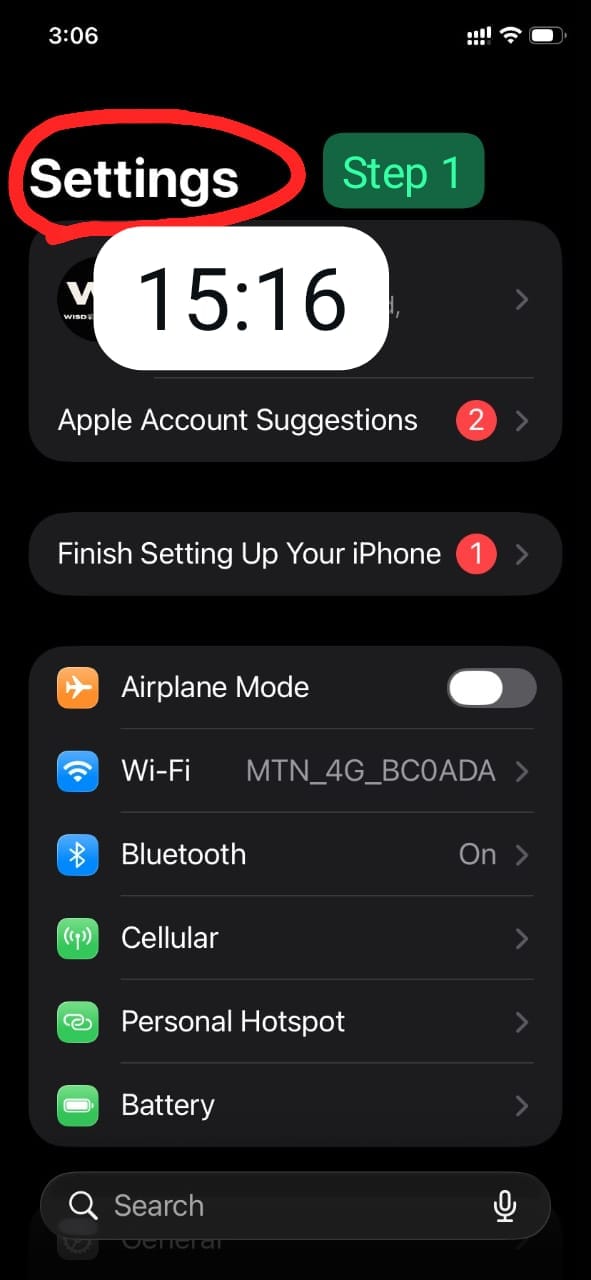
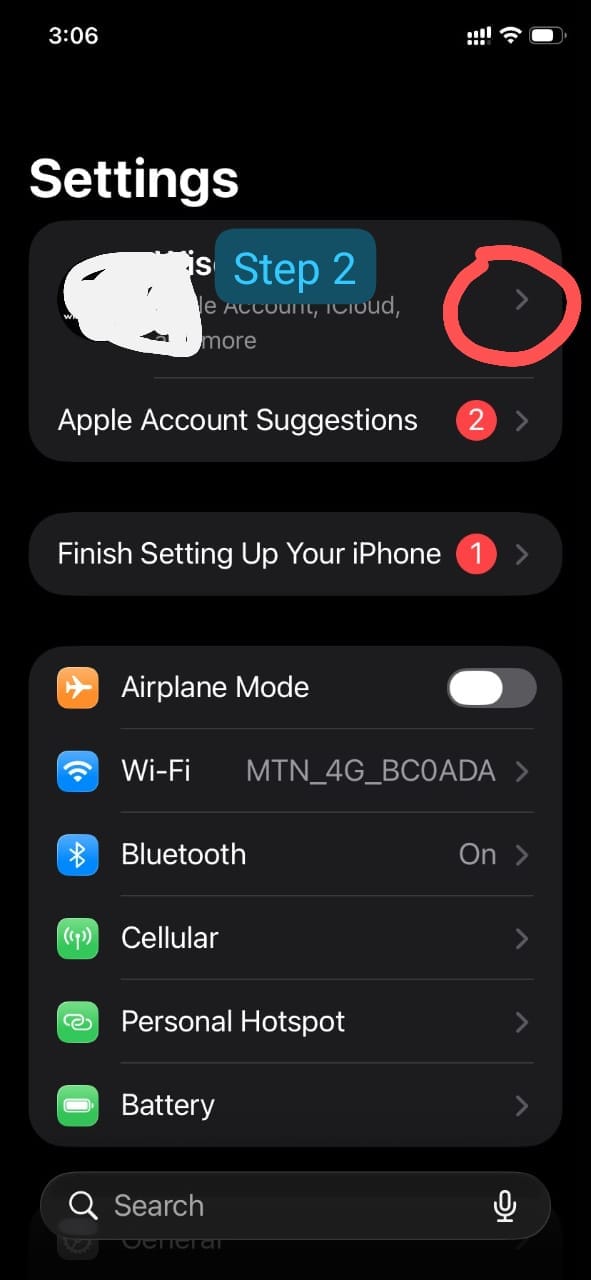
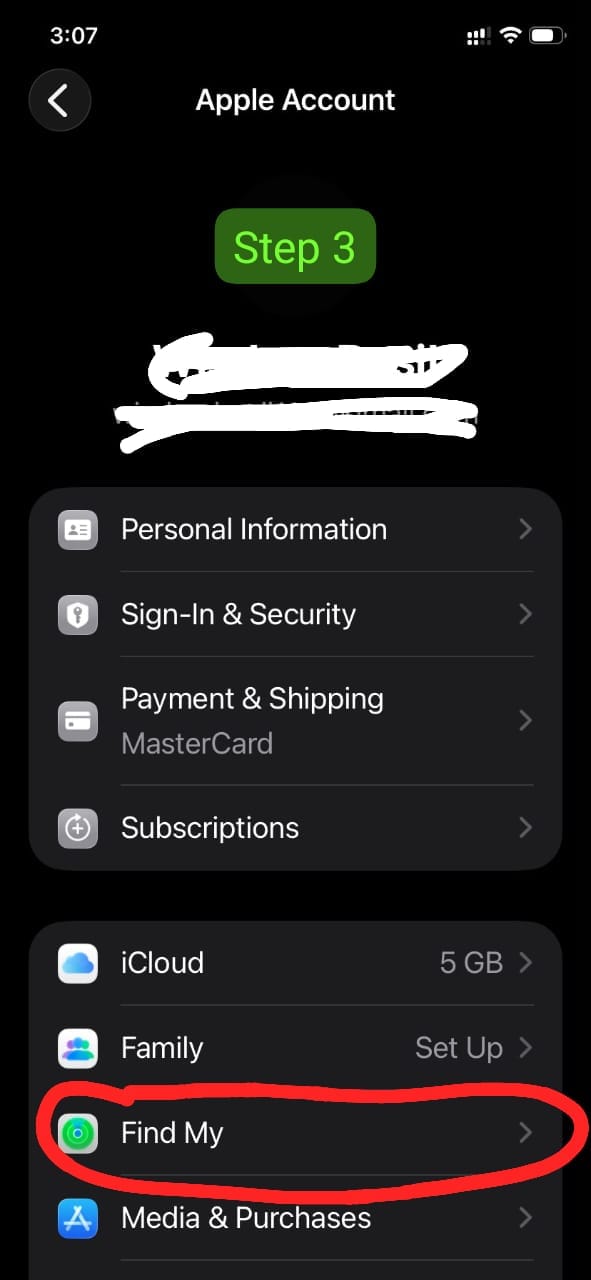
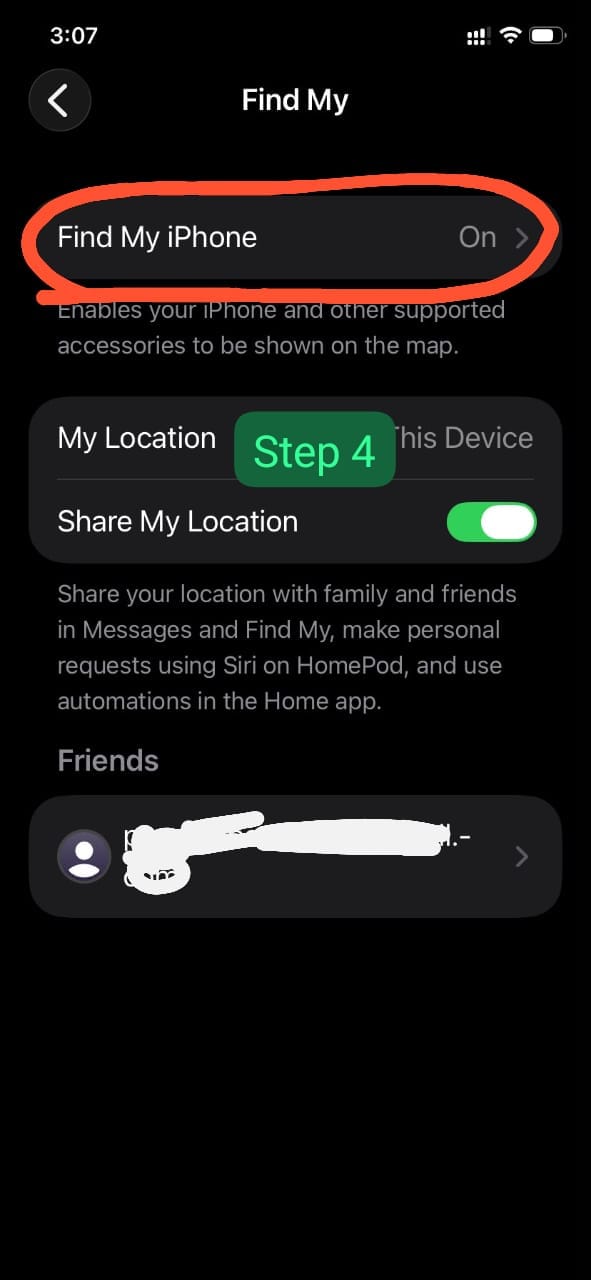
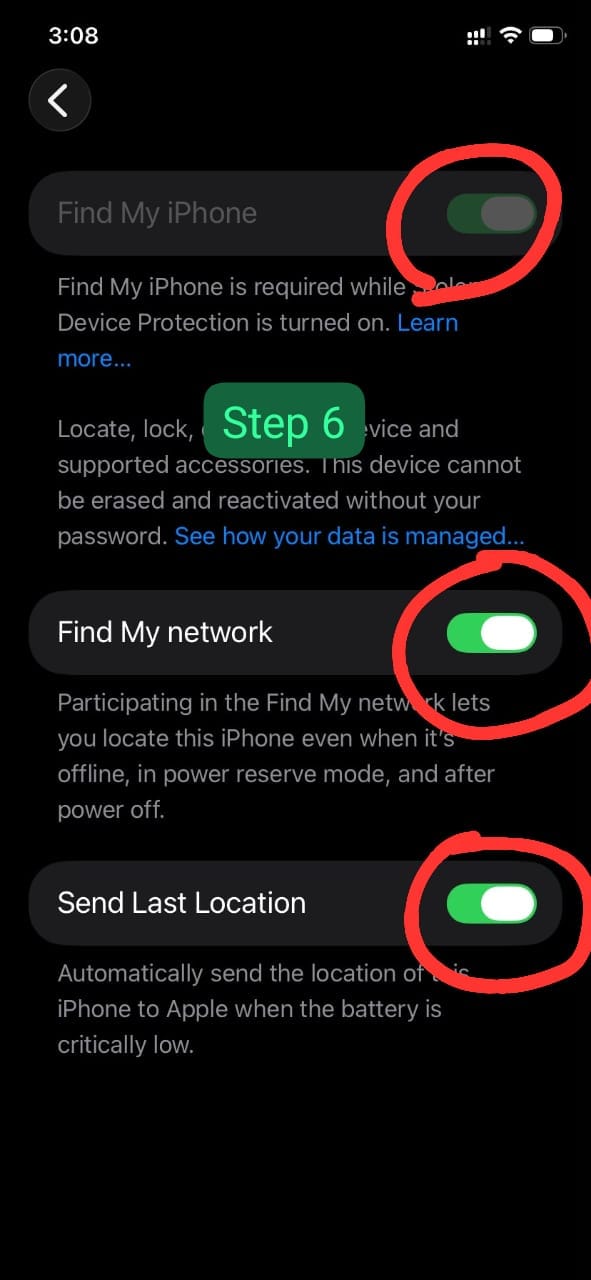
To enable Find My:
- Open Settings.
- Tap your Apple Account.
- Select Find My.
- Tap Find My iPhone.
- Turn on:
- Find My iPhone
- Find My Network
- Send Last Location
Enabling these options improves location accuracy, helps recover a misplaced device, and ensures you can use every method explained in this guide on how to share location on iPhone.
Apple recommends leaving these settings enabled for better device security and a smoother location-sharing experience.
Methods On How to Share Location on iPhone
Below are the methods to share location on iPhone:
1. How to Share Location on iPhone Using Find My
For most people, the easiest way to learn how to share location on iPhone is through the Find My app. It’s Apple’s official location-sharing service, offering secure, real-time location updates without requiring additional downloads.
Whether you’re coordinating with friends, checking in with family, or sharing your location while traveling, Find My provides a reliable and privacy-focused solution.
Step 1: Open the Find My App
Locate the Find My app on your Home Screen or App Library and tap to open it.
Step 2: Select the “People” Tab
At the bottom of the screen, tap the People tab. This section displays everyone who is currently sharing their location with you, along with the people you’re sharing your location with.
Step 3: Tap “Start Sharing Location”
Tap Start Sharing Location, then select a contact from your address book or enter their Apple Account email address manually.
Step 4: Choose How Long to Share Your Location
Apple offers three flexible sharing options:
- Share for One Hour – Best for short meetings or errands.
- Share Until End of Day – Ideal for day trips, events, or family outings.
- Share Indefinitely – Suitable for trusted family members or close friends.
Choosing the appropriate duration helps you maintain control over your privacy while ensuring others can find you when needed.
Step 5: Tap “Send”
After selecting the sharing duration, tap Send. The recipient will receive a notification inviting them to view your location.
If they accept, they’ll be able to see your live location in the Find My app until the sharing period expires or you manually stop sharing.
2. Why Use Find My Instead of Third-Party Apps?
There are several reasons why Apple users prefer Find My when learning how to share location on iPhone:
- Built directly into iOS.
- No additional apps or accounts required.
- Real-time GPS location updates.
- End-to-end privacy protections.
- Simple controls for starting or stopping location sharing.
- Works seamlessly with Family Sharing.
Real-World Example: Imagine you’re attending a large music festival with friends. Instead of repeatedly texting your location or trying to describe nearby landmarks, you can use Find My to share your live location. If someone gets separated from the group, everyone can quickly see where each person is, making it much easier to reconnect.
This is one of the most practical examples of how to share location on iPhone in everyday life, especially when navigating crowded or unfamiliar places.
Apple also provides detailed documentation for Find My through its official Find My User Guide, where you can explore additional features such as locating lost devices, sharing locations with family members, and managing privacy settings.
3. How to Share Location on iPhone Using Family Sharing
If you regularly share your whereabouts with family members, learning how to share location on iPhone through Family Sharing is one of the most convenient options. This Apple feature allows trusted family members to view each other’s location while keeping everyone in control of their own privacy settings.
Family Sharing isn’t just useful for location sharing. It also lets family members share eligible App Store purchases, Apple subscriptions, iCloud storage, calendars, reminders, and more. When combined with the Find My app, it becomes an excellent way to stay connected without constantly sending text messages.
According to Apple Support, every family member can choose whether to share their location, and this setting can be changed at any time.
How to Set Up Family Sharing
If you haven’t enabled Family Sharing yet, follow these steps:
- Open Settings on your iPhone.
- Tap your Apple Account.
- Select Family.
- Tap Set Up Your Family if you haven’t created a family group.
- Invite family members using their Apple Account email addresses.
- Follow the on-screen instructions to complete the setup.
After your family group is created, each member can decide whether they want to share their live location.
4. How to Enable Location Sharing for Family Members
- Open the Find My app.
- Select the People tab.
- Tap a family member’s name.
- Select Share My Location if it isn’t already enabled.
Once activated, approved family members can see your live location whenever they open the Find My app.
This is one of the easiest ways to use how to share location on iPhone for day-to-day family coordination.
When Family Sharing Is Most Useful
Family Sharing works particularly well in situations where multiple people need to stay informed without frequent phone calls or messages.
- Parents checking when children arrive home.
- Coordinating school pickups.
- Keeping track of family members during vacations.
- Finding each other at amusement parks or shopping centers.
- Helping elderly relatives stay connected.
For example, imagine a family visiting a large theme park. Instead of arranging fixed meeting points every few hours, everyone can view each other’s live location in Find My. If someone stops for a ride or visits another attraction, the rest of the group can quickly locate them without unnecessary stress.
How to Stop Sharing Your Location on iPhone
Knowing how to share location on iPhone is important, but understanding how to stop sharing your location is equally valuable. Apple gives you complete control over your privacy, allowing you to stop sharing with one person or everyone whenever you choose.
Stop Sharing with a Specific Person
- Open the Find My app.
- Tap the People tab.
- Select the person you no longer want to share your location with.
- Scroll to the bottom of the screen.
- Tap Stop Sharing My Location.
The selected contact will immediately lose access to your live location.
Turn Off Location Sharing Completely
If you’d prefer to stop sharing your location with everyone:
- Open Settings.
- Tap your Apple Account.
- Select Find My.
- Turn off Share My Location.
This disables location sharing across all Apple services until you decide to enable it again.
Review Your Shared Contacts Regularly
Even if you already know how to share location on iPhone, it’s good practice to review your sharing settings every few months. People change jobs, schools, and routines, so someone who once needed your location may no longer require access.
While reviewing your privacy settings, you may also want to organize your device by removing apps you no longer use. Our guide on How to Delete Apps on iPhone (Perfect Steps) walks you through the safest way to uninstall apps and free up valuable storage space.
Troubleshooting Common Location Sharing Problems
Even after learning how to share location on iPhone, you may occasionally encounter issues where your location doesn’t update correctly or the sharing option isn’t available. Fortunately, most of these problems are easy to fix by checking a few settings.
Before assuming there’s a hardware problem, work through the solutions below. In many cases, a simple setting adjustment or software update resolves the issue within minutes.
1. Your Location Isn’t Updating
If someone can’t see your latest location, one of these common issues may be preventing your iPhone from updating.
Check your internet connection.
Live location sharing requires an active internet connection through either Wi-Fi or cellular data. If you’re in an area with poor coverage, your location may stop updating until your connection improves.
Verify that Location Services are enabled.
- Open Settings.
- Go to Privacy & Security.
- Select Location Services.
- Confirm the feature is turned on.
Restart your iPhone.
A simple restart often resolves temporary software glitches that affect GPS or background services.
2. Find My Isn’t Working Properly
If you’re trying to learn how to share location on iPhone but the Find My app isn’t working correctly, check the following:
- You’re signed in to your Apple Account.
- Find My iPhone is enabled.
- Share My Location is turned on.
- Your device has internet access.
- The recipient also uses an Apple device with Find My enabled.
If everything appears correct but the issue continues, sign out of your Apple Account and sign back in, then reopen the Find My app.
3. Your Location Appears Incorrect
GPS technology is generally very accurate, but certain environments can reduce precision.
Your location may appear slightly inaccurate if you’re:
- Inside large buildings.
- Underground.
- Surrounded by tall buildings.
- In areas with weak GPS reception.
Moving outdoors or closer to a window usually improves accuracy within a few moments.
4. The “Share My Location” Option Is Missing
If you can’t find the location-sharing option, verify these settings:
- Location Services are enabled.
- Find My iPhone is active.
- Your Apple Account is properly configured.
- Your iPhone is running a supported version of iOS.
Installing the latest updates often restores missing features introduced in newer versions of iOS. If you need assistance, follow our tutorial on How to Update iPhone Apps: A Complete Step-by-Step Guide to ensure your apps remain compatible with the latest Apple software.
5. Battery Drains Faster During Location Sharing
Many people learning how to share location on iPhone wonder whether continuous location sharing affects battery life. While GPS does consume additional power, Apple’s software is optimized to keep battery usage as low as possible.
You can reduce battery consumption by:
- Sharing your location only when necessary.
- Selecting Share for One Hour instead of indefinite sharing.
- Closing apps running unnecessarily in the background.
- Keeping iOS updated.
- Enabling Low Power Mode after finishing your trip.
If your iPhone feels sluggish while using Maps, Find My, or other apps, improving overall device performance can also help. Although it’s written for desktop users, our guide on Why Is My Computer So Slow? 10 Common Causes and Proven Ways to Speed It Up includes useful maintenance habits—such as managing storage, updating software, and reducing unnecessary background activity—that also apply to smartphones.
Best Practices for Safe Location Sharing
Understanding how to share location on iPhone isn’t just about using the feature—it’s also about protecting your privacy. Apple provides powerful privacy controls, but following a few best practices will help ensure your location information remains secure.
Share Only with Trusted Contacts
Only share your live location with people you know and trust. If you no longer need to share your location with someone, remove them from your Find My list immediately.
Choose the Right Sharing Duration
Apple offers flexible sharing options so you don’t have to leave location sharing enabled indefinitely. For most situations, temporary sharing is the better choice.
Review Your Privacy Settings Regularly
Every few months, open the Find My app and review who has access to your location. Removing outdated contacts helps protect your privacy.
Keep Your Device Updated
Apple frequently releases iOS updates that improve Location Services, GPS accuracy, and privacy protections. Installing updates ensures you’re benefiting from the latest security improvements.
You can also learn more about Apple’s approach to protecting user data by visiting the official Apple Privacy page.
Secure Your Apple Account
Enable two-factor authentication and use a strong, unique password for your Apple Account. This helps prevent unauthorized access to your personal information, including your shared location.
Frequently Asked Questions About How to Share Location on iPhone
Below are answers to some of the most common questions people have after learning how to share location on iPhone. These tips can help you use Apple’s location-sharing features more effectively while protecting your privacy.
Can I share my location with someone who uses an Android phone?
Yes. While the Find My app is designed for Apple devices, you can still share your current or live location with Android users through compatible apps such as Google Maps or WhatsApp. If you’re looking for how to share location on iPhone with someone who doesn’t use an iPhone, these apps provide a reliable alternative.
Will someone be notified if I stop sharing my location?
Apple doesn’t send a notification when you stop sharing your location. However, the person may notice that your location is no longer visible in the Find My app or within your Messages conversation.
Can I share my location for a limited time?
Yes. Apple allows you to choose between sharing your location for one hour, until the end of the day, or indefinitely. This flexibility is one of the reasons many users prefer Apple’s built-in location-sharing tools.
Does location sharing work without an internet connection?
No. Although your iPhone can determine its location using GPS, sharing that location with someone else requires an active Wi-Fi or cellular data connection.
Is location sharing secure?
Yes. Apple encrypts location data and gives you full control over who can access your location. To maximize security, only share your location with trusted contacts and regularly review your sharing settings.
Does sharing my location drain my battery?
Continuous GPS usage can slightly increase battery consumption, but modern iPhones are optimized to minimize the impact. If you’re trying to extend battery life, consider using shorter sharing durations and removing apps you no longer use. Our guide on How to Delete Apps on iPhone (Perfect Steps) explains how to safely uninstall unused apps and free up valuable storage.
Conclusion on how to share location on iPhone
Knowing how to share location on iPhone makes it easier to meet friends, coordinate with family, and let trusted contacts know where you are. Using Find My, Messages, Apple Maps, or Family Sharing, you can securely share your current or live location while staying in control of who can see it and for how long.
Remember to share your location only with people you trust, review your sharing permissions regularly, and keep your iPhone updated to benefit from the latest privacy and security improvements. We hope this guide has helped you learn how to share location on iPhone with confidence. For more Apple tips, check out our guide on How to Update iPhone Apps to keep your device running smoothly.