How to reset iPhone depends on what you want to fix. You can reset specific settings without deleting your data, perform a force restart to resolve temporary issues, or erase all content and settings if you’re selling your iPhone or troubleshooting persistent software problems. Before performing a factory reset, back up your data to avoid losing important information.
This guide explains how to reset iPhone using every official method, when to use each reset option, how to back up your data safely, and how to avoid common mistakes. If you’re interested in iPhone technology, you can also read our guide on What Is the Role of SoCs in Smartphones?.
When Should You Reset Your iPhone?
Many people search for how to reset iPhone because their device isn’t performing as expected. However, resetting should be based on the specific issue you’re experiencing. In many situations, a simple restart is enough, while more serious software problems may require a factory reset.
Here are some of the most common reasons people reset an iPhone:
- The device freezes or becomes unresponsive.
- Apps crash repeatedly.
- The iPhone is unusually slow.
- Battery performance has noticeably declined after a software issue.
- The touchscreen stops responding.
- You’re selling, trading in, or giving away the device.
- You want to remove all personal information before transferring ownership.
For example, imagine your iPhone suddenly begins freezing after installing several new apps. Instead of immediately performing a factory reset, a simple restart or resetting your settings may resolve the problem while preserving all of your personal data.
Choosing the least disruptive reset method first is generally the safest approach.
Before You Reset Your iPhone
Before following any tutorial on how to reset iPhone, it’s important to prepare your device properly. Some reset methods erase everything stored on your iPhone, while others only restart the operating system or reset system settings.
1. Back Up Your Data On Your iPhone
If you’re planning to perform a factory reset, create a backup first. You can back up your iPhone using:
- iCloud Backup
- Finder on macOS
- Apple Devices or iTunes on Windows
A recent backup allows you to restore your photos, contacts, messages, documents, and apps after the reset is complete.
2. Charge Your iPhone Battery
Apple recommends ensuring your battery has sufficient charge before beginning a reset. Ideally, your iPhone should have at least 50% battery remaining or be connected to a charger throughout the process.
3. Update Your iPhone Apps
Sometimes the issue you’re experiencing is caused by outdated applications rather than iOS itself. Before deciding to reset your device, install any available app updates. Our tutorial on How to Update iPhone Apps: A Complete Step-by-Step Guide explains how to update your apps safely.
4. Remember Your Apple Account Credentials
If you perform a factory reset, you’ll need your Apple Account email address and password to reactivate the device because of Apple’s Activation Lock security feature.
Make sure you can sign in successfully before erasing your iPhone.
5. Understand Which Reset You Actually Need
One of the biggest mistakes people make when learning how to reset iPhone is choosing a factory reset when a simple restart would solve the problem.
In general:
- Restart fixes temporary glitches.
- Force Restart helps when the screen is frozen.
- Reset All Settings restores system settings without deleting personal files.
- Factory Reset completely erases the device and returns it to its original state.
Starting with the least invasive option saves time and reduces the risk of accidentally losing important information.
Method On How to Reset iPhone
Below are the Method to Reset iPhone:
1. How to Reset iPhone by Restarting It
If your iPhone is running slowly, an app has frozen, or you’re experiencing minor software glitches, a standard restart is usually the first solution to try. For many users searching for how to reset iPhone, this simple method solves the problem without affecting personal data, settings, or installed apps.
A restart closes background processes, refreshes system memory, and reloads iOS. Because it doesn’t erase any information, it’s considered the safest reset option and should always be your first troubleshooting step.
How to Restart an iPhone with Face ID
- Press and hold the Side button and either Volume button simultaneously.
- When the slide to power off slider appears, drag it to the right.
- Wait about 30 seconds for the device to shut down completely.
- Press and hold the Side button again until the Apple logo appears.
How to Restart an iPhone with a Home Button
- Press and hold the Power button.
- Move the slide to power off slider.
- Wait for the phone to turn off.
- Press and hold the Power button until the Apple logo appears.
When Is a Standard Restart Enough?
A normal restart is often all you need if:
- An app becomes unresponsive.
- Your iPhone feels slower than usual.
- Wi-Fi or Bluetooth temporarily disconnects.
- The keyboard lags while typing.
- Minor software glitches appear after installing an app.
For example, if your Maps app freezes while navigating, restarting your iPhone often restores normal performance without requiring additional troubleshooting.
If your device still performs poorly after restarting, you may need one of the more advanced reset methods covered later in this guide on how to reset iPhone.
2. Force Restart an Unresponsive iPhone
Sometimes a standard restart isn’t possible because the screen is frozen or the device won’t respond to touch. In those situations, a force restart can often restore normal operation without deleting your personal data.
Unlike a factory reset, a force restart simply forces the operating system to reboot. Your photos, contacts, messages, apps, and settings remain intact.
How to Force Restart iPhone 8 and Later (Including Face ID Models)
- Quickly press and release the Volume Up button.
- Quickly press and release the Volume Down button.
- Press and hold the Side button.
- Continue holding until the Apple logo appears, then release the button.
How to Force Restart iPhone 7 and iPhone 7 Plus
- Press and hold the Volume Down button.
- At the same time, press and hold the Power button.
- Release both buttons when the Apple logo appears.
How to Force Restart iPhone 6s and Earlier
- Press and hold the Home button.
- While holding it, press and hold the Power button.
- Release both buttons once the Apple logo appears.
When Should You Use a Force Restart?
A force restart is recommended when:
- Your iPhone is completely frozen.
- The screen is black but the device appears to have power.
- The touchscreen isn’t responding.
- An app causes the entire system to become unresponsive.
- Your iPhone gets stuck on the Apple logo during startup.
Because this process doesn’t erase any information, it’s one of the safest troubleshooting methods when learning how to reset iPhone.
Real-World Example: Imagine you’re taking photos during a family vacation when your Camera app suddenly freezes and your iPhone stops responding. Instead of panicking or assuming you’ve lost your pictures, performing a force restart usually restores normal operation within a minute. Once the phone restarts, your photos and other personal files remain available because the process doesn’t erase stored data.
This is a good example of why it’s important to understand the different ways to reset iPhone. Choosing the appropriate method can solve the problem while avoiding unnecessary data loss.
Apple also provides official troubleshooting instructions through its iPhone User Guide, which is regularly updated with the latest information for supported iPhone models and iOS versions.
3. Reset All Settings Without Deleting Your Data
If restarting or force restarting hasn’t solved the issue, the next step in learning how to reset iPhone is understanding Reset All Settings. This option restores your system settings to their default values while keeping your personal data intact.
Unlike a factory reset, this method does not delete your photos, videos, contacts, messages, apps, or documents. Instead, it resets system preferences that may have become misconfigured over time.
What Does “Reset All Settings” Change?
When you choose this option, your iPhone resets:
- Wi-Fi passwords and saved networks.
- Bluetooth pairings.
- Keyboard dictionary.
- Location and privacy permissions.
- Home Screen layout.
- Display, sound, and accessibility settings.
Your personal files and installed apps remain exactly where they are.
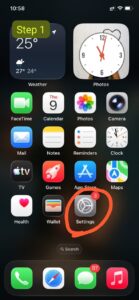
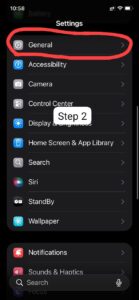
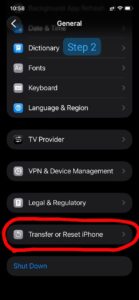
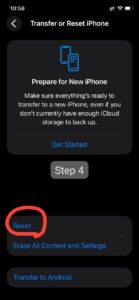
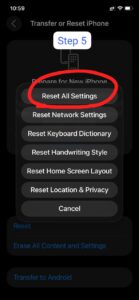

How to Reset All Settings
- Open Settings.
- Tap General.
- Scroll down and tap Transfer or Reset iPhone.
- Select Reset.
- Tap Reset All Settings.
- Enter your passcode if prompted.
- Confirm your choice.
Your iPhone will restart automatically, and all system settings will return to their default configuration.
When Should You Use This Option?
This method is useful if:
- Your Wi-Fi keeps disconnecting.
- Bluetooth devices won’t pair correctly.
- Location Services behave unexpectedly.
- Notifications stop working properly.
- Settings have become difficult to troubleshoot individually.
For example, if your iPhone repeatedly loses its Wi-Fi connection after a recent iOS update, resetting all settings often resolves the problem without affecting your photos or installed applications.
4. Factory Reset Your iPhone (Erase All Content and Settings)
If you’re selling your device, trading it in, giving it to someone else, or troubleshooting a serious software problem, you may need a complete factory reset. Among all the methods covered in this guide on how to reset iPhone, this is the most comprehensive because it removes everything stored on the device.
A factory reset permanently erases:
- Photos and videos.
- Contacts.
- Messages.
- Installed apps.
- Downloaded files.
- Personal settings.
- Apple Wallet data.
Once the process is complete, your iPhone returns to the same state it was in when it first left the factory.
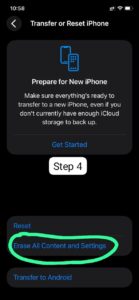
How to Factory Reset Your iPhone
- Open Settings.
- Tap General.
- Select Transfer or Reset iPhone.
- Tap Erase All Content and Settings.
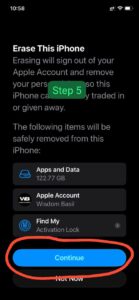
- Review the information shown on the screen.
- Tap Continue.
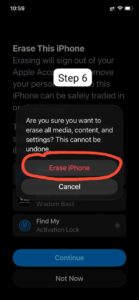
- Enter your passcode and Apple Account password if requested.
- Wait for the reset process to finish.
The time required depends on your iPhone model and the amount of data stored on the device. Most factory resets are completed within several minutes.
When Is a Factory Reset Recommended?
- Before selling or donating your iPhone.
- When serious software issues continue after other troubleshooting methods.
- If your device is infected with persistent software bugs.
- When you want to start fresh with a clean installation of iOS.
5. How to Reset iPhone Using a Mac or Windows PC
If your iPhone won’t start normally or the Settings app isn’t accessible, you can still complete the reset process using a computer. This method is especially useful when your device is stuck on the Apple logo, trapped in a boot loop, or experiencing persistent software issues.
Learning how to reset iPhone with a computer gives you another reliable recovery option without immediately visiting an Apple Store or authorized service provider.
Reset an iPhone Using a Mac
Modern versions of macOS include Finder, which replaces iTunes for managing iPhones.
- Connect your iPhone to your Mac using a compatible USB cable.
- Open Finder.
- Select your iPhone from the sidebar.
- Choose General.
- Click Restore iPhone.
- Confirm your selection and follow the on-screen instructions.
Finder will download the latest compatible version of iOS before reinstalling it on your device.
Reset an iPhone Using Windows
Windows users can perform the same process using the Apple Devices app or, on older systems, iTunes.
- Connect your iPhone to your computer.
- Open Apple Devices or iTunes.
- Select your iPhone.
- Click Restore iPhone.
- Confirm the restore process.
Your computer will erase the device and install a fresh copy of iOS.
According to Apple Support, restoring through a computer is often recommended when software issues prevent the device from functioning normally.
6. Reset an iPhone Using Recovery Mode
If a normal factory reset doesn’t work, Recovery Mode is the next troubleshooting step. This advanced feature allows your computer to reinstall iOS even if the iPhone won’t boot correctly.
Recovery Mode is commonly used when:
- Your iPhone is stuck on the Apple logo.
- The device continuously restarts.
- The screen stays black during startup.
- An iOS update fails to complete.
How to Enter Recovery Mode (iPhone 8 and Later)
- Connect your iPhone to your computer.
- Quickly press and release the Volume Up button.
- Quickly press and release the Volume Down button.
- Press and hold the Side button.
- Keep holding until the Recovery Mode screen appears.
Once Recovery Mode appears, Finder or Apple Devices will offer two choices:
- Update – Attempts to reinstall iOS without deleting your data.
- Restore – Erases the device and installs a clean version of iOS.
Whenever possible, try Update first. If that doesn’t solve the problem, proceed with Restore.
This is one of the most powerful techniques to know when learning how to reset iPhone, especially for more serious software problems.
What If Restarting Doesn’t Fix the Problem?
If your iPhone continues to crash, freeze, or behave unexpectedly after both a standard restart and a force restart, the issue may be related to system settings or corrupted software rather than a temporary glitch.
How to Restore Your Data After Resetting Your iPhone
After completing a factory reset, you can restore your personal information during the setup process. This is one of the final steps in successfully learning how to reset iPhone without permanently losing valuable data.
During setup, Apple provides several restoration options:
- Restore from an iCloud Backup.
- Restore from a Mac using Finder.
- Restore from a Windows PC using Apple Devices or iTunes.
- Transfer data directly from another iPhone.
- Set up as a new iPhone.
If you created a recent backup before resetting, restoring your apps, photos, contacts, messages, and settings is usually straightforward.
Apple recommends verifying that your backup completed successfully before erasing your device. You can find detailed instructions in the official Apple Support documentation.
Before Moving to Advanced Reset Methods
If your iPhone still won’t start properly after performing a factory reset, don’t worry. There are additional recovery options available. In the next section of this guide on how to reset iPhone, you’ll learn how to use Recovery Mode, reset your device using a Mac or Windows PC, and troubleshoot more advanced software issues.
If you’re organizing your iPhone before resetting or preparing it for a new owner, it’s also a good time to remove apps you no longer need. Our guide on How to Delete Apps on iPhone (Perfect Steps) explains the quickest and safest way to free up storage and tidy your device before backing it up.
Recovery Mode vs. Factory Reset
Many users confuse these two options, but they serve different purposes.
| Feature | Factory Reset | Recovery Mode |
|---|---|---|
| Accessed through Settings | ✔ Yes | ✘ No |
| Requires a computer | ✘ Usually No | ✔ Yes |
| Reinstalls iOS | ✘ No | ✔ Yes |
| Useful when iPhone won’t boot | ✘ No | ✔ Yes |
| Deletes personal data | ✔ Yes | Only if Restore is selected |
Understanding these differences helps you choose the right solution instead of performing unnecessary troubleshooting steps.
Should You Visit an Apple Store?
If you’ve tried every method in this guide on how to reset iPhone and your device still won’t function correctly, the issue may be hardware-related rather than software-related.
Professional assistance is recommended if:
- Your iPhone won’t turn on after multiple recovery attempts.
- The device has suffered liquid damage.
- The screen remains black despite successful resets.
- The battery fails to charge properly.
- You receive repeated hardware error messages during restoration.
Apple or an authorized service provider can run diagnostic tests to determine whether components such as the battery, display, or logic board require repair or replacement.
Frequently Asked Questions About How to Reset iPhone
Below are answers to some of the questions people most frequently ask when searching for how to reset iPhone.
1. Will resetting my iPhone delete everything?
Not always. A standard restart, force restart, and Reset All Settings do not erase your personal files. Only Erase All Content and Settings (factory reset) permanently removes your apps, photos, messages, and other personal data.
2. What’s the difference between restarting and resetting an iPhone?
Restarting simply turns your iPhone off and back on, refreshing the operating system without affecting your data. Resetting can refer to several actions, including resetting settings or completely erasing the device depending on the option you choose.
3. How long does it take to reset an iPhone?
A normal restart usually takes less than one minute. A factory reset generally takes between 5 and 20 minutes, depending on the iPhone model, storage capacity, and whether the device needs to download a fresh copy of iOS.
4. Can I reset my iPhone without a password?
If you’ve forgotten your passcode, you may need to use Recovery Mode with a Mac or Windows PC to erase the device. Afterward, you’ll still need the Apple Account credentials associated with the iPhone to complete Activation Lock verification.
5. Should I reset my iPhone if it’s running slowly?
Not necessarily. Many performance problems are caused by outdated apps, limited storage, or software bugs. Before performing a factory reset, try restarting your device, updating iOS, deleting unused apps, and freeing up storage space.
6. Is it safe to factory reset an iPhone before selling it?
Yes. Performing a factory reset after signing out of your Apple Account and disabling Find My is the recommended way to prepare an iPhone for a new owner. This removes your personal information while allowing the buyer to activate the device normally.
Conclusion on how to reset iPhone
Knowing how to reset iPhone helps you fix software issues, improve performance, and prepare your device for resale without risking unnecessary data loss. Whether you need a simple restart, a force restart, a settings reset, or a complete factory reset, choosing the right method can solve most iPhone problems quickly and safely.
Before performing a factory reset, always back up your iPhone to iCloud or a computer to protect your important data. We hope this guide has helped you understand how to reset iPhone with confidence. For more Apple tips, explore our other tutorials on iPhone maintenance, privacy, and security to keep your device running at its best.