How to pair AirPods to Android is quick and easy. Turn on Bluetooth on your Android device, place your AirPods in the charging case, press and hold the setup button until the status light flashes white, then select your AirPods from the list of available Bluetooth devices. Once paired, they’ll reconnect automatically whenever Bluetooth is enabled and the AirPods are nearby.
This guide explains how to pair AirPods to Android step by step, how to fix common pairing problems, and how to get the best audio performance and battery life on your Android phone or tablet.

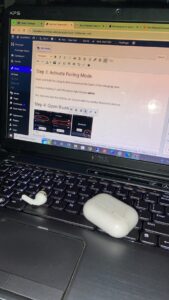
Can You Pair AirPods to Android?
Yes. You can easily pair AirPods to Android because AirPods use Bluetooth, the same wireless technology supported by Android phones.
According to Apple Support, AirPods can connect to non-Apple devices using Bluetooth, although some Apple-exclusive features won’t be available.
After learning how to pair AirPods to Android, you’ll be able to use them for:
- Listening to music and podcasts
- Watching YouTube, Netflix, and other streaming services
- Making and receiving phone calls
- Joining Zoom, Google Meet, and Microsoft Teams meetings
- Playing mobile games
- Using voice chat applications
However, features such as Siri, automatic switching between Apple devices, and iCloud synchronization remain exclusive to Apple’s ecosystem.
Things to Do Before You Pair AirPods to Android
Before following the steps on how to pair AirPods to Android, make sure both your earbuds and phone are ready.
1. Charge Your AirPods
If the AirPods or charging case has a low battery, the earbuds may not enter pairing mode. Charge them for at least 15 minutes before starting.
2. Turn On Bluetooth on your Andriod
On your Android phone, open:
Settings → Bluetooth
Enable Bluetooth if it’s currently turned off.
3. Disconnect Other Devices when connecting AirPods
If your AirPods are connected to a nearby iPhone, iPad, or Mac, they may reconnect automatically. Turn off Bluetooth on those devices temporarily to avoid interference.
4. Stay Close to Your Phone
Keep your AirPods within a few feet of your Android device during the pairing process for the strongest Bluetooth signal.
If you also use wireless accessories with your computer, check out our guide on How to Connect Xbox Controller to PC: 8 Easy Methods for additional Bluetooth setup tips.
How to Pair AirPods to Android in 6 Simple Steps
Follow these instructions carefully to learn how to pair AirPods to Android successfully.
Step 1: Place the AirPods in the Charging Case
Insert both AirPods into the charging case and close the lid.
Wait about 10 seconds before opening it again.
Step 2: Leave the Charging Case Open
Open the lid while keeping both AirPods inside.
The charging case should remain open throughout the pairing process.
Step 3: Activate Pairing Mode
Press and hold the setup button located on the back of the charging case.
Continue holding it until the status light flashes white.
This indicates that the AirPods are discoverable by nearby Bluetooth devices.
Step 4: Open Bluetooth Settings
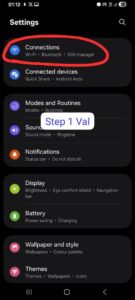
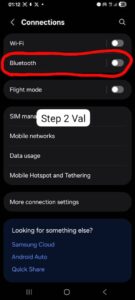
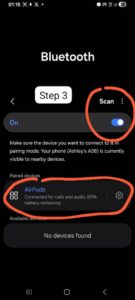
Navigate to:
Settings → Bluetooth → Pair New Device
Depending on your Android phone, the option may also be labeled Add Device or Available Devices.
Your phone will begin searching for nearby Bluetooth devices.
Step 5: Select Your AirPods
When your AirPods appear in the available devices list, tap their name.
You may see names such as:
- AirPods
- AirPods Pro
- AirPods Max
- A custom AirPods name
Step 6: Confirm the Pairing Request
If prompted, tap Pair or Connect.
Within a few seconds, your Android phone should display Connected.
Congratulations! You’ve successfully learned how to pair AirPods to Android. Future connections should happen automatically whenever Bluetooth is enabled.
If your AirPods don’t appear during setup, Apple’s official AirPods User Guide provides additional troubleshooting information.
How to Confirm Your AirPods Are Connected
After completing how to pair AirPods to Android, it’s a good idea to test the connection.
Open any app that plays audio, such as:
- Spotify
- YouTube
- Netflix
- Apple Music
- A podcast application
If the sound plays through your AirPods, the pairing was successful.
Example: Imagine you’ve upgraded from an iPhone to a Samsung Galaxy S25 but still want to use your AirPods Pro.
After placing the AirPods into pairing mode, you simply open the Bluetooth settings on your Samsung phone, tap “AirPods Pro” from the available devices list, and confirm the connection.
Within less than a minute, you’ve completed how to pair AirPods to Android and can continue listening to music, watching videos, or making calls without buying a new pair of earbuds.
Common Problems When You Pair AirPods to Android
| Problem | Possible Cause | Recommended Fix |
|---|---|---|
| AirPods don’t appear | Not in pairing mode | Hold the setup button until the light flashes white. |
| Frequent disconnections | Bluetooth interference | Move closer to the phone and reconnect. |
| No sound | Incorrect audio output | Select AirPods as the active audio device. |
| Only one AirPod works | Low battery or dirty contacts | Charge and clean both AirPods. |
| Won’t reconnect | Corrupted Bluetooth pairing | Forget the device and pair it again. |
Which AirPods Features Work on Android?
After learning how to pair AirPods to Android, the next question is usually whether you’ll get the same experience as an iPhone user.
The answer is yes—for most everyday tasks. Once you successfully pair AirPods to Android, you can enjoy high-quality audio, clear phone calls, and a reliable Bluetooth connection. However, some features are designed exclusively for Apple’s ecosystem and won’t be available on Android.
| Feature | Available on Android |
|---|---|
| Music and Video Playback | ✅ Yes |
| Phone Calls | ✅ Yes |
| Built-in Microphone | ✅ Yes |
| Automatic Bluetooth Reconnection | ✅ Yes |
| Active Noise Cancellation (AirPods Pro) | ✅ Yes |
| Transparency Mode | ✅ Yes |
| Touch or Force Sensor Controls | ✅ Yes |
| Spatial Audio with Head Tracking | ❌ No |
| Siri Voice Assistant | ❌ No |
| Automatic Apple Device Switching | ❌ No |
| Battery Pop-up Animation | ❌ No |
For most Android users, these missing features have little impact on everyday listening, making AirPods a practical choice even without an iPhone.
How to Use AirPods on Android After Pairing
Once you’ve completed how to pair AirPods to Android, you can immediately start using them with your favorite apps.
AirPods work well with:
- Spotify
- YouTube
- Netflix
- Disney+
- Apple Music
- Telegram
- Google Meet
- Zoom
- Microsoft Teams
- Discord
In most cases, audio will automatically switch to your AirPods as soon as they’re connected.

How to Switch Between Noise Cancellation and Transparency Mode
If you own AirPods Pro or AirPods Max, you can continue using Active Noise Cancellation and Transparency Mode after you pair AirPods to Android.
To switch listening modes:
- Insert both AirPods into your ears.
- Press and hold the force sensor on either AirPod stem.
- Wait until you hear the confirmation tone.
- Release the button.
You can switch between:
- Active Noise Cancellation
- Transparency Mode
- Standard Listening Mode
This is especially useful while traveling, working in busy offices, or studying in noisy environments.
How to Check AirPods Battery on Android
Unlike iPhones, Android doesn’t display a battery pop-up when you open the AirPods charging case.
Fortunately, after learning how to pair AirPods to Android, you can install trusted apps that estimate your battery percentage.
Popular options include:
- CAPod
- MaterialPods
- AndroPods
These apps can display:
- Battery level for the left AirPod
- Battery level for the right AirPod
- Charging case battery (on supported models)
- Connection status
Download these applications only from the official Google Play Store to help keep your device secure.
Tips to Improve AirPods Performance on Android
Knowing how to pair AirPods to Android is only the beginning. These practical tips can improve audio quality, connection stability, and battery life.
1. Keep Bluetooth Turned On
If you regularly use your AirPods, leaving Bluetooth enabled allows them to reconnect automatically when you remove them from the charging case.
2. Update Your Android Device Be Pairing Your AirPods
Software updates often include Bluetooth improvements, security patches, and compatibility fixes.
3. Stay Within Bluetooth Range
Bluetooth works best within approximately 10 meters (33 feet) without large walls or metal objects blocking the signal.
4. Clean Your AirPods Regularly
Earwax, dust, and debris can affect sound quality and charging performance.
Apple recommends gently cleaning AirPods with a soft, dry, lint-free cloth. Avoid using liquids or sharp objects inside the speaker openings.
You can find additional care recommendations in the official Apple AirPods User Guide.
AirPods Keep Disconnecting? Here’s How to Fix It
Even after successfully learning how to pair AirPods to Android, Bluetooth connections can occasionally become unstable.
Try these solutions one at a time.
1. Restart Your Phone Before Pairing Your AirPods
A simple restart often resolves temporary Bluetooth issues.
2. Forget and Pair Again
- Open Bluetooth Settings.
- Select your AirPods.
- Tap Forget.
- Repeat the pairing process.
3. Move Away from Wireless Interference
Busy offices, airports, shopping malls, and crowded public places may contain dozens of Bluetooth devices that interfere with your connection.
4. Disable Aggressive Battery Optimization
Some Android manufacturers automatically restrict background Bluetooth services to save battery power.
If your AirPods disconnect frequently, check your phone’s battery optimization settings.
Real-World Example: David recently switched from an iPhone to a Google Pixel but continued using his AirPods Pro.
After following the steps in this guide on how to pair AirPods to Android, the earbuds connected immediately. However, they occasionally disconnected because they were still automatically reconnecting to his nearby MacBook.
Once Bluetooth was disabled on the MacBook and the AirPods were paired again, the connection became stable. Today, David uses the same AirPods for commuting, online meetings, streaming music, and watching YouTube without any issues.
Common Mistakes to Avoid WHEN PAIRING AirPods to Android
Many Bluetooth problems occur because of simple oversights rather than faulty hardware.
- Trying to pair AirPods with the charging case closed.
- Not holding the setup button long enough.
- Leaving AirPods connected to another nearby device.
- Ignoring Android software updates.
- Attempting to pair with a nearly empty battery.
- Walking too far away during pairing.
Avoiding these mistakes makes how to pair AirPods to Android much easier and helps prevent future connection issues.
How to Extend AirPods Battery Life
Good battery habits can help your AirPods perform reliably for years.
- Store the AirPods in their charging case when not in use.
- Avoid exposing them to extreme temperatures.
- Charge the case regularly.
- Keep the charging contacts clean.
- Reduce volume levels whenever possible.
- Turn off Bluetooth when you won’t be using the AirPods for an extended period.
Expert Tips for Using AirPods with Android
Once you’ve mastered how to pair AirPods to Android, a few good habits can help you enjoy a better listening experience while extending the life of your earbuds.
Although AirPods are optimized for Apple devices, they perform remarkably well on Android when they’re properly maintained and paired correctly.
1. Keep Your Android Phone Updated Before you Pair AirPods to Android
Software updates often include Bluetooth improvements, bug fixes, and security patches that can improve wireless performance.
To check for updates, open:
Settings > Software Update
The exact menu may vary depending on your phone manufacturer.
2. Clean Your AirPods Regularly
Dust, lint, and earwax can reduce sound quality and interfere with charging.
Apple recommends cleaning your AirPods with a soft, dry, lint-free cloth and avoiding liquids inside the speaker openings or charging contacts.
3. Use Quality Charging Accessories
Charging your AirPods with certified cables and adapters helps protect the battery and ensures reliable charging over time.
4. Store Them in the Charging Case
When you’re not using your AirPods, always place them back in the charging case. This protects them from damage, keeps them charged, and makes reconnecting to your Android phone much faster.
Quick Troubleshooting Checklist to Pair AirPods to Android
If you’re still having trouble after following this guide on how to pair AirPods to Android, go through this checklist before assuming there’s a hardware problem.
- ✔ Bluetooth is enabled on your Android phone.
- ✔ Both AirPods have enough battery power.
- ✔ The charging case lid is open while pairing.
- ✔ The status light is flashing white.
- ✔ Your AirPods aren’t connected to another nearby device.
- ✔ You’ve restarted your Android phone.
- ✔ You’ve removed the previous Bluetooth pairing and connected again.
- ✔ Your Android device is running the latest software version.
If none of these steps solve the problem, try connecting the AirPods to another phone or tablet. If they work normally, the issue is likely related to your Android device’s Bluetooth settings.
Frequently Asked Questions On How to Pair AirPods to Android
Can I pair AirPods to any Android phone?
Yes. As long as your Android phone supports Bluetooth, you can pair AirPods to Android devices from Samsung, Google Pixel, Motorola, OnePlus, Xiaomi, OPPO, vivo, Sony, Nokia, and many other brands.
Do AirPods sound different on Android?
No. AirPods deliver excellent sound quality on Android for music, videos, podcasts, and calls. However, some Apple-exclusive software features are unavailable outside the Apple ecosystem.
Why won’t my Android phone find my AirPods?
The most common reasons include:
- The AirPods aren’t in pairing mode.
- Bluetooth is turned off.
- The AirPods battery is too low.
- They’re already connected to another nearby device.
- The previous Bluetooth pairing needs to be removed.
Can I answer phone calls using AirPods on Android?
Absolutely. Once you’ve completed how to pair AirPods to Android, you can use the built-in microphones for regular phone calls and apps like WhatsApp, Telegram, Zoom, Google Meet, Microsoft Teams, and Discord.
Can I use just one AirPod?
Yes. You can use either the left or right AirPod independently, making it convenient for calls or listening while keeping one ear free.
Will my AirPods reconnect automatically?
Yes. After you successfully pair AirPods to Android, they usually reconnect automatically whenever Bluetooth is enabled and the AirPods are nearby.
If automatic reconnection stops working, simply remove the Bluetooth pairing and connect the AirPods again.
Can I rename my AirPods?
Some Android phones allow you to rename Bluetooth devices directly from the Bluetooth settings. Alternatively, you can rename your AirPods using an Apple device, and the new name will usually appear on Android as well.
Does Noise Cancellation still work on AirPods?
Yes. AirPods Pro and AirPods Max continue to support Active Noise Cancellation and Transparency Mode after you pair AirPods to Android, allowing you to switch listening modes using the built-in controls.
Final Thoughts On How to Pair AirPods to Android
Learning how to delete Instagram account helps you make an informed decision about your online presence. Before permanently deleting your account, download your data, review connected apps, and consider whether temporarily deactivating your account is a better option if you may want to return later.
By understanding how to delete Instagram account and managing your digital accounts responsibly, you can better protect your privacy, reduce your online footprint, and stay in control of your personal information.