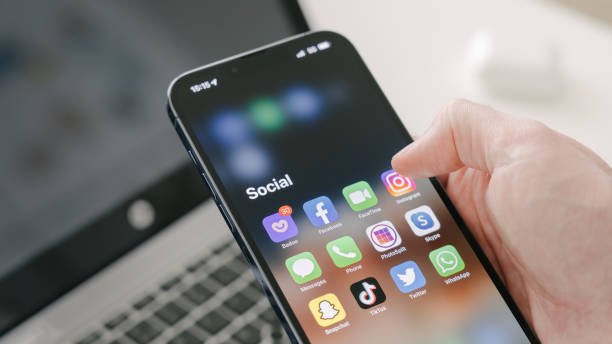
If Instagram is not loading photos, videos, Stories, or Reels, the cause may be your internet connection, the Instagram app, your phone settings, or a temporary problem with Instagram itself. Start by switching between Wi-Fi and mobile data, checking whether other websites work, and reopening Instagram. If the problem continues, update the app, clear its cache on Android, and test Instagram in a browser. These checks help you narrow down the cause before reinstalling the app or changing account settings. You generally do not need to delete your account or reset your phone to troubleshoot a loading problem.
What to Check First When Instagram Is Not Loading
Before changing settings, identify what is failing. The symptom can help you choose the right fix.
| What you notice | Possible cause | What to try first |
|---|---|---|
| Photos appear blank or gray | Connection, app data, or service problem | Switch networks and reopen Instagram |
| Videos keep buffering | Slow or unstable connection | Test another network and video service |
| Stories will not open | App, connection, or content-specific problem | Try several Stories and restart the app |
| Reels will not play | Connection, app, or service issue | Update Instagram and test another network |
| Instagram works in a browser but not the app | App-specific problem | Update the app and check its cache |
| Instagram fails only on Wi-Fi | Router or network configuration | Test mobile data |
| Instagram fails on several devices | Network, account, or service issue | Test another network and check for an outage |
These are diagnostic clues, not guaranteed explanations. Work through the steps below and test Instagram after each significant change.
1. Check Your Internet Connection
An unstable internet connection can prevent Instagram from loading media even when usernames, captions, and menus appear normally.
First, open your browser and visit two or three websites unrelated to Instagram. If they also load slowly or fail, investigate the connection before changing Instagram settings.
Try the following:
- Open a website in Chrome, Safari, or another browser.
- Play a short video on another service.
- Switch from Wi-Fi to mobile data.
- If you are using mobile data, connect to a trusted Wi-Fi network.
- Return to Instagram and test the same photo, Story, or Reel.
If other websites and videos also struggle, your internet connection may be the problem. If Instagram works on mobile data but not Wi-Fi, investigate the Wi-Fi network.
If your internet connection keeps dropping, read our guide on why your internet keeps going out.
2. Switch Between Wi-Fi and Mobile Data
Changing networks is a useful way to determine whether Instagram’s loading problem is related to your current connection.
Suppose Instagram opens on your phone, but every Reel keeps buffering while you are connected to home Wi-Fi. Turn Wi-Fi off temporarily and try mobile data.
If the videos begin playing normally, your Wi-Fi network deserves closer attention. Restart your router according to its instructions and check whether other devices on the same network have similar problems.
If Instagram works on Wi-Fi but not mobile data, check that mobile data is enabled, your data service is available, and Instagram is allowed to use mobile data.
Do not assume that full signal bars guarantee a stable internet connection. Signal strength and actual data performance are different things.
3. Close Instagram Completely and Open It Again
A temporary app problem can leave Instagram stuck on a blank feed, loading screen, or video that never starts.
Close the app completely rather than simply returning to your phone’s home screen.
On Android, open the recent-apps screen and swipe Instagram away. On iPhone, open the app switcher and close Instagram. The exact gesture depends on your device.
Then reopen Instagram and test the affected content.
This step does not delete your account. If Instagram still fails to load, restart your phone before moving to more involved troubleshooting.
4. Restart Your Phone
Restarting your phone can resolve temporary software problems and refresh the device’s network connection.
After the phone restarts:
- Open a browser and check that the internet works.
- Launch Instagram.
- Wait for the feed to refresh.
- Open a recent photo.
- Try a Story and a Reel.
Pay attention to whether all content fails or only one type of content remains affected. That distinction can help you identify the next step.
If other apps work normally but Instagram does not, continue with the app-specific checks below.
5. Update Instagram
An outdated app may have bugs or compatibility issues that affect how it loads content. Check for an update through the official app store.
On Android
- Open Google Play Store.
- Search for Instagram.
- Open the official app listing.
- Tap Update if the option appears.
On iPhone
- Open the App Store.
- Tap your account icon.
- Review the available app updates.
- Update Instagram if an update is available.
After updating, close Instagram and reopen it.
Only install Instagram through an official app store. Avoid modified apps or unofficial downloads that claim to repair loading problems.
6. Clear Instagram Cache on Android
Temporary app data, also called cache, helps an application load information efficiently. If Instagram becomes unusually slow or repeatedly fails to load content, clearing its cache may help.
On most Android phones:
- Open Settings.
- Tap Apps or Applications.
- Select Instagram.
- Open Storage or Storage & cache.
- Tap Clear cache.
- Reopen Instagram and test the content again.
Menu names vary between Samsung, Tecno, Infinix, Xiaomi, Google Pixel, and other Android devices.
Important: Clear cache is different from Clear data. Clearing app data may remove locally stored information and require you to sign in again. Do not choose that option casually, especially if you are unsure whether you can access your account.
iPhones generally do not provide the same direct option for clearing an individual app’s cache. Updating or reinstalling Instagram may be more appropriate if the problem is app-specific.
7. Check Your Phone’s Storage and Data-Saving Settings
If Instagram is still not loading while other apps work, check whether your phone is low on storage or restricting the app’s internet access.
Check available storage
Open your device’s storage settings. If the phone is almost full, consider removing unnecessary downloads, duplicate files, or apps you no longer use.
You do not need to delete important photos or personal files simply because Instagram is not loading. Free up space carefully and test the app again.
Review data-saving settings
Your phone may limit background data or restrict mobile data usage to reduce consumption.
Check whether:
- Instagram is allowed to use mobile data.
- Your phone’s data-saving mode is restricting the app.
- Instagram’s own data-usage settings are limiting media loading.
Temporarily change a relevant restriction and test Instagram again. If it makes no difference, restore the original setting before trying something else.
8. Temporarily Disconnect Your VPN
If you use a VPN and Instagram is not loading, disconnect the VPN temporarily and test the app again.
A VPN changes how your internet traffic is routed. Depending on the service and network conditions, this can affect connection speed or access to particular services.
You do not need to uninstall the VPN. Disconnect it, reopen Instagram, and see whether photos and videos load.
If the problem remains, reconnect the VPN if you normally need it. A VPN is not a universal fix, and you should not install an unfamiliar VPN simply because someone recommends it for Instagram.
9. Test Instagram in a Web Browser
Testing Instagram on the web helps you determine whether the problem is limited to the mobile app.
- Open Chrome, Safari, or another trusted browser.
- Visit the official Instagram website.
- Sign in if prompted.
- Check whether photos, Stories, Reels, and profiles load.
If Instagram works in the browser but not the app, focus on the app. Update it, restart your phone, clear the Android cache if applicable, or reinstall it if necessary.
If both the app and website fail, test another network or device. Do not immediately assume your account has been compromised simply because content will not load.
10. Check Whether Instagram Is Experiencing an Outage
Sometimes the problem is not on your phone. A temporary Instagram service disruption can affect loading, messaging, or particular features.
Before performing more disruptive troubleshooting, check whether other people are experiencing similar problems.
You can:
- Ask someone you trust whether Instagram is working for them.
- Test Instagram on another device.
- Check a reputable outage-monitoring service for a sudden increase in reports.
- Consult Instagram’s official help resources for account and technical guidance.
Third-party outage reports can suggest a wider problem, but they do not prove that Meta has officially confirmed an outage. A website responding normally also does not guarantee that every Instagram feature is working.
If many users appear to be affected, waiting and testing again later may be more useful than repeatedly reinstalling the app or changing your phone settings.
11. Test Instagram on Another Device
If you have access to another trusted phone, tablet, or computer, try opening Instagram there. Use the same account if you can do so safely.
The result can help narrow down the problem:
- Instagram works on another device: Focus on the original device or app.
- Instagram works on mobile data but not Wi-Fi: Investigate the Wi-Fi network.
- Instagram works in a browser but not the app: Focus on the mobile application.
- Instagram fails on several devices and networks: Investigate a possible account or service problem.
For example, if photos remain blank on your phone but load normally on your laptop, changing your Instagram password is unlikely to be the most useful first step. The evidence points more strongly toward the phone, app, or connection.
12. Reinstall Instagram if the Problem Persists
Reinstalling Instagram can help when the application remains broken after you have checked the connection, restarted the device, updated the app, and cleared its cache where available.
Before uninstalling, make sure you know your login details and can access any required recovery email, phone number, or two-factor authentication method.
Then:
- Uninstall Instagram from your device.
- Restart the device.
- Open Google Play Store or the Apple App Store.
- Install the official Instagram app again.
- Sign in and test photos, Stories, and Reels.
Reinstalling Instagram is not the same as deleting your Instagram account. However, you may need to sign in again and restore some app preferences.
If you cannot sign in, do not keep reinstalling the app. Follow the appropriate account-recovery steps instead.
13. What If Instagram Still Will Not Load?
If the usual fixes have not helped, use the results of your earlier tests to decide what to investigate next.
If only one device is affected
Check for operating-system updates, available storage, restrictive data settings, and device-specific network problems. If possible, test Instagram on another browser or network.
If Instagram fails only on one network
Check your router, network restrictions, or internet provider. If other websites also fail, investigate the connection rather than Instagram.
If the app works but login fails
That is a different problem from photos or videos not loading. Our guide to Instagram login problems covers password errors, verification codes, and account recovery.
If several devices and networks fail
A wider service issue or an account-specific problem becomes more plausible. Check for outage reports and use Instagram’s official support and recovery options as appropriate.
Do not pay a stranger who promises to unlock your account, and never share your password or verification code with someone claiming to be Instagram support.
Frequently Asked Questions About Instagram Not Loading
Why is Instagram not loading photos when the app opens?
An unstable connection, temporary app data problem, outdated app, device restriction, or service disruption can prevent photos from loading even when the interface appears normally. Switch networks, restart Instagram, and update the app before trying more disruptive fixes.
Why are Instagram videos buffering but photos loading?
Videos need a steady flow of data, so they may buffer even when photos load. Try another network and test a video on another service. If other videos also buffer, investigate your internet connection first.
Why is Instagram Reels not loading?
Reels may fail because of a connection problem, app issue, device restriction, or temporary service disruption. Restart Instagram, update the app, test another network, and clear the cache on Android if appropriate.
Why does Instagram work in a browser but not the app?
This suggests an app-specific problem. Update Instagram, restart your device, clear the Android cache if available, and reinstall the app if the simpler steps do not help.
Does clearing Instagram cache delete my account?
No. Clearing cache does not delete your Instagram account. Clearing app data or reinstalling the application may remove local information or require you to sign in again.
Should I change my Instagram password if photos will not load?
Usually not. A media-loading problem alone does not indicate that your account has been compromised. Investigate your connection, app, and service status first. Change your password if you have evidence of suspicious access or receive credible security alerts.
How do I know if Instagram is down for everyone?
Test the app and website on another device or network, ask someone you trust whether Instagram works for them, and check reputable outage-monitoring services. These checks can suggest a wider problem, but third-party reports alone are not official confirmation from Meta.
Final Thoughts On Instagram Not Loading
When Instagram is not loading photos, videos, Stories, or Reels, start with your internet connection and switch between Wi-Fi and mobile data. Then restart Instagram, update the app, and clear its cache on Android if appropriate.
If the problem continues, test Instagram in a browser and on another device before reinstalling it. These checks help you distinguish an app problem from a network, device, account, or service issue.
Use the least disruptive fix that matches the evidence. You generally do not need to change your password, delete your account, or reset your phone to troubleshoot a temporary Instagram loading problem.